


Returns, exchanges and after-sales: one case from the customer account to the Shopware admin
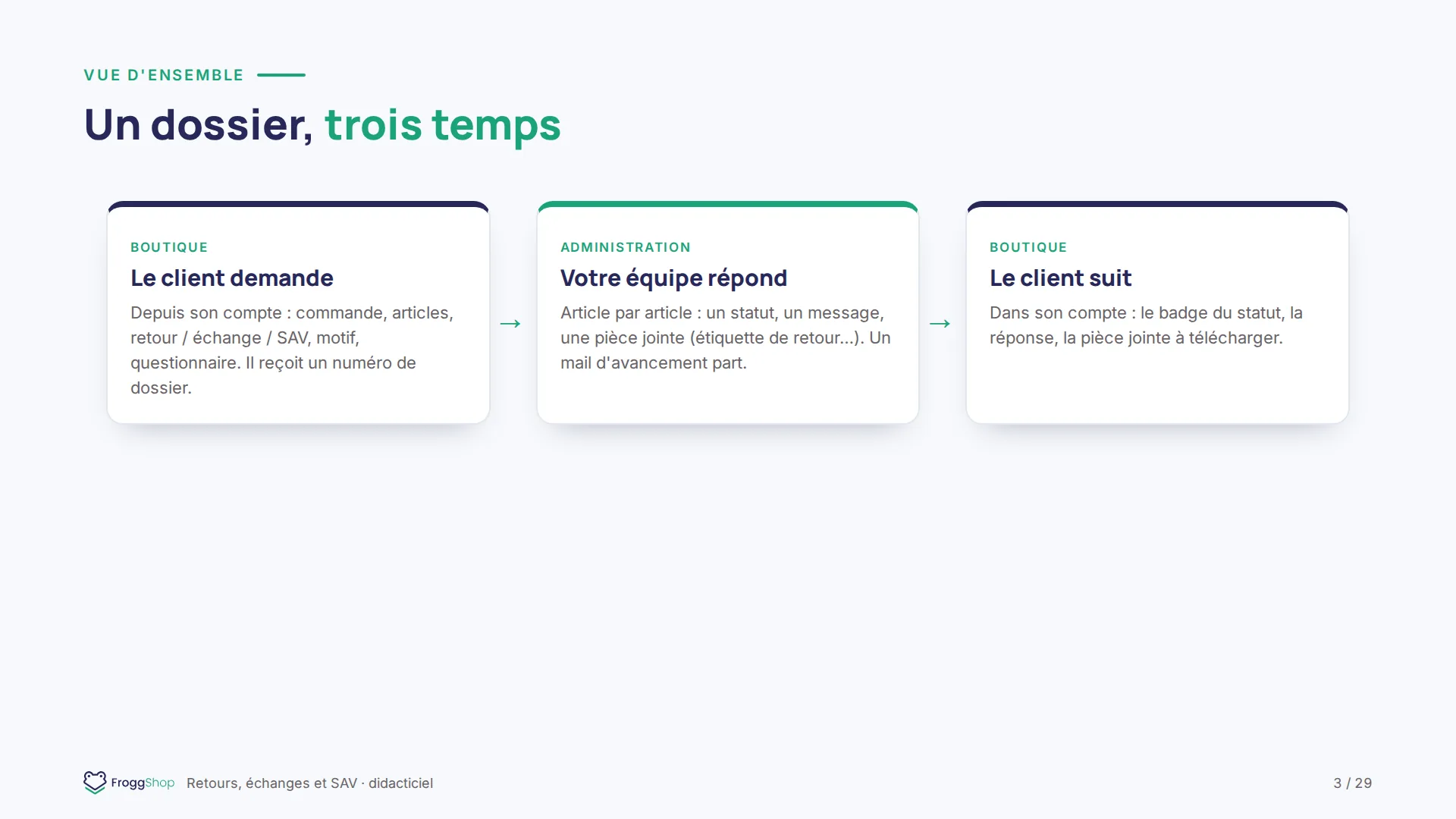
A return often starts with an email, then a series of exchanges to find the order and understand the problem. With FroggShop, the request arrives qualified in a numbered case that the customer and your team each follow on their side.
Open a request from the account
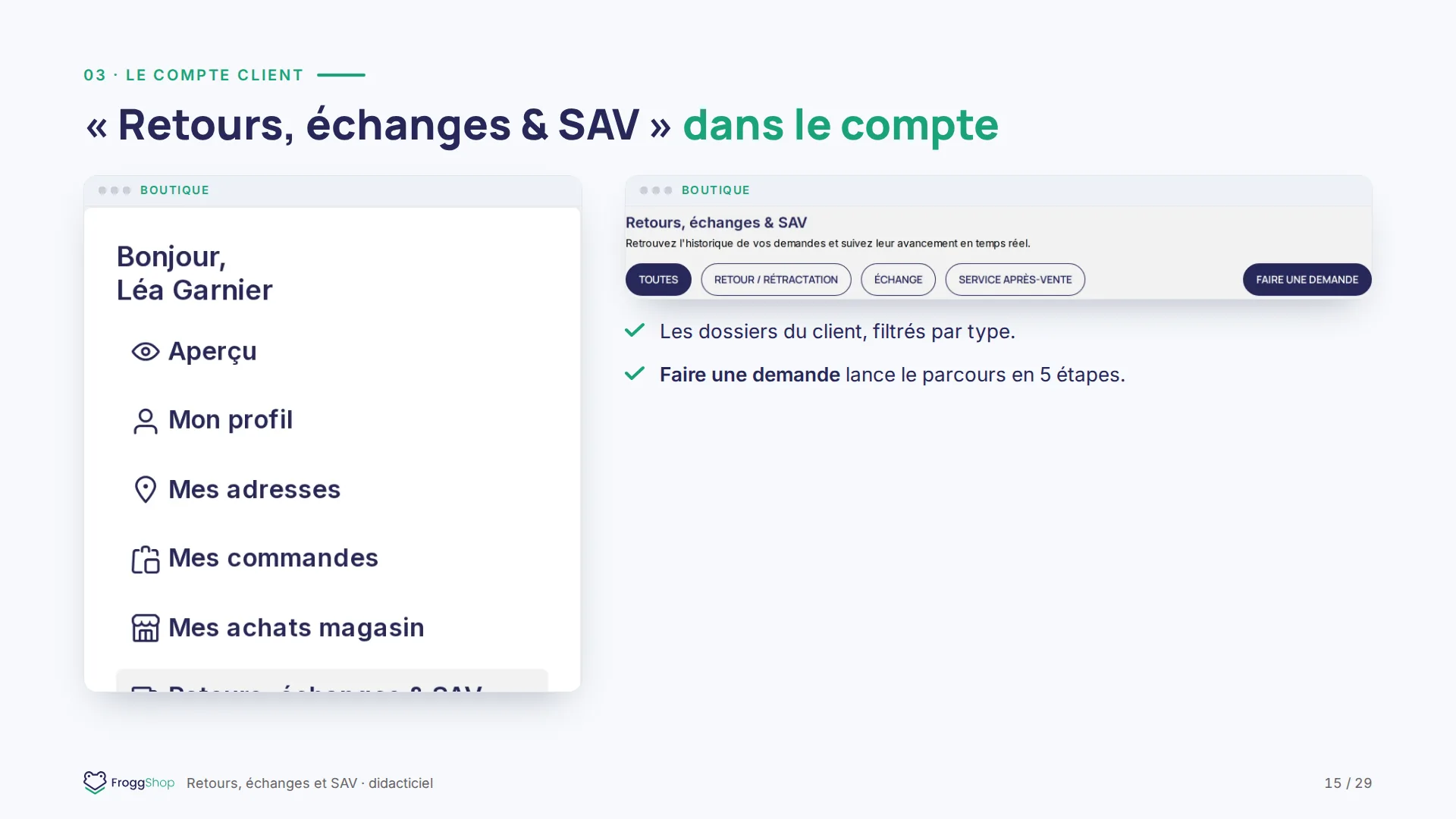
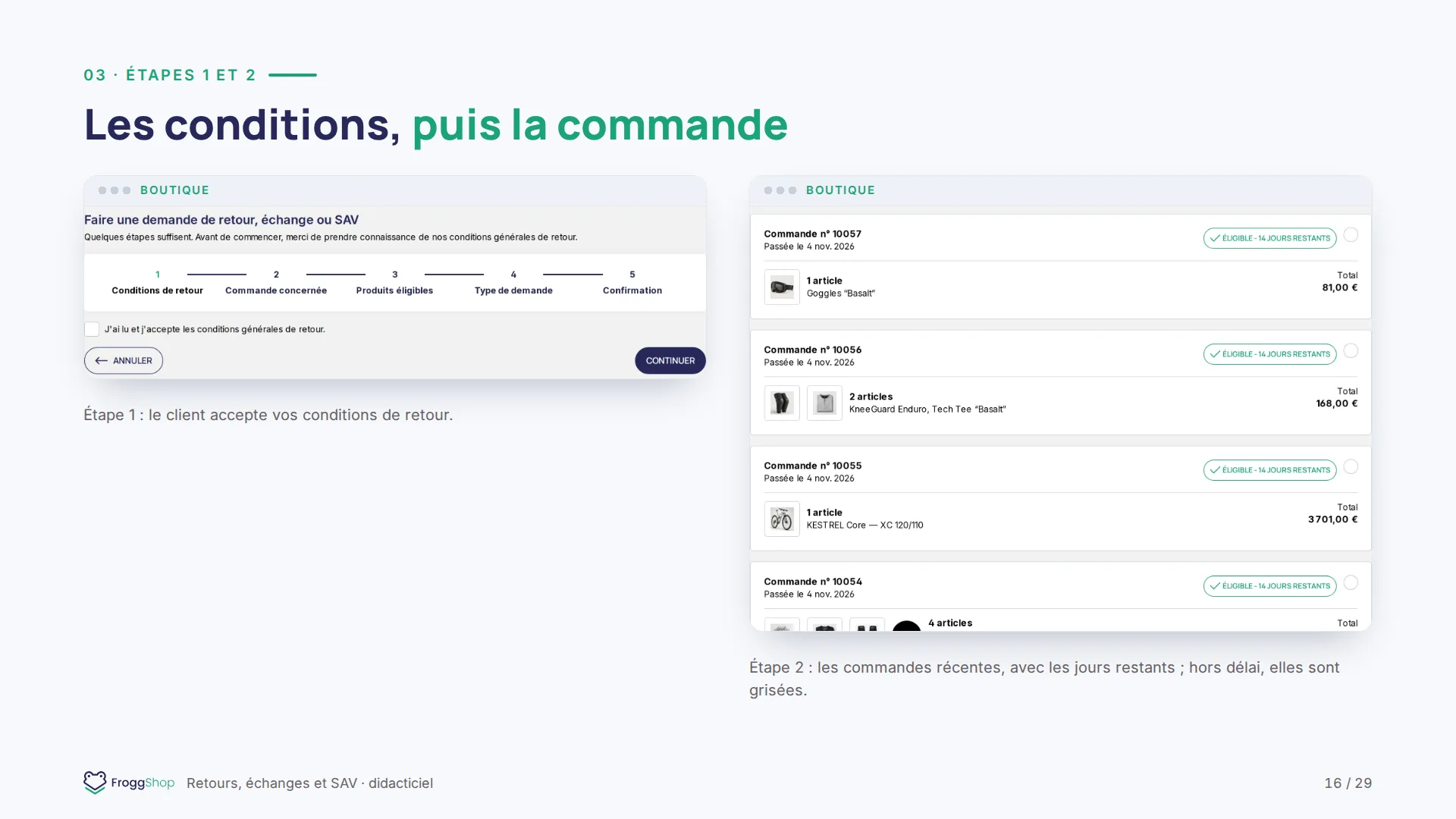
In their account, customers open Returns, exchanges & after-sales, then Make a request. They accept your return conditions and choose the order: remaining days are shown, orders past the deadline are greyed out.
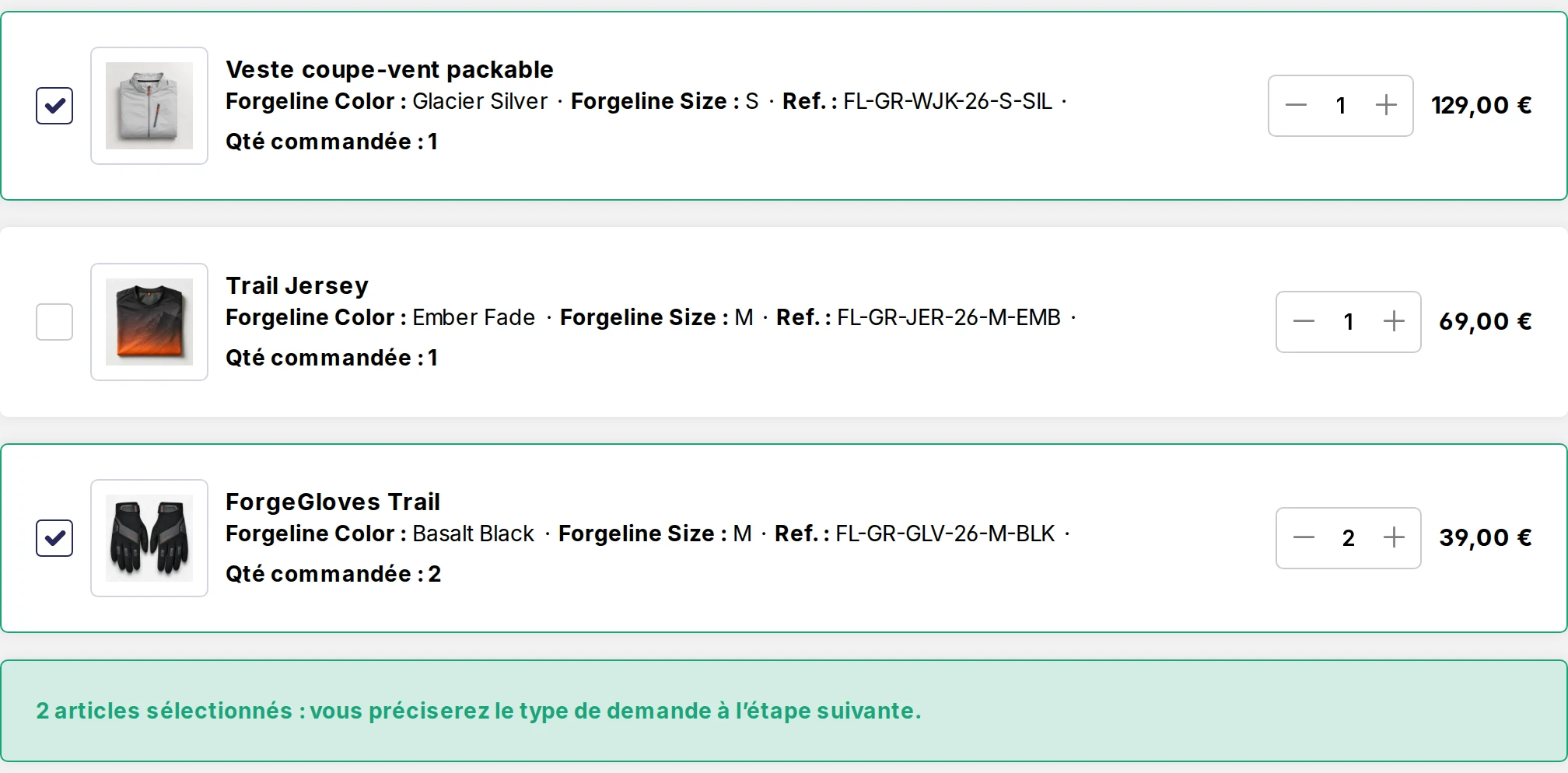
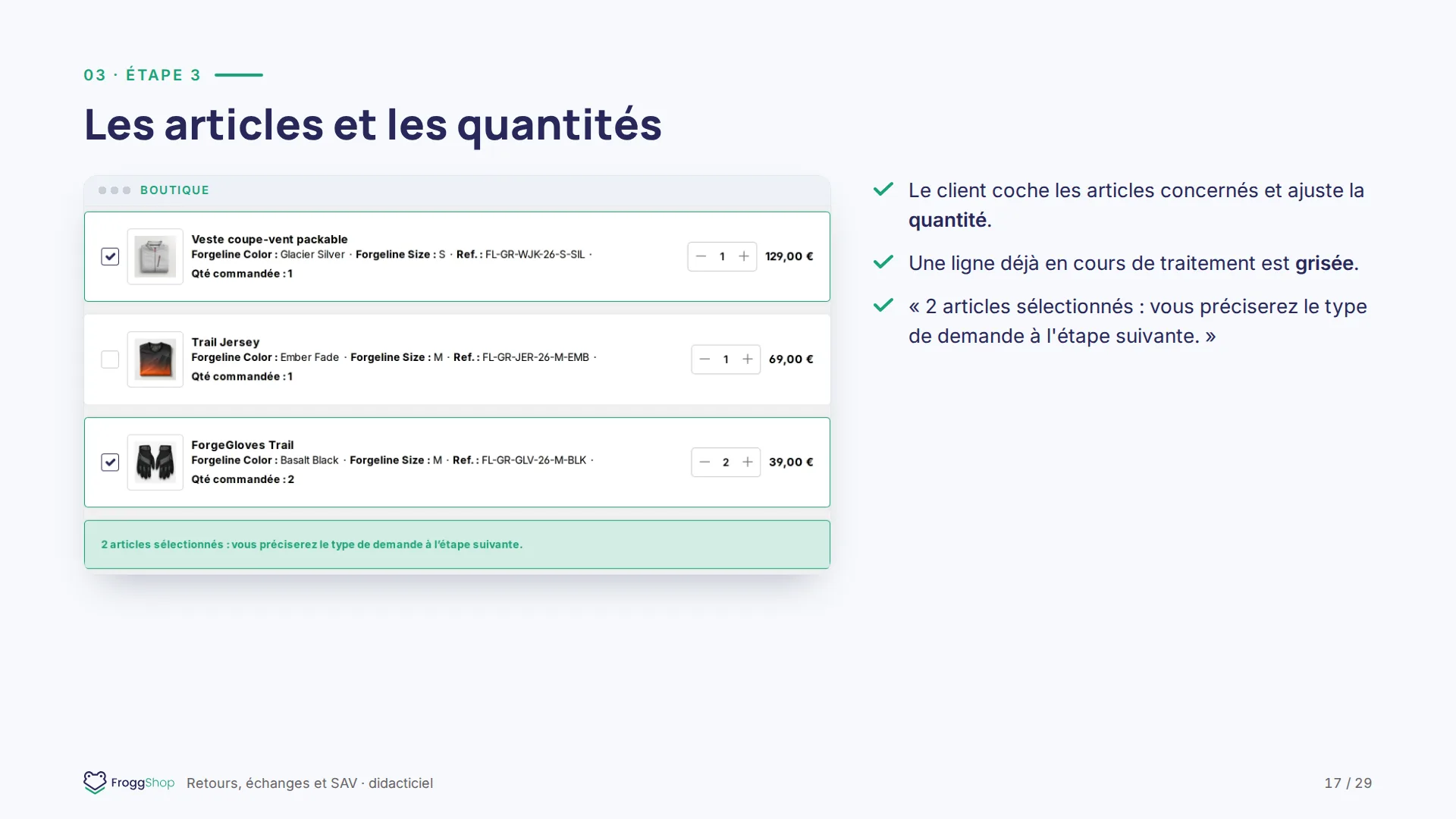
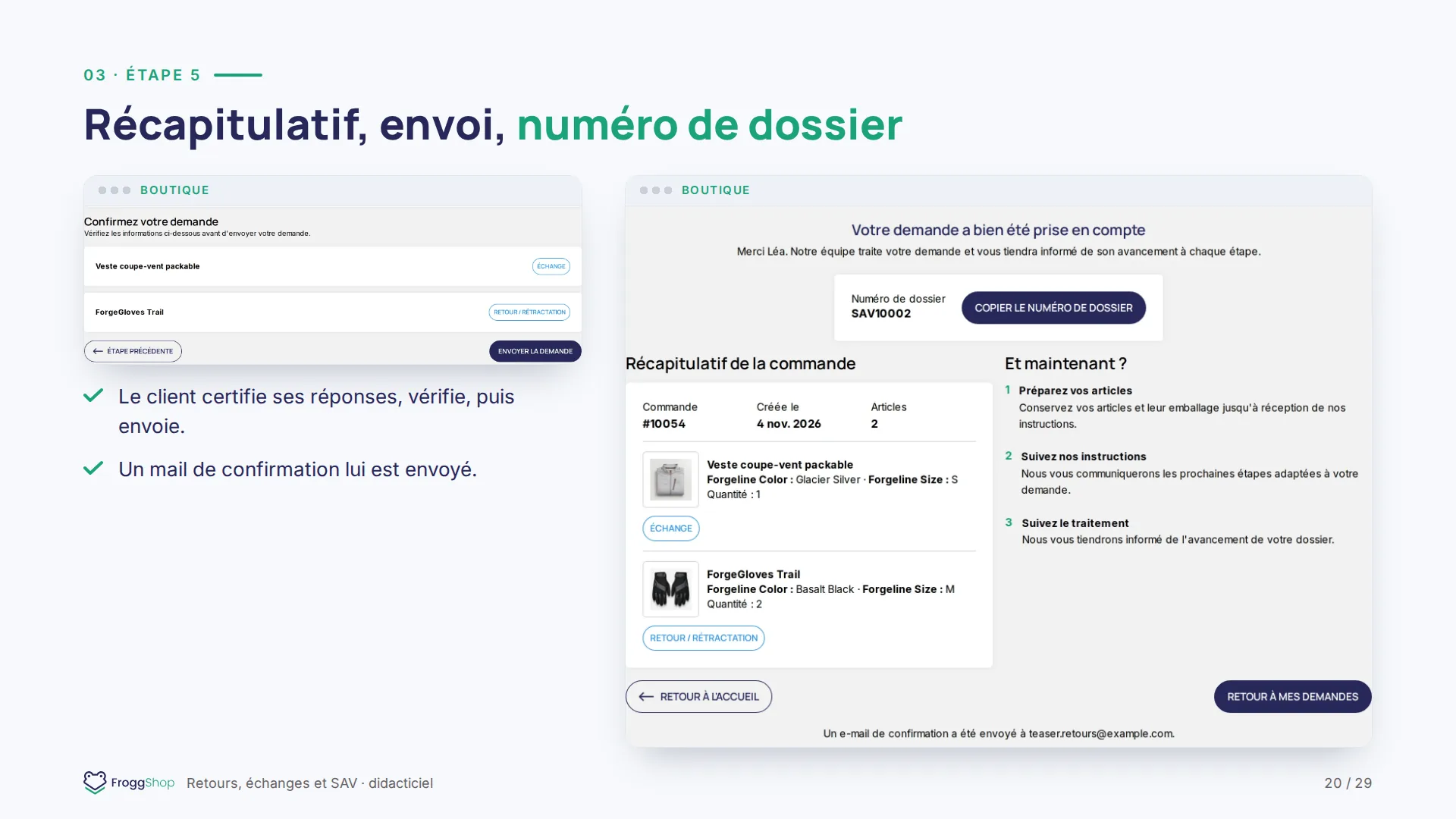
They then tick the items concerned and their quantity, specify the request for each one, review the summary and send it. They receive a case number and a confirmation email. A shortcut can also appear on each line of “My orders”.
One handling per item
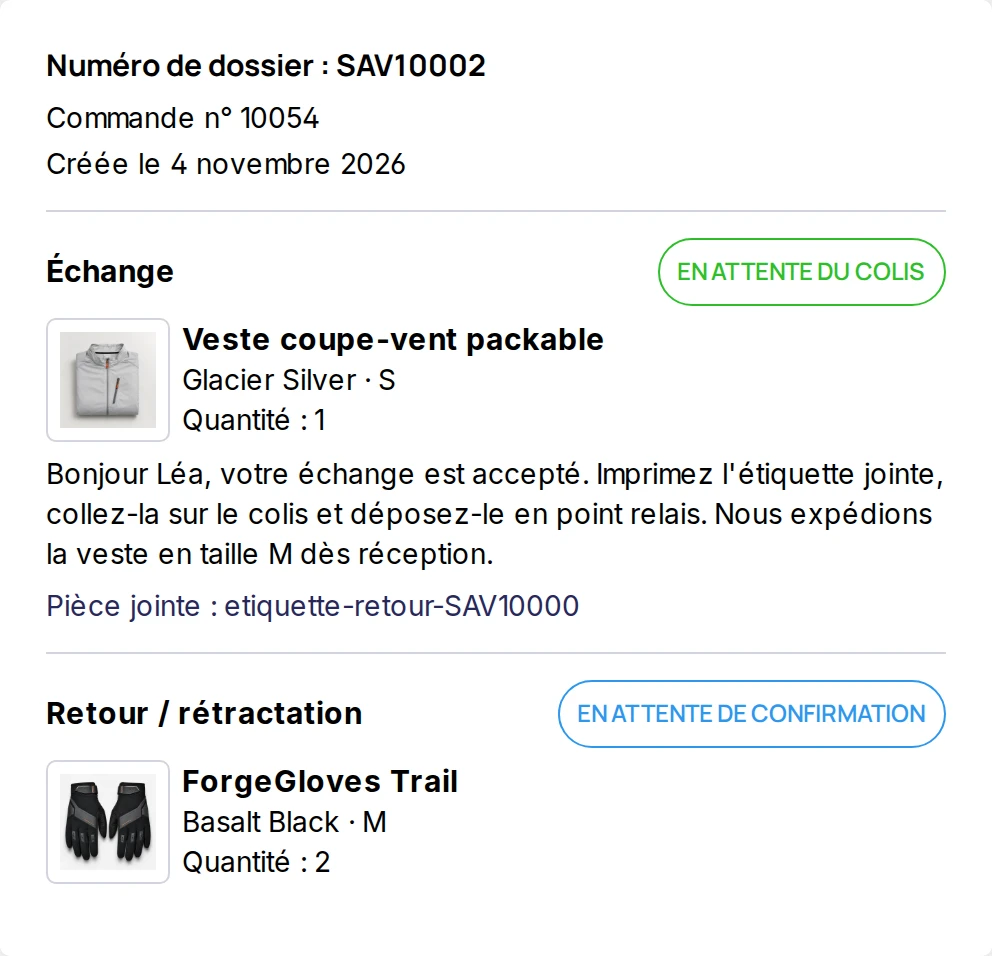
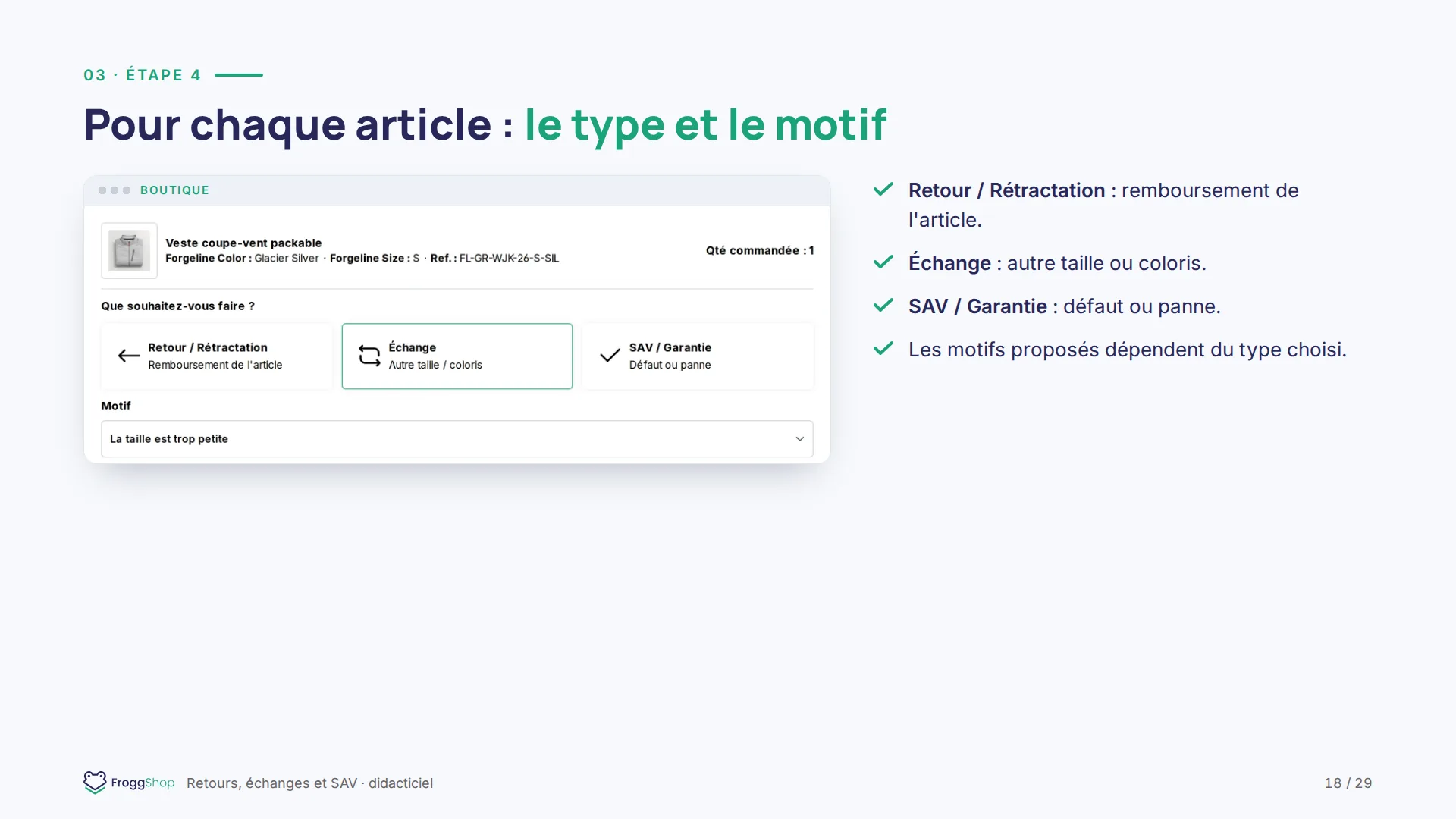
Within the same request, each item has its own handling: return, exchange or after-sales. The jacket that is too small goes for exchange, the gloves that do not fit for return.
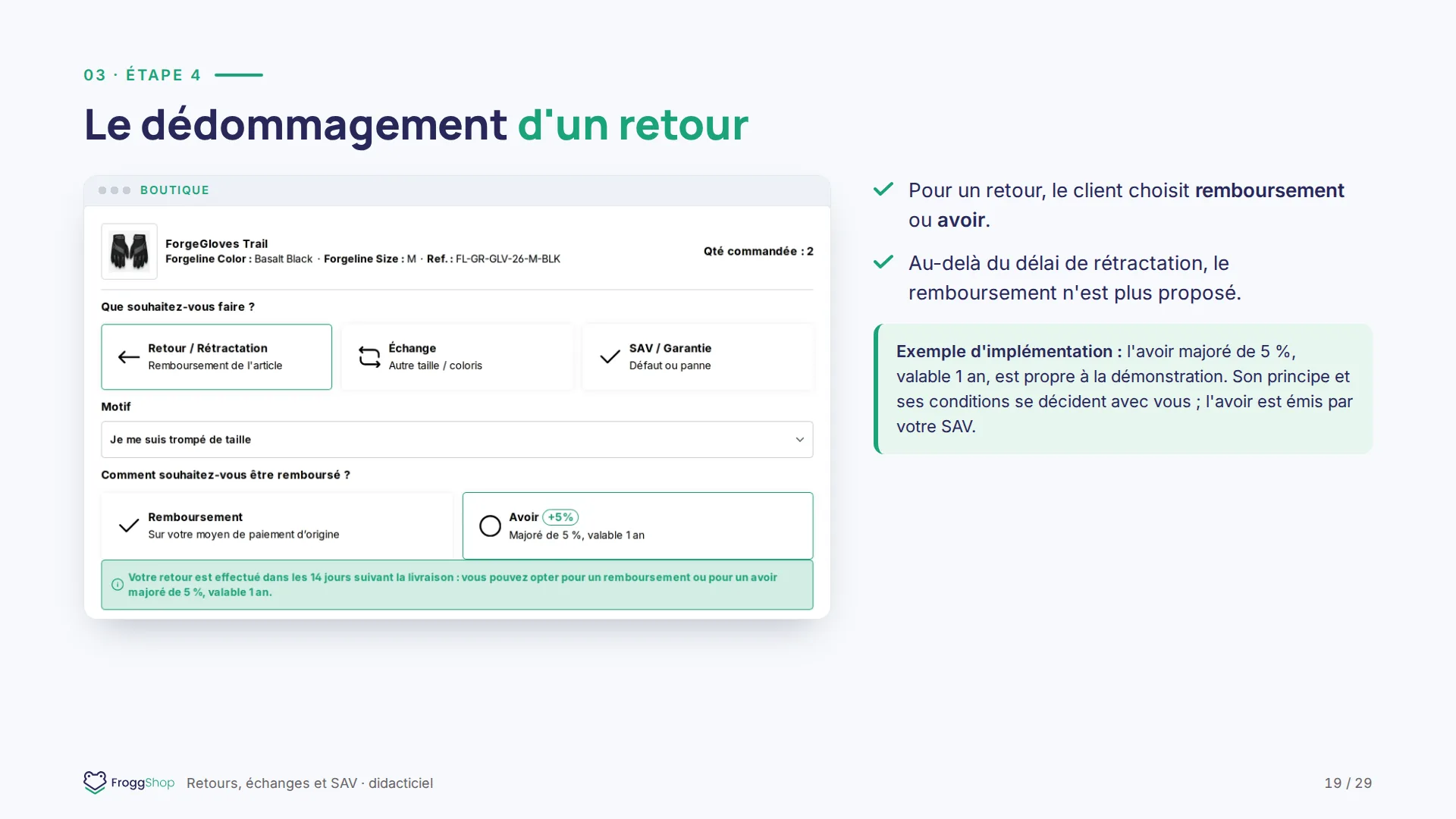
For a return, customers choose their compensation: refund, or store credit if you offer it. On the demo shop, a store credit increased by 5% illustrates this option; its amount and conditions remain at your discretion.
A request qualified from the start
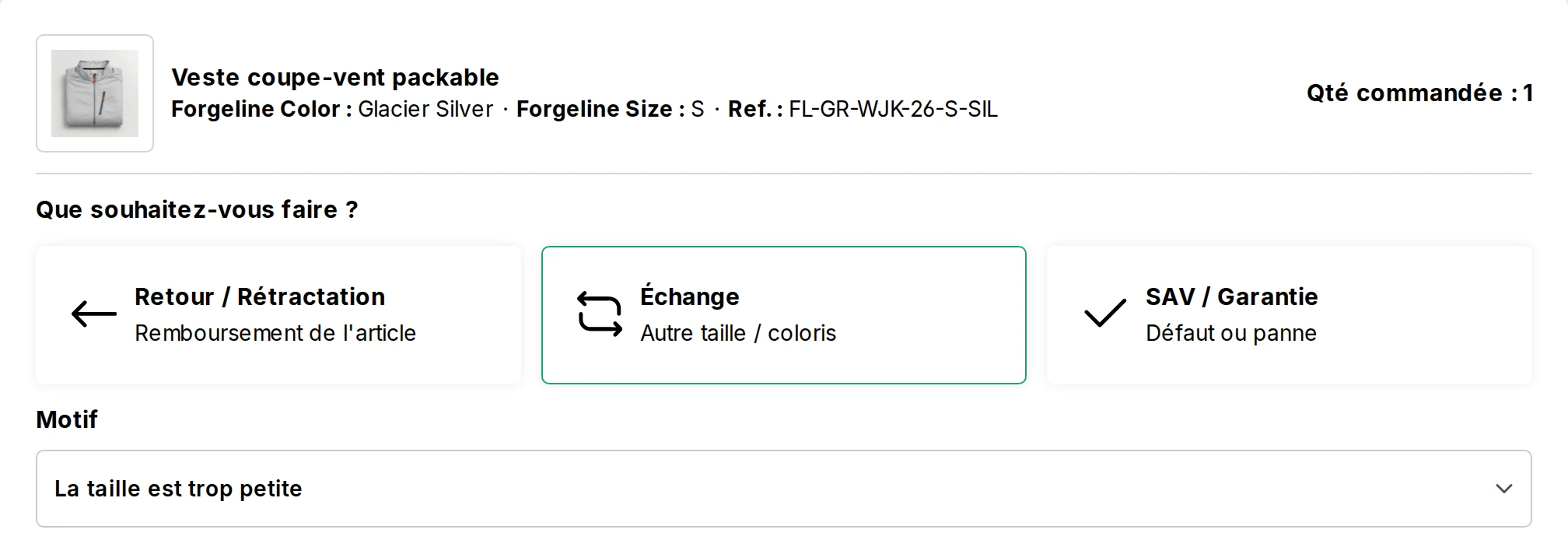
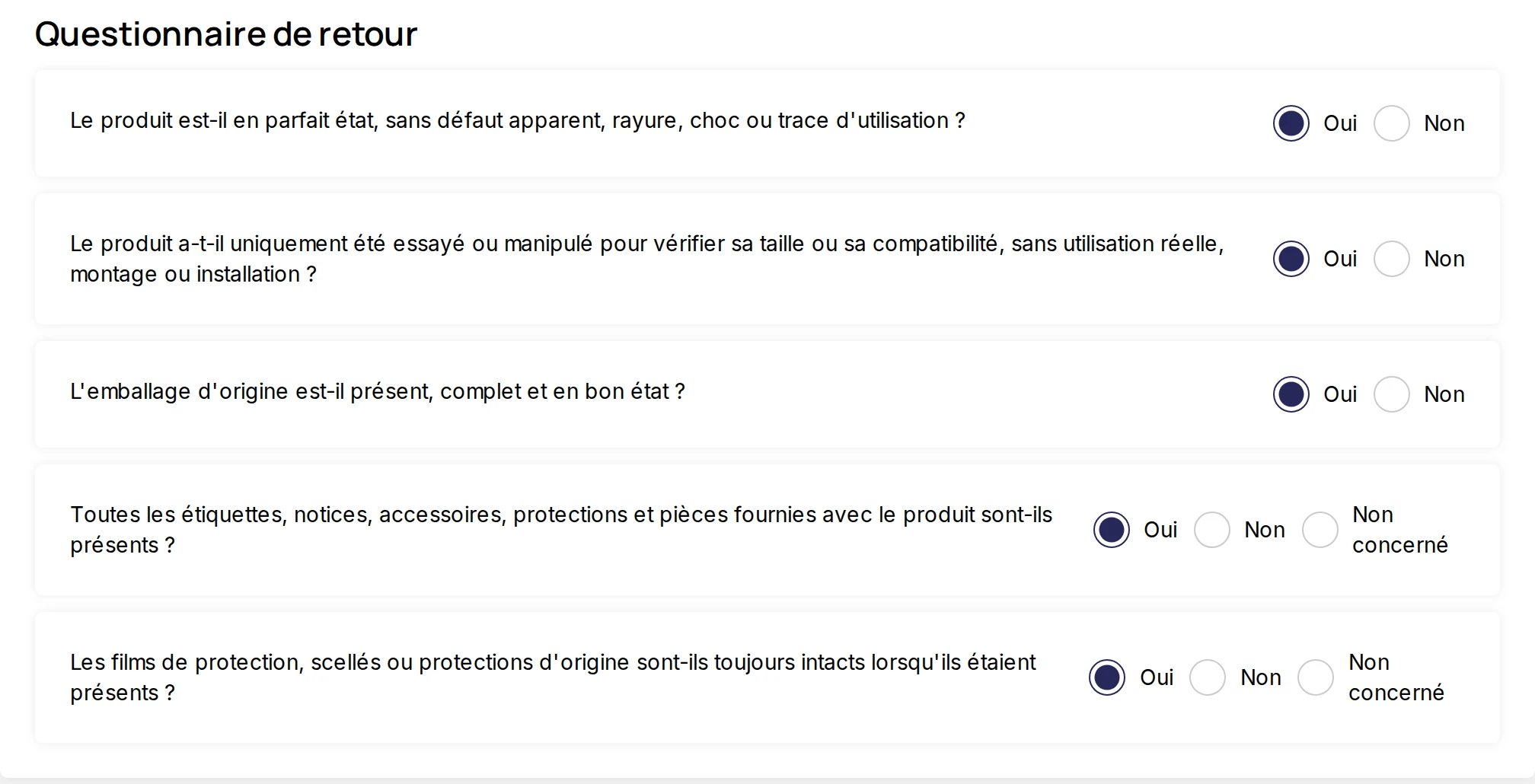
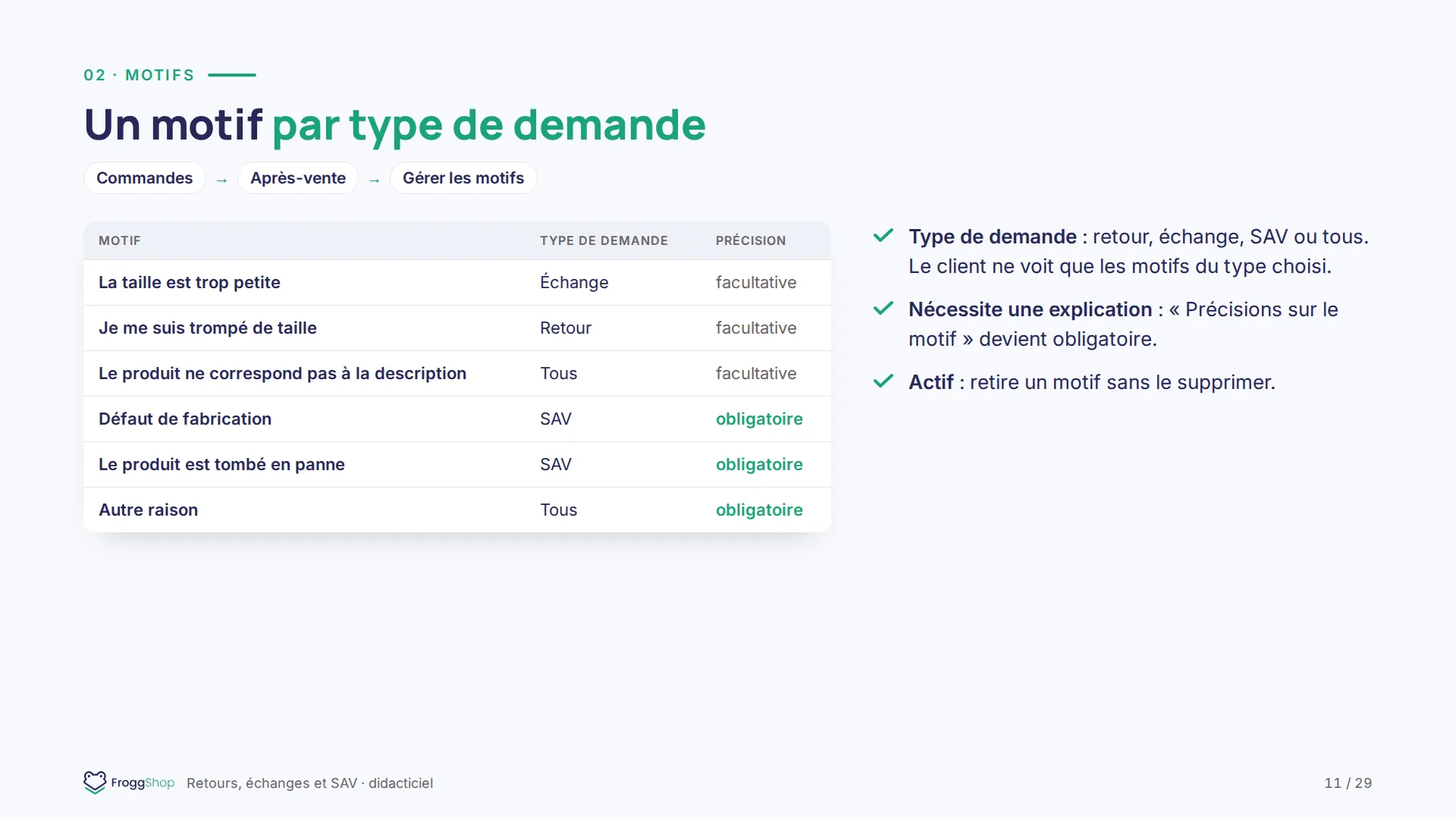
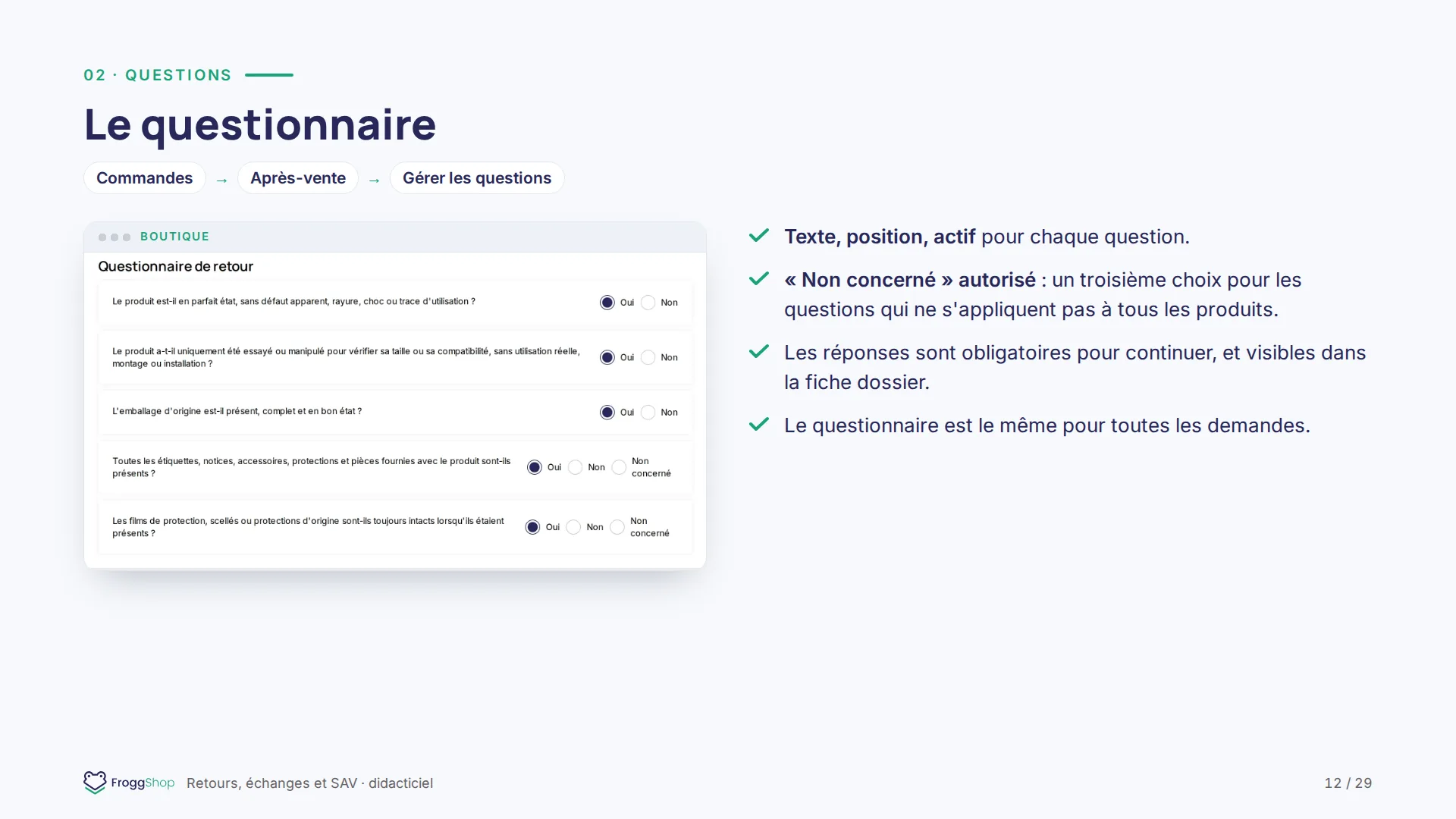
The reason offered depends on the request type, and you decide which reasons require details. A questionnaire records the condition of the product, with a “Not applicable” answer when a question does not apply.
Your team therefore receives the order, the items, the request type, the reason, the details and the questionnaire answers, without asking the questions again.
Answer item by item in the admin
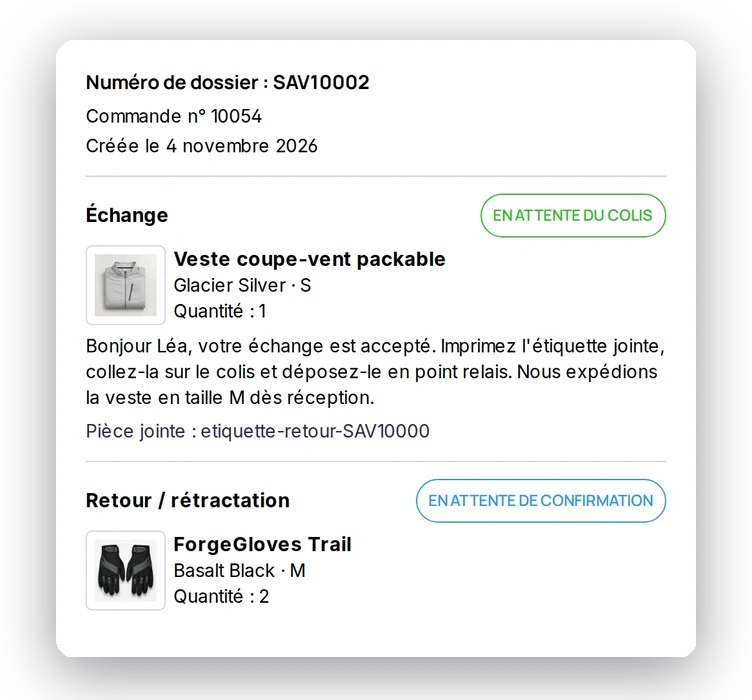
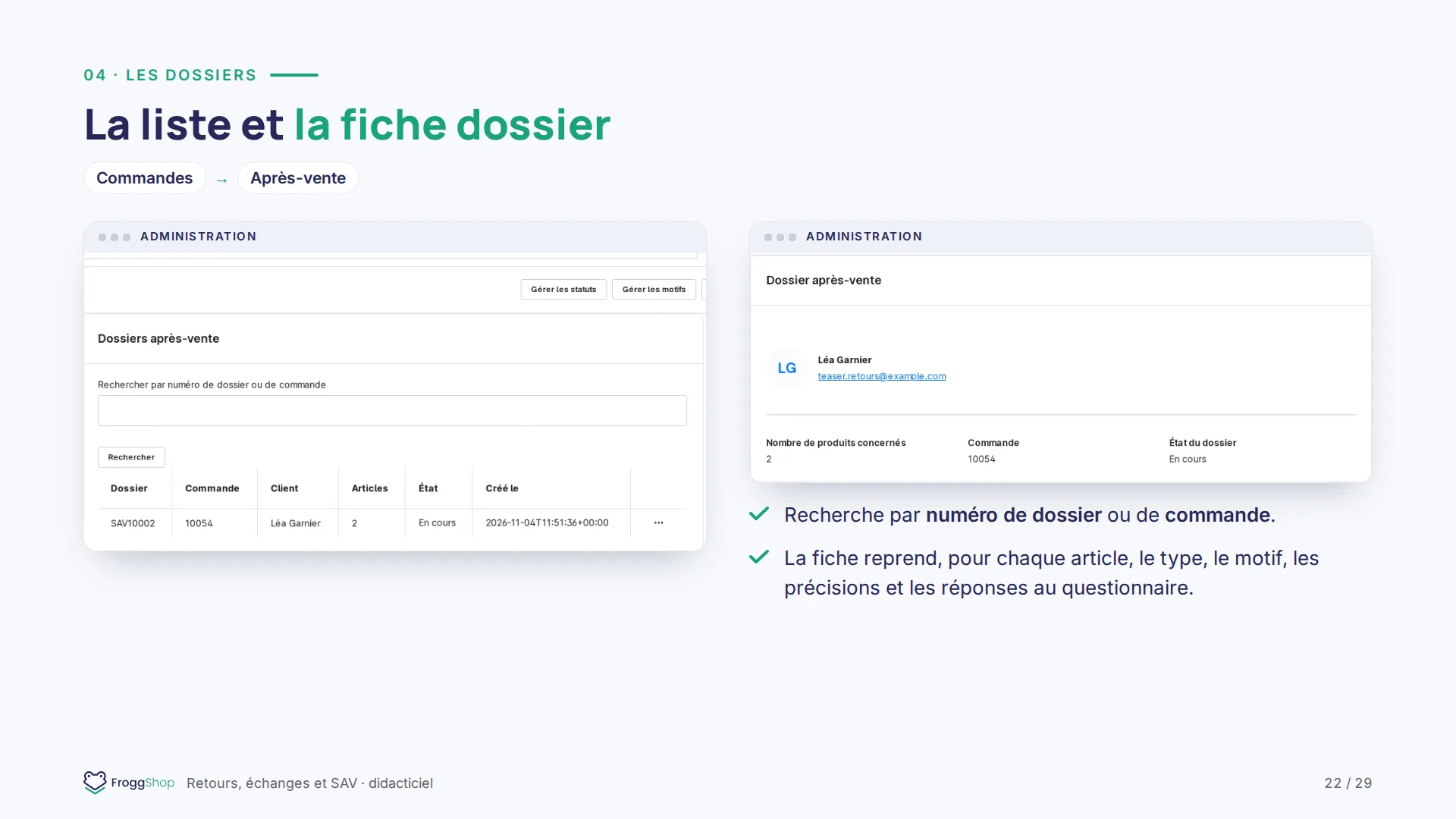
Requests arrive in Orders → After-sales, with a search by case or order number. The case page shows the customer, the order, then each item with its request.
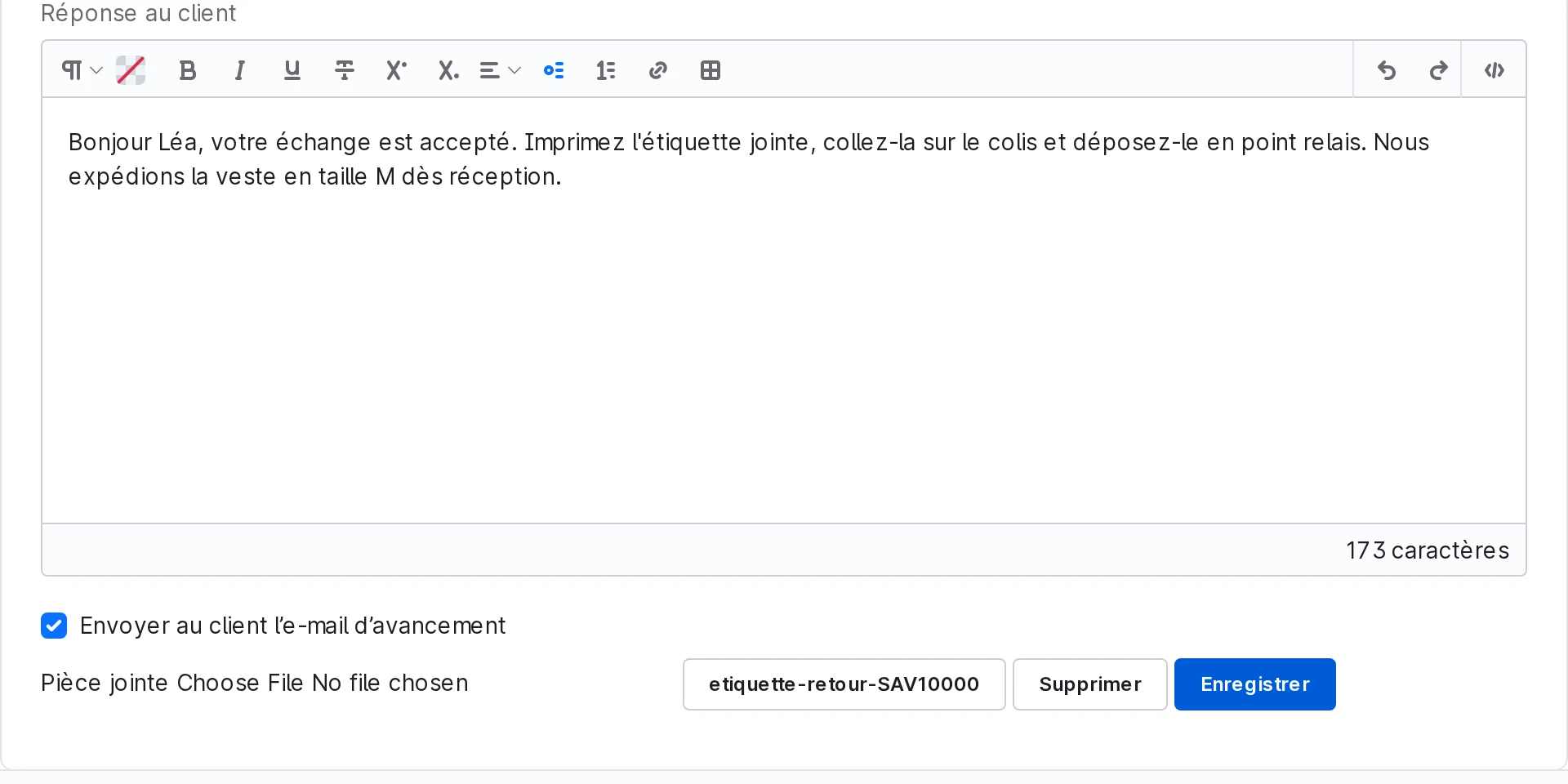
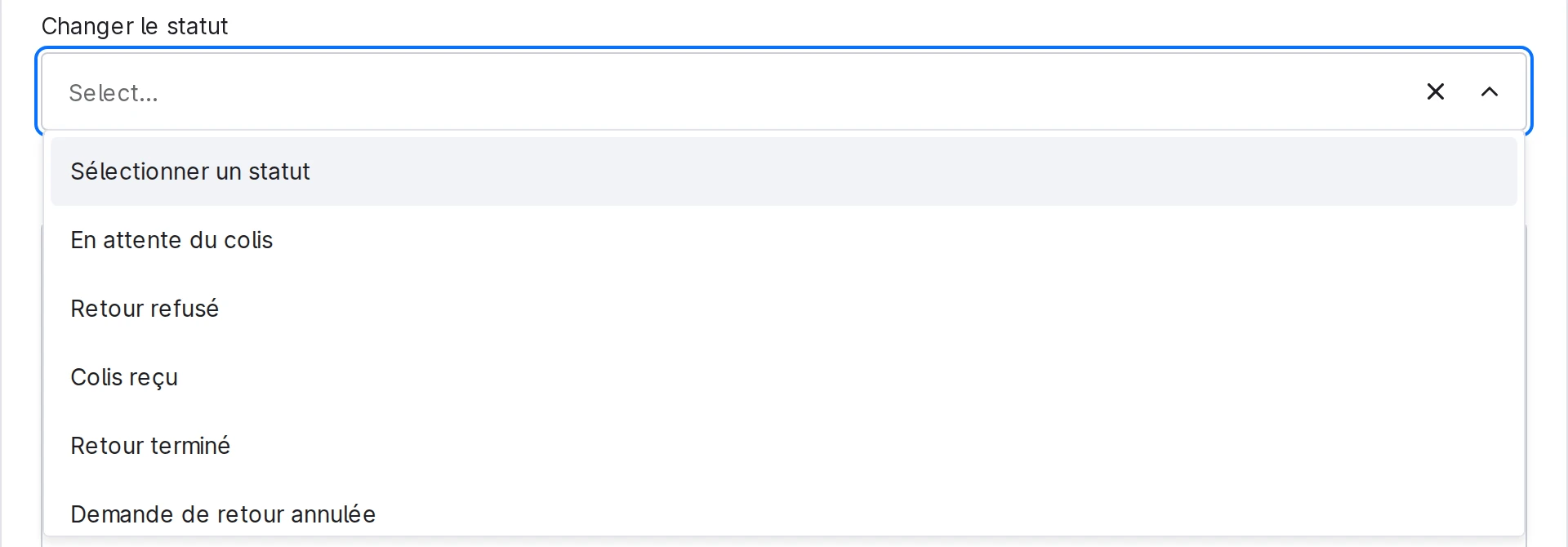
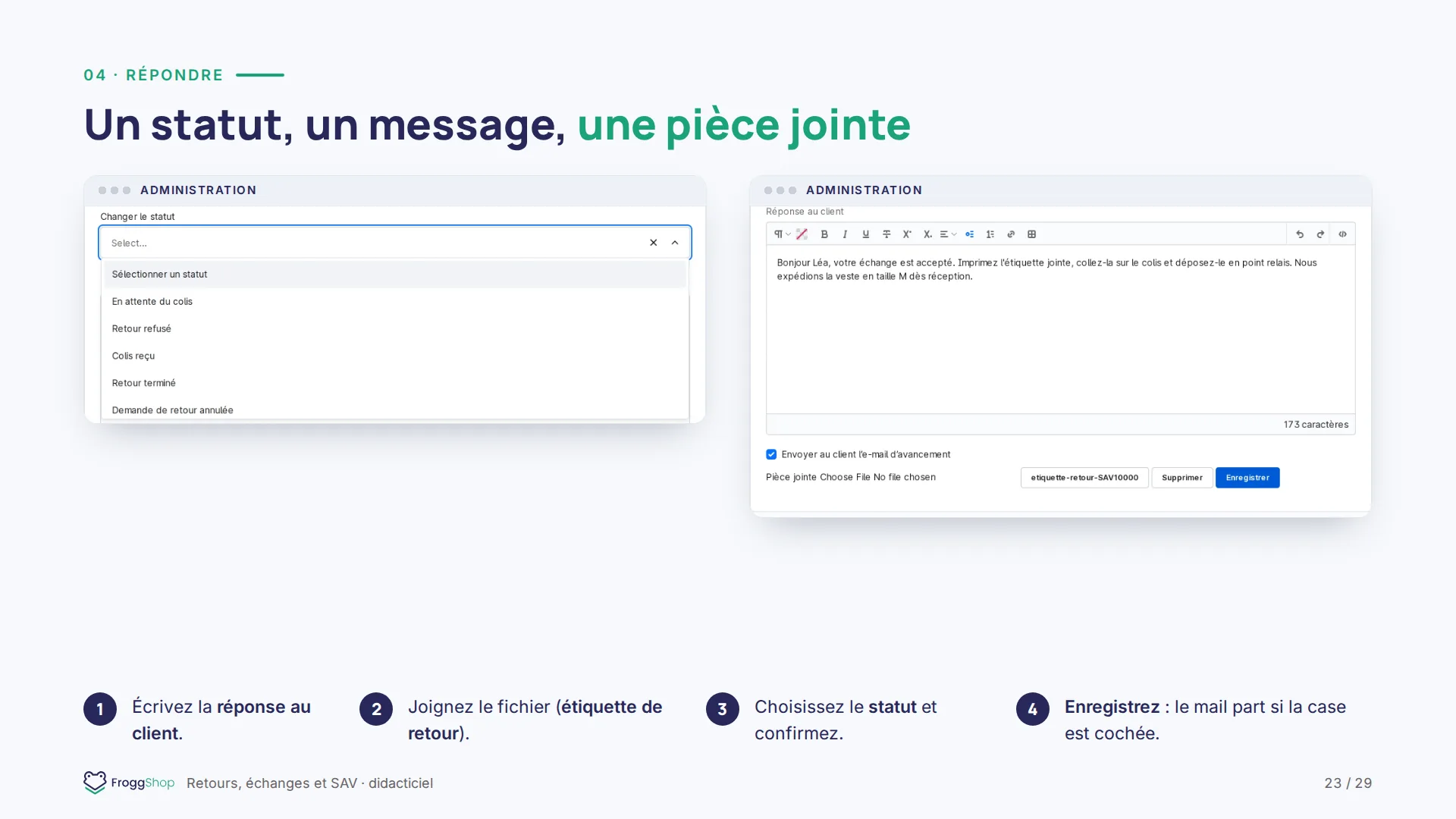
For each item, your team changes the status, writes a message to the customer and can attach a file, such as the return label. On saving, the customer can be notified by email.
The customer follows the case
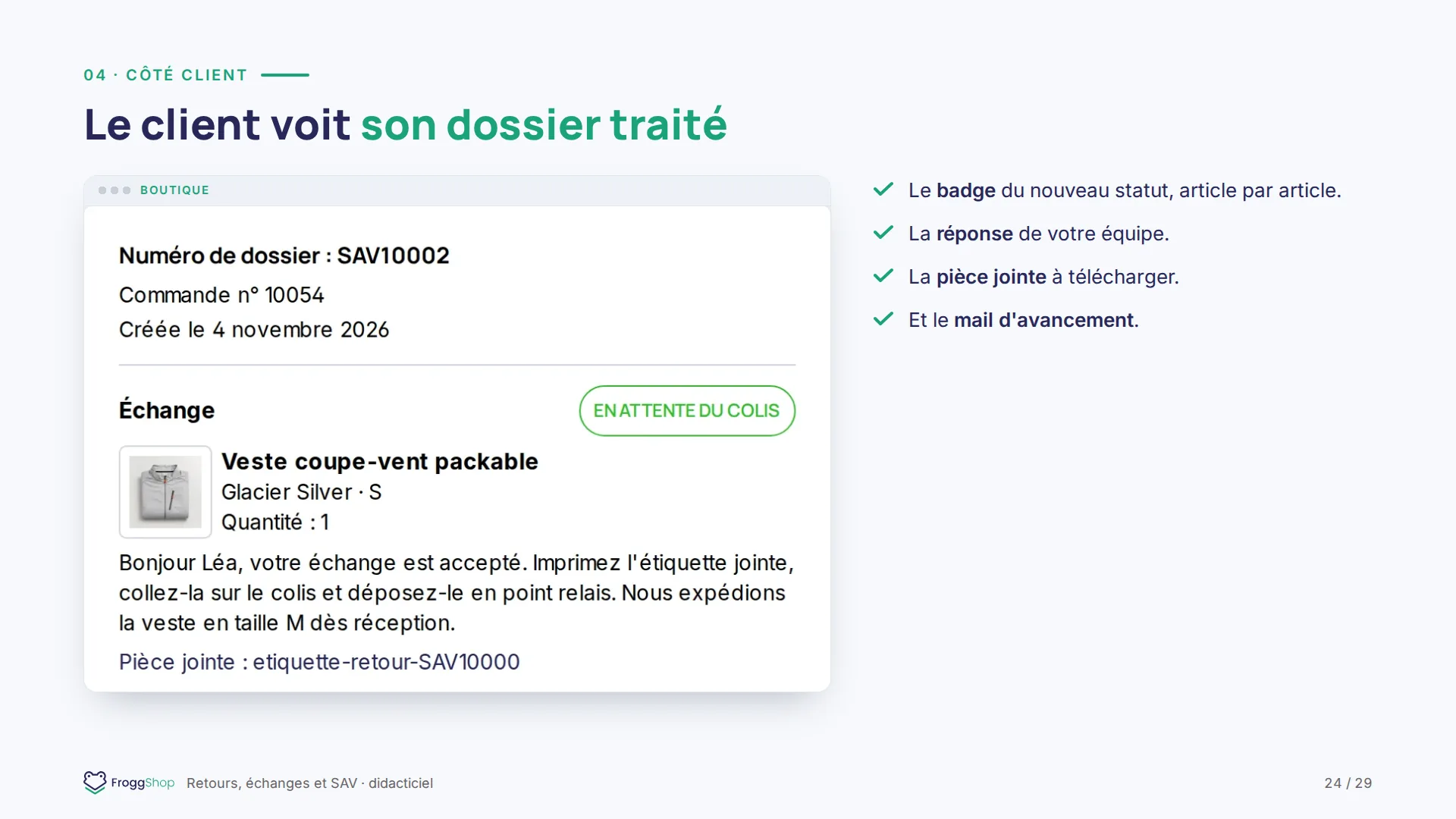
In their account, the case shows for each item the new status badge, your team’s reply and the attachment to download.
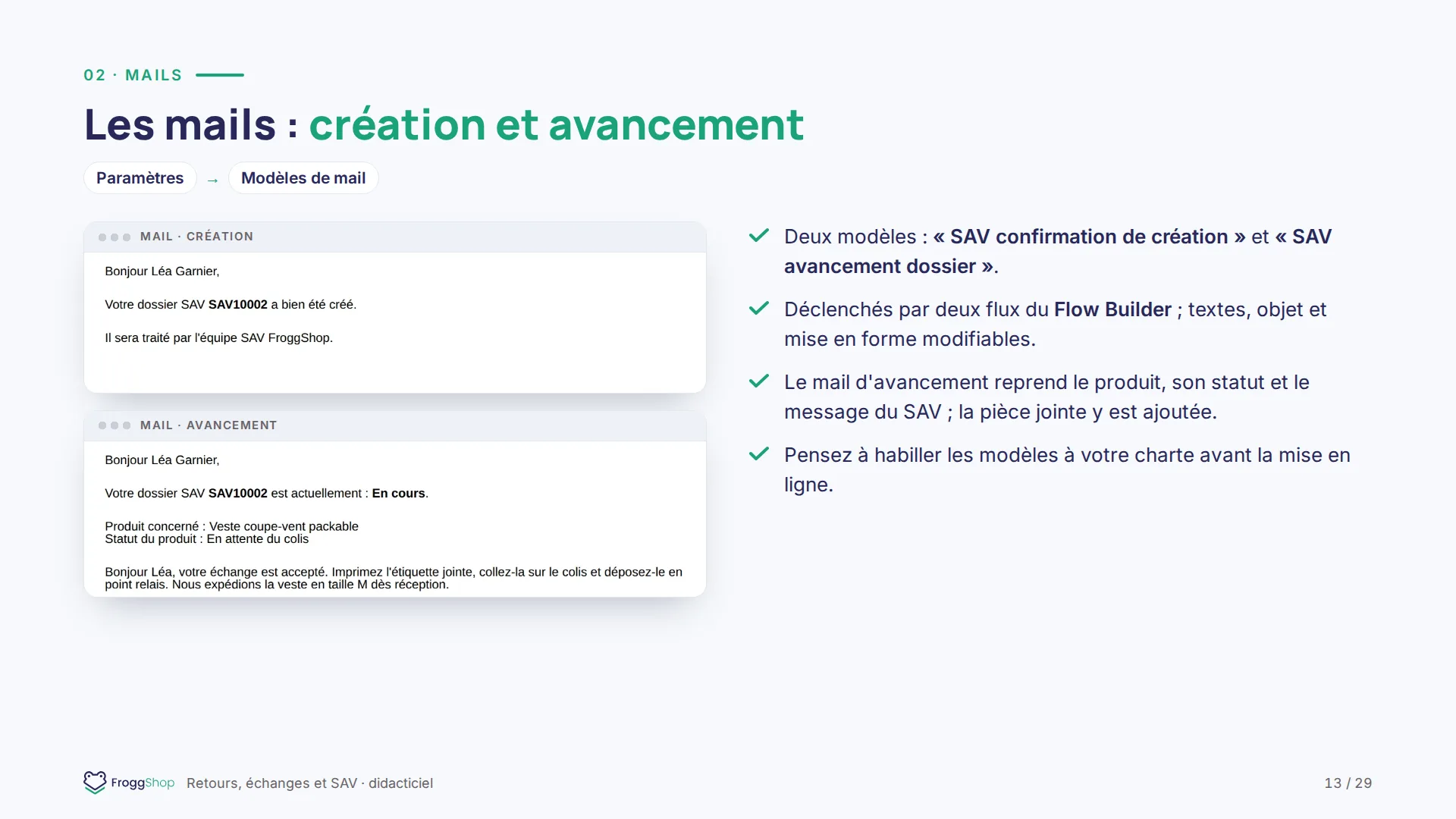
The progress email repeats the status and the message. Customers know where their request stands without writing to customer service.
The complete journey, commented
The customer request, your team’s reply in the admin, then the settings behind them: the journey end to end, in under 2 minutes (French voice-over).
Your return rules
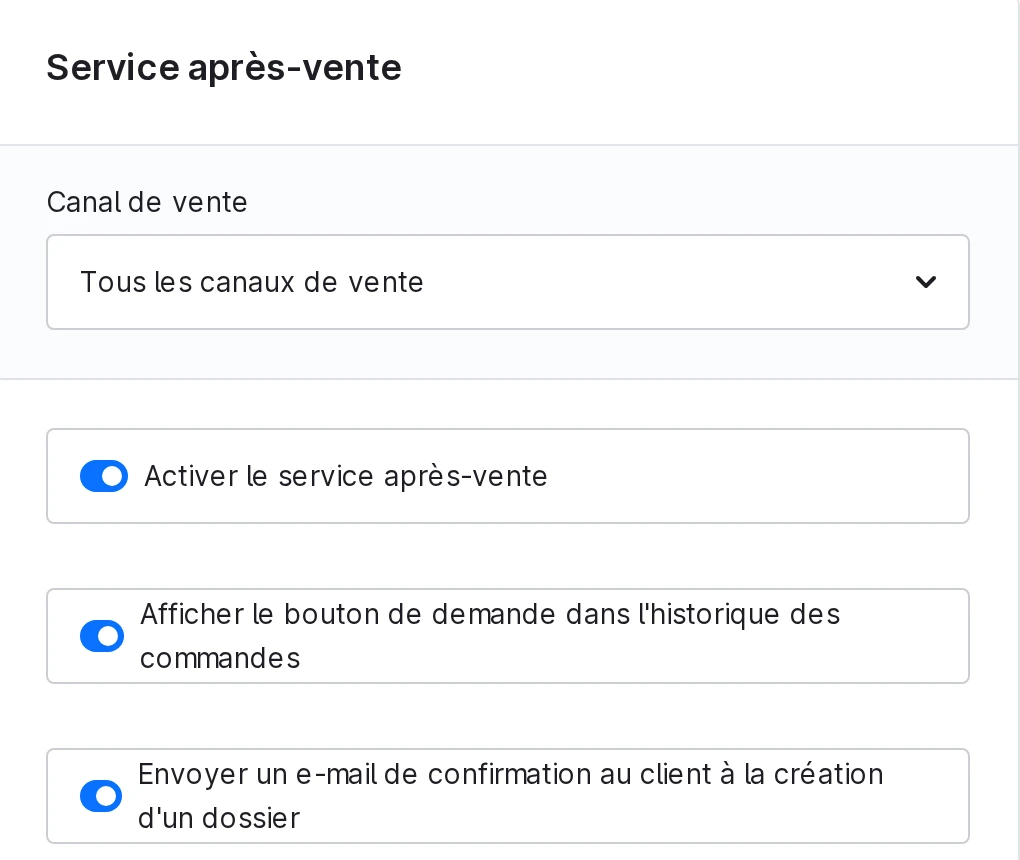
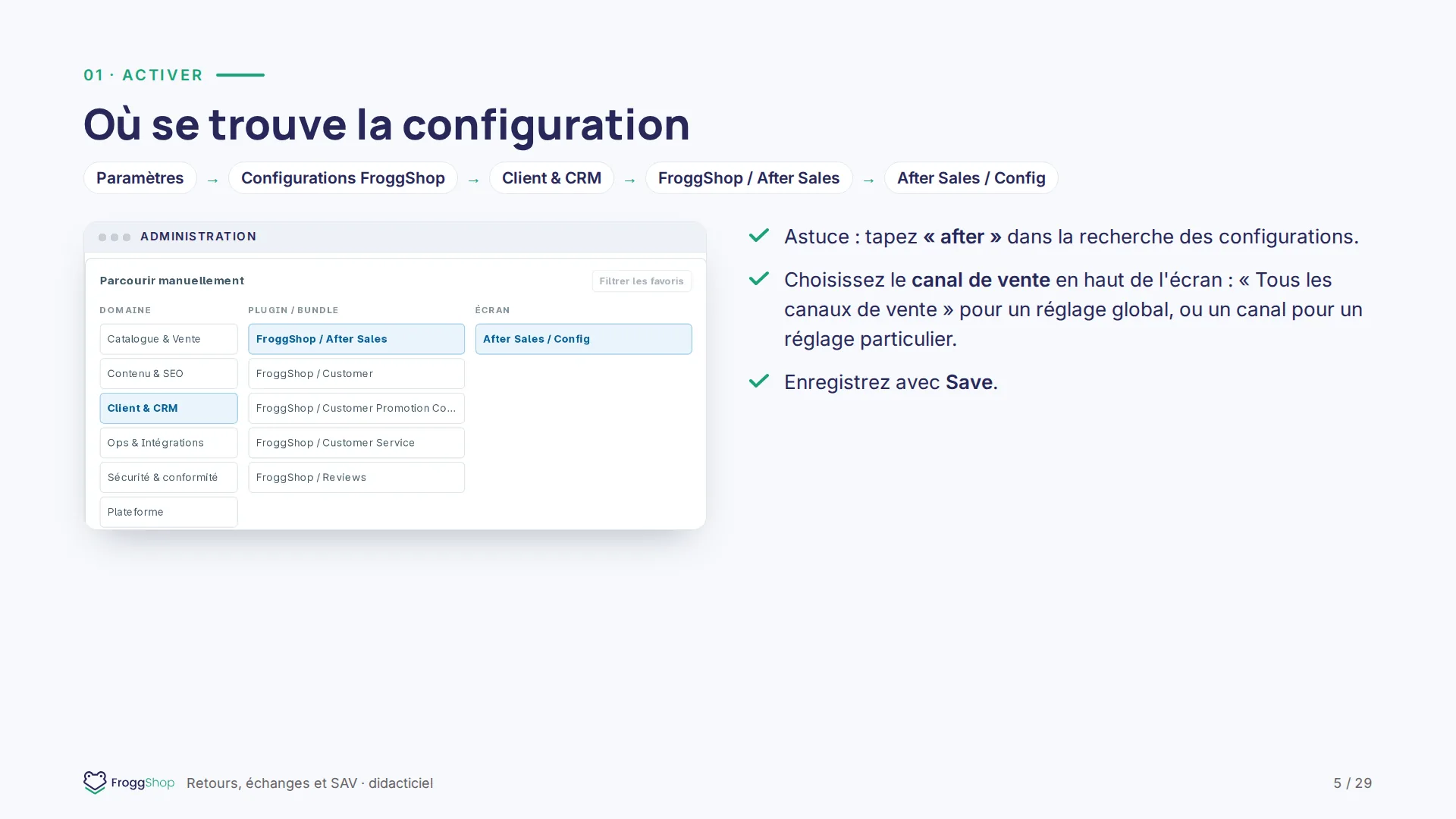
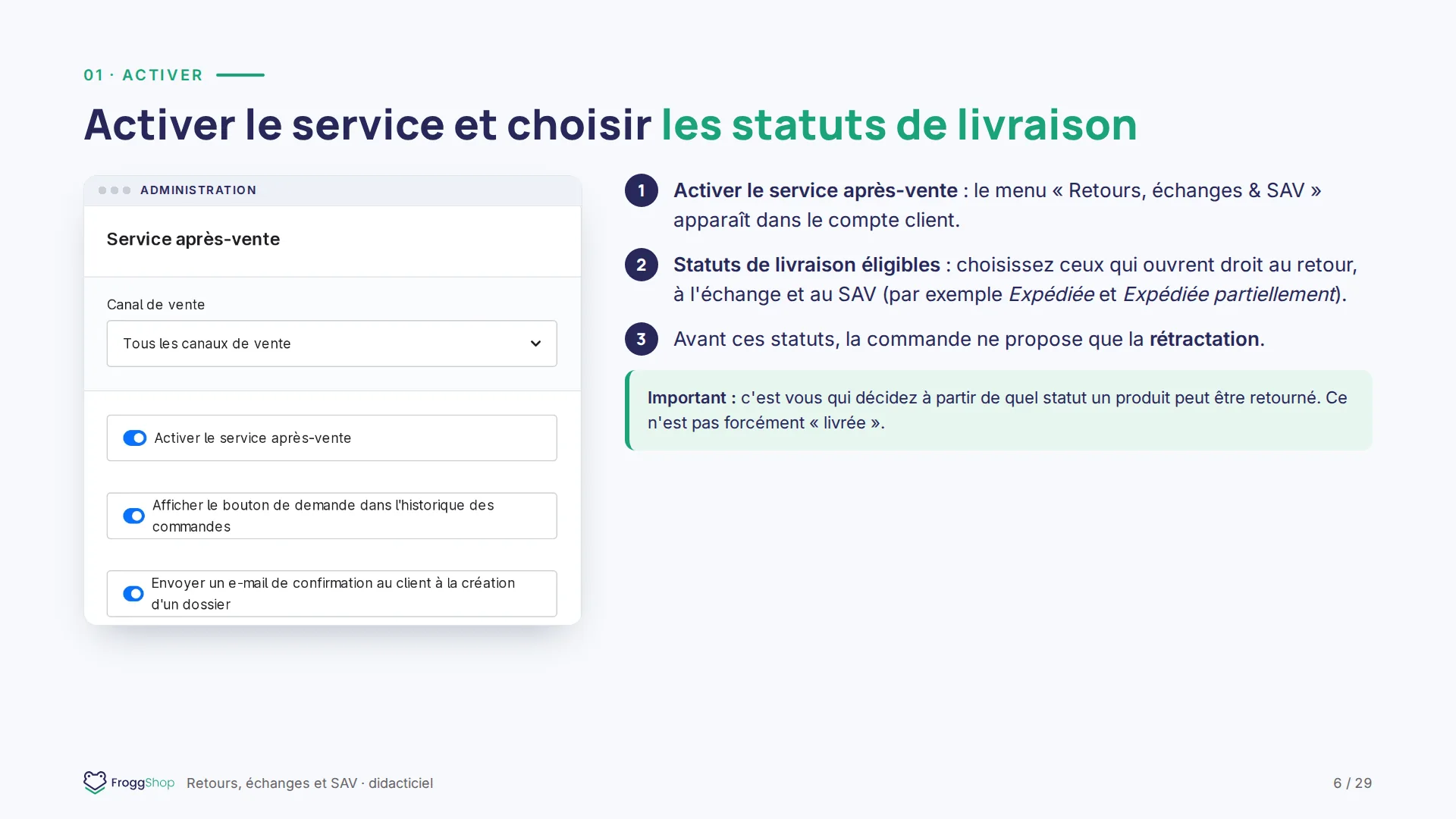
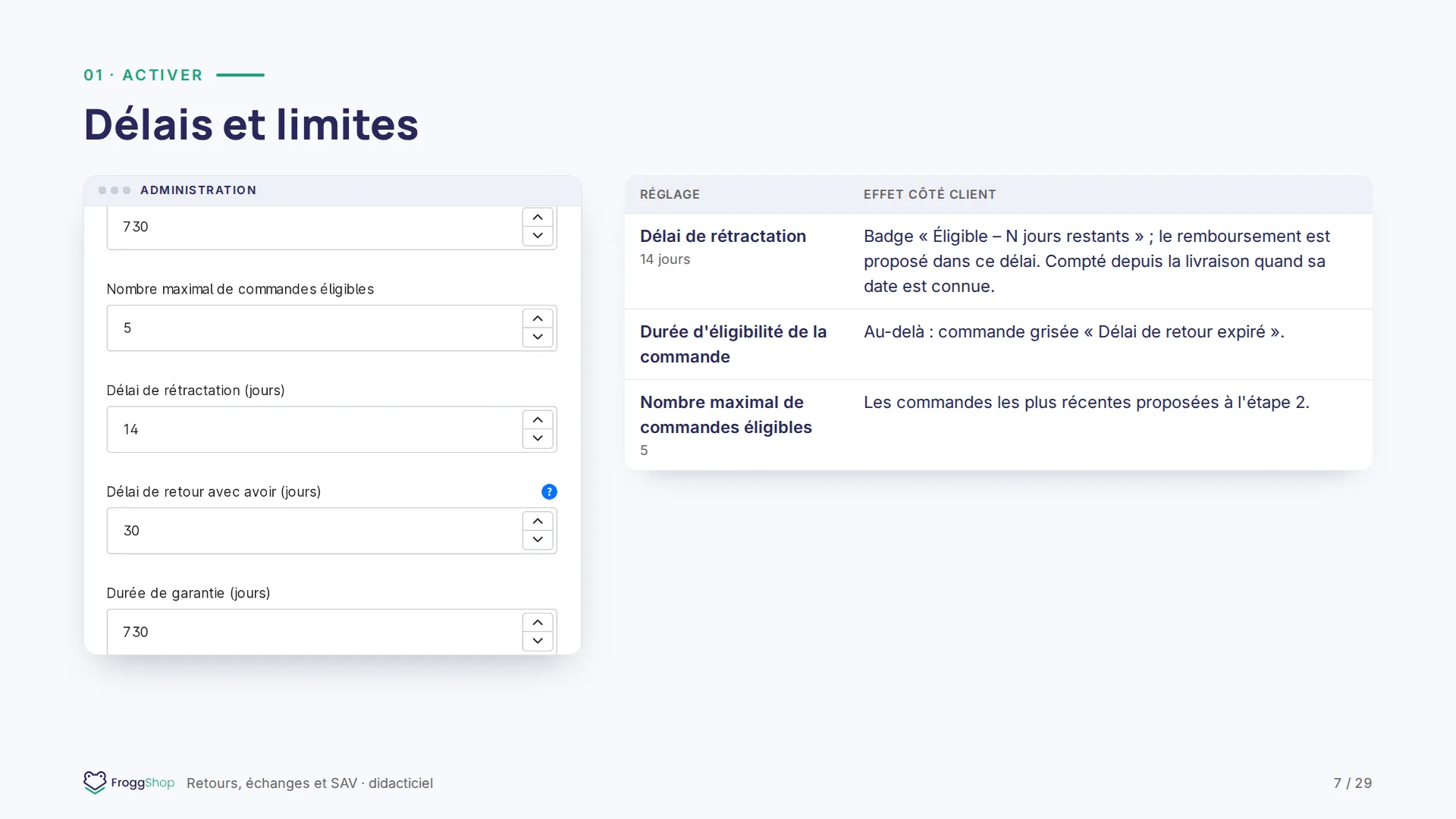
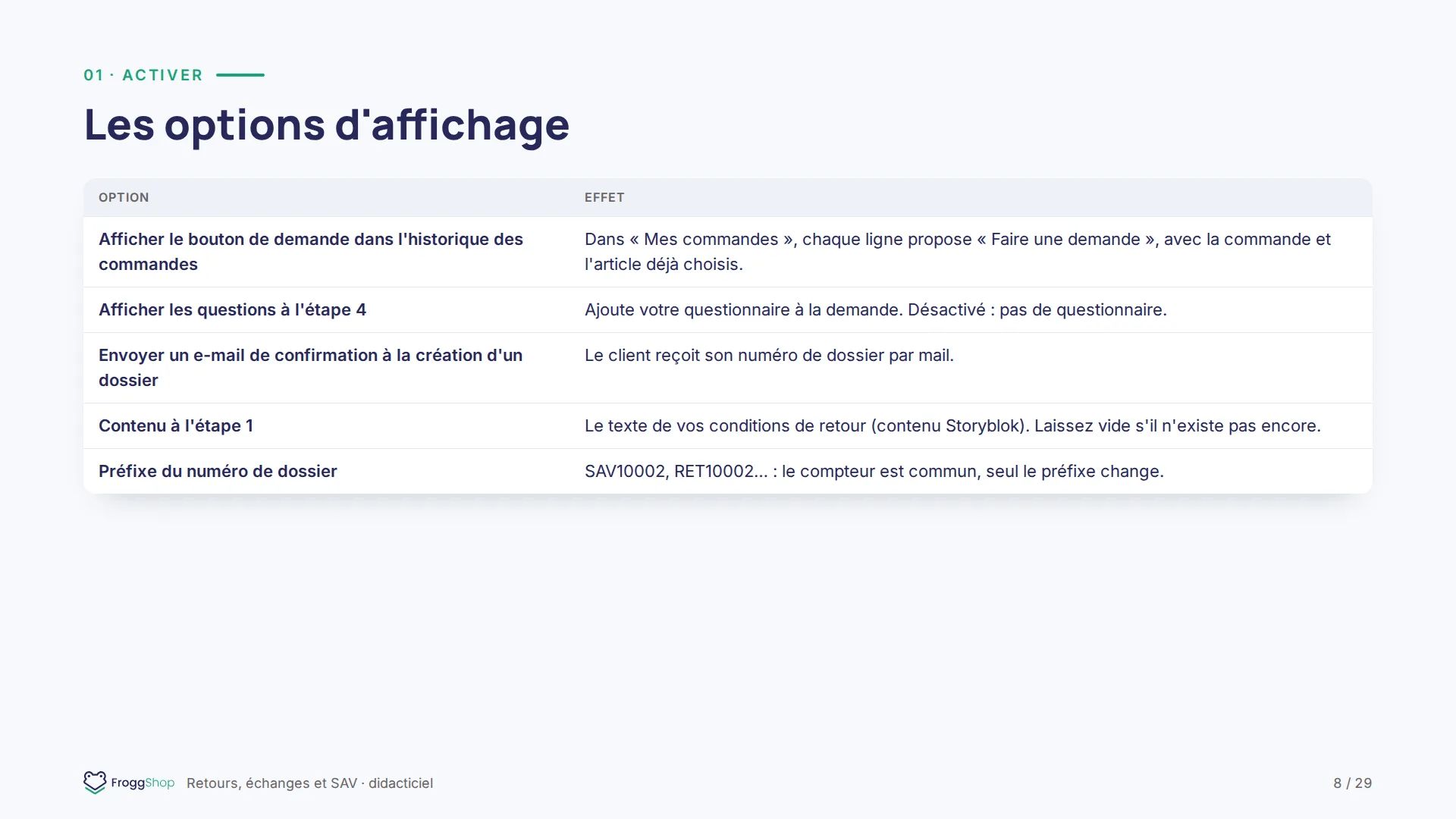
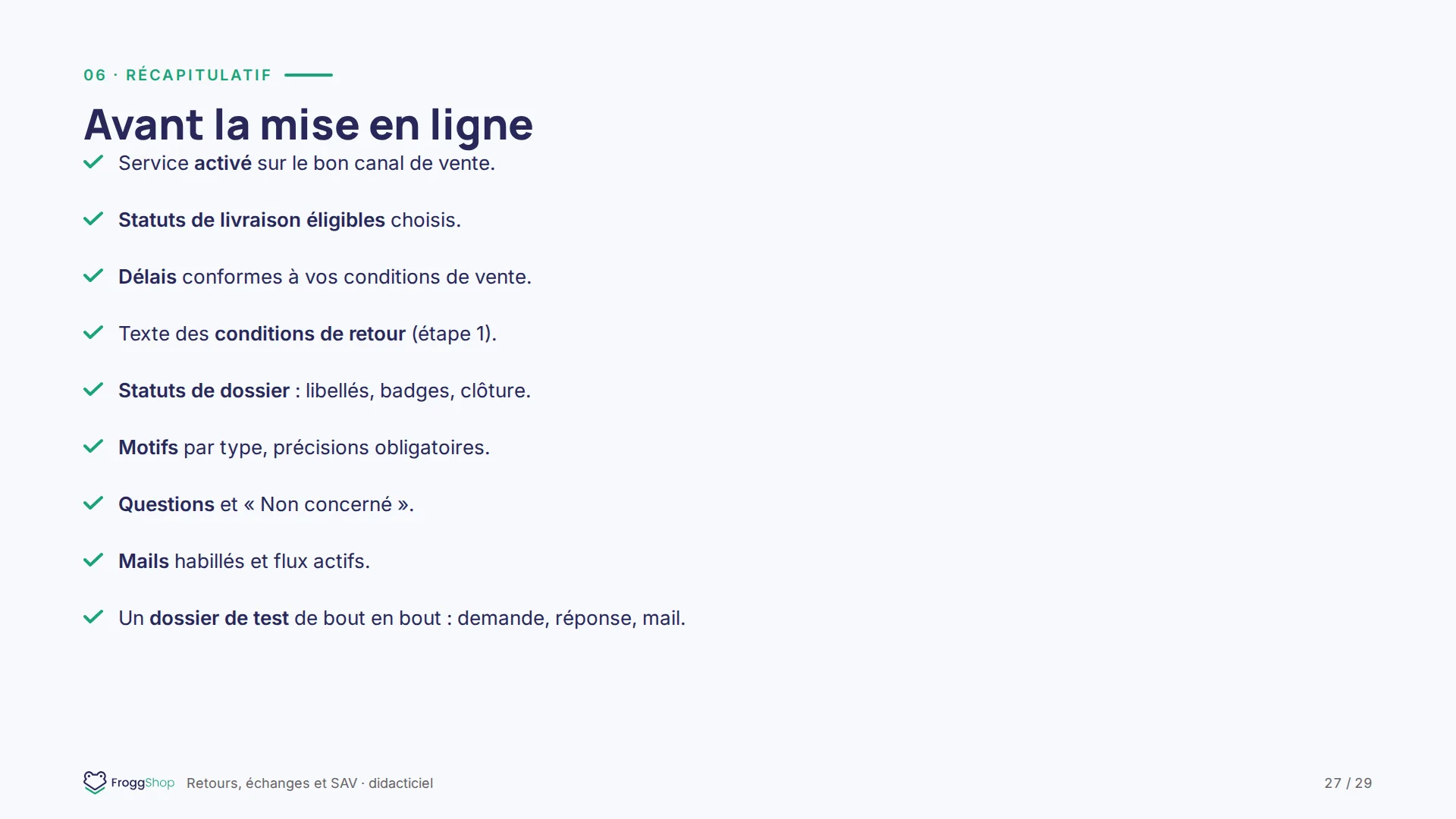
In Settings → FroggShop Configurations → After Sales, globally or per sales channel: service activation, delivery statuses that open the right to return, withdrawal period, eligibility period, number of orders offered, questionnaire, shortcut in “My orders”, creation email and case prefix.
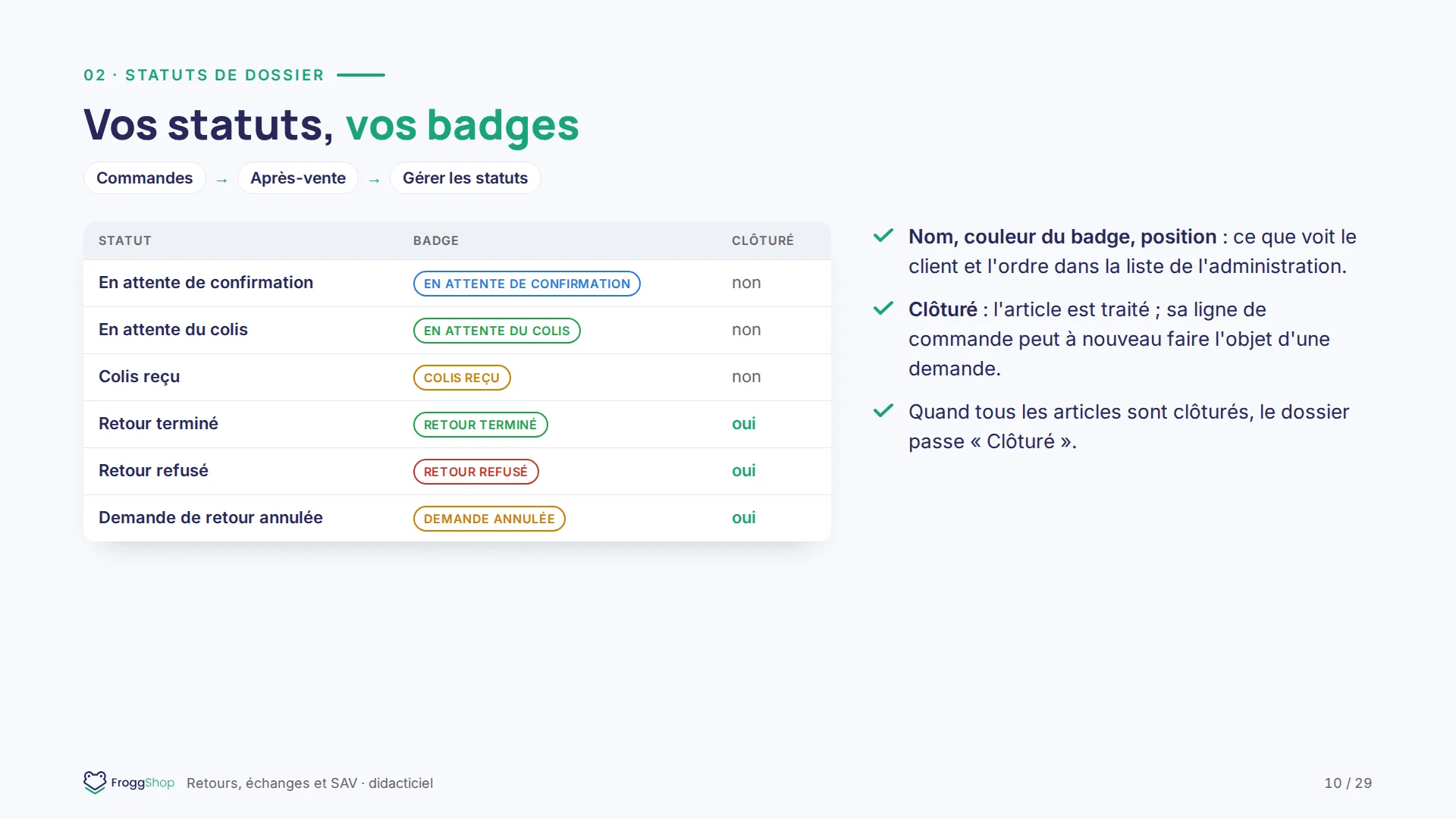
Content is managed from the case list: statuses (name, badge colour, order, closing status), reasons per request type and questions for the questionnaire.
Journey rules
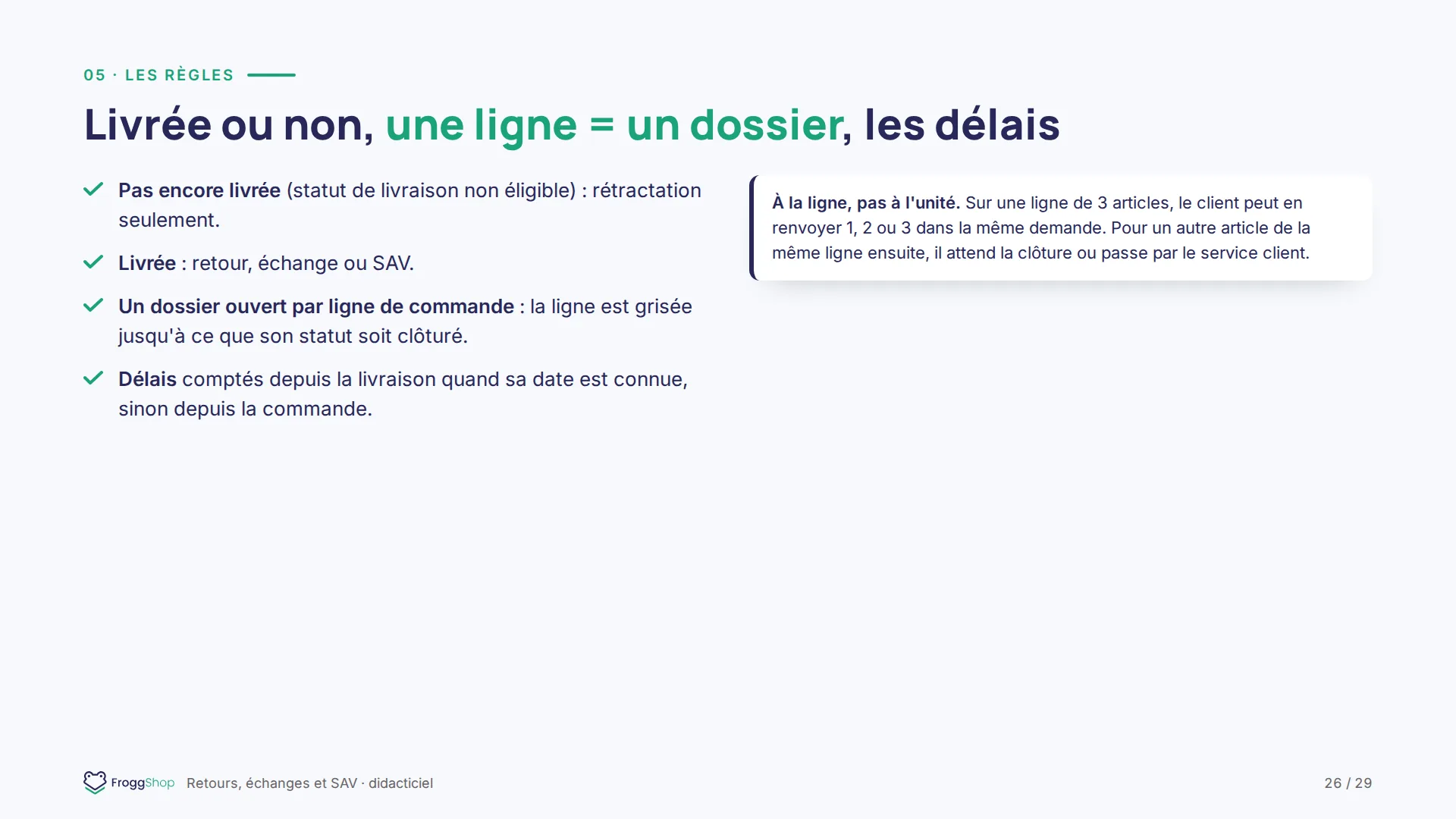
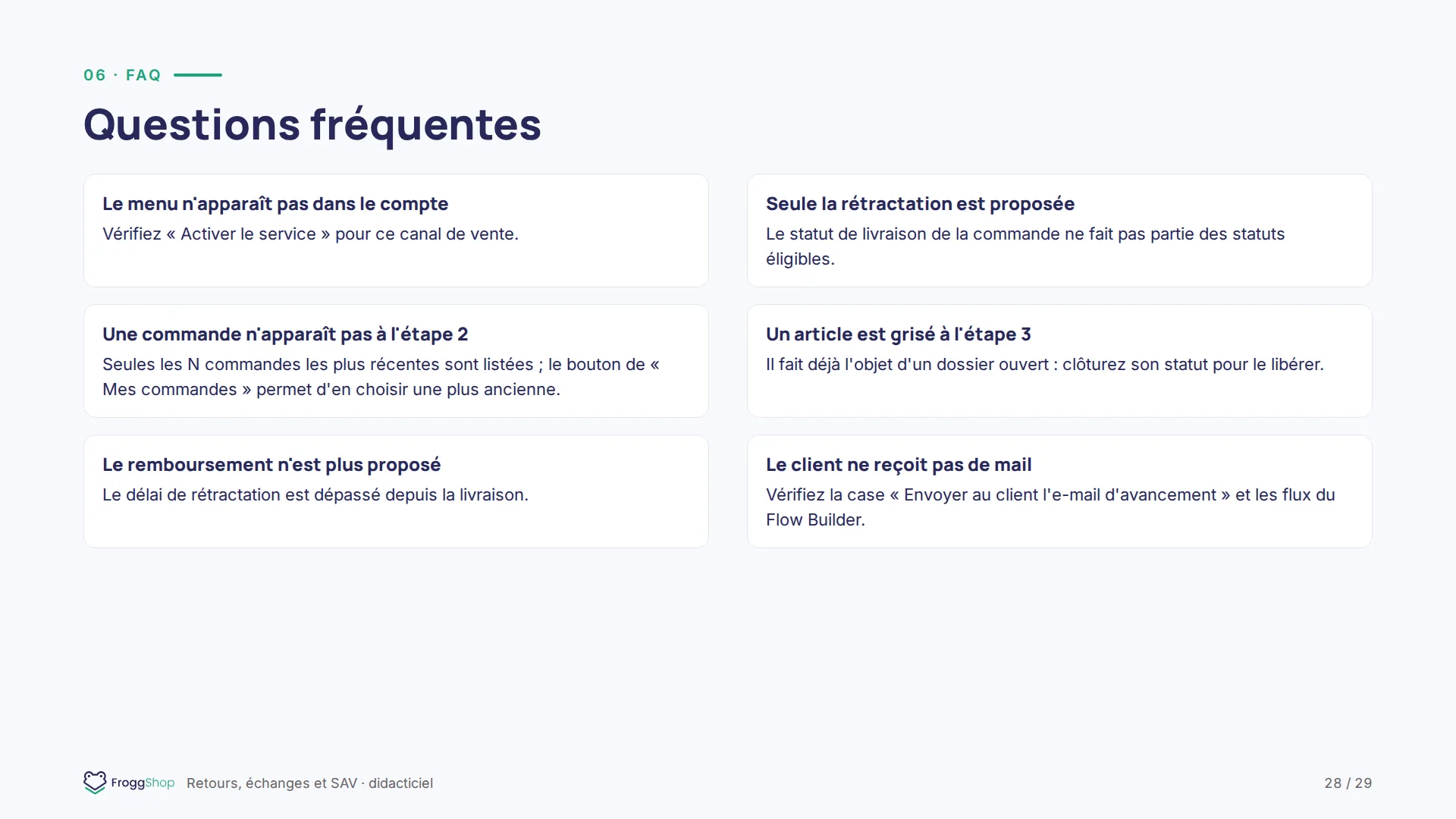
An order not yet delivered only offers withdrawal. Once delivered, according to the chosen statuses, customers can request a return, an exchange or after-sales service. After the withdrawal period, refund is no longer offered.
The lock applies to the order line: while an item is being handled, its line is greyed out until its case is closed. The questionnaire is shared by all requests.
Built into Shopware
Emails are Shopware email templates, triggered by the Flow Builder: texts and layout remain editable.
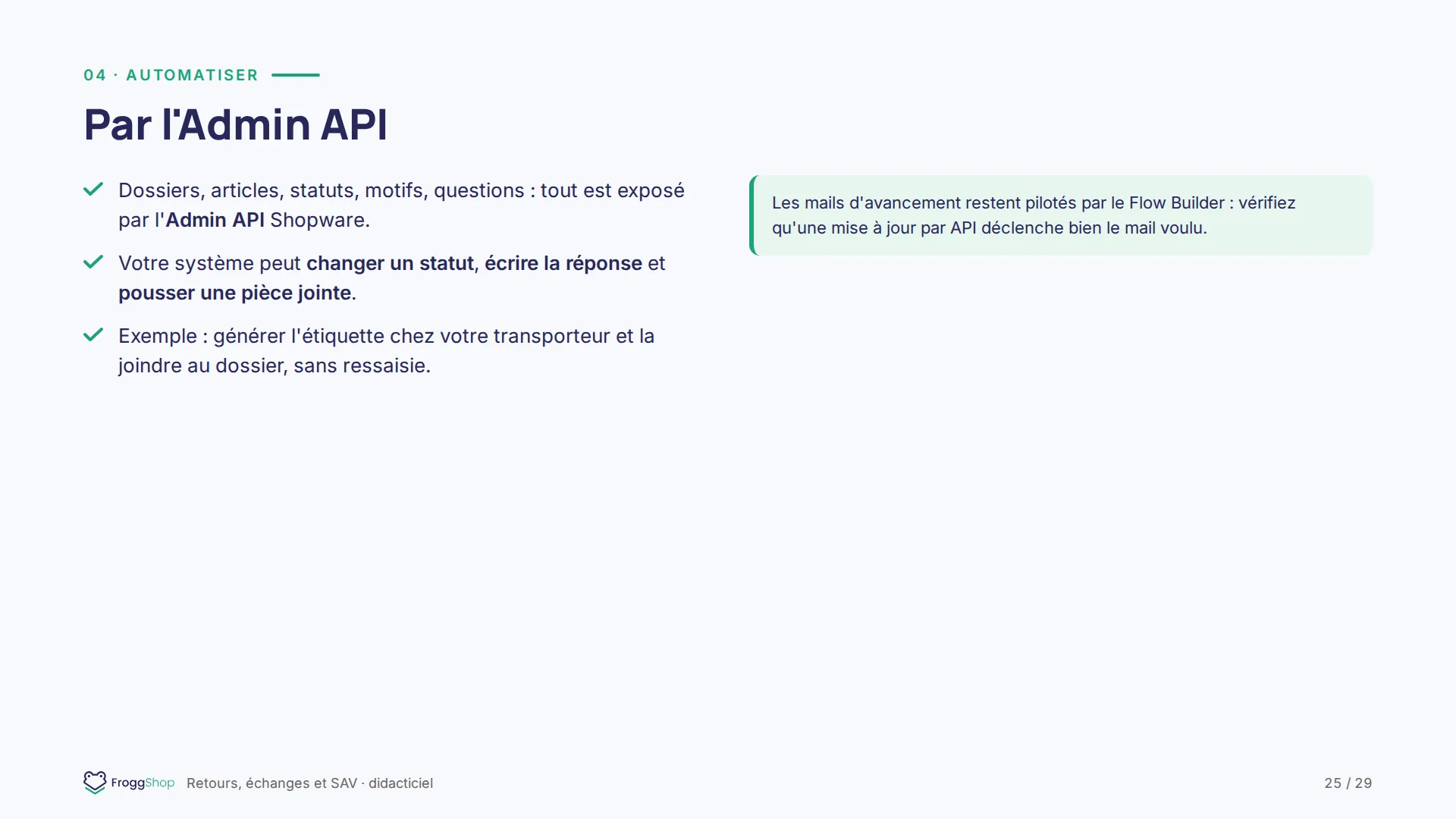
Cases, items, statuses, reasons and questions are exposed through the Admin API: your system can move a case forward, write to the customer and attach a label generated by your carrier.

The tutorial, slide by slide
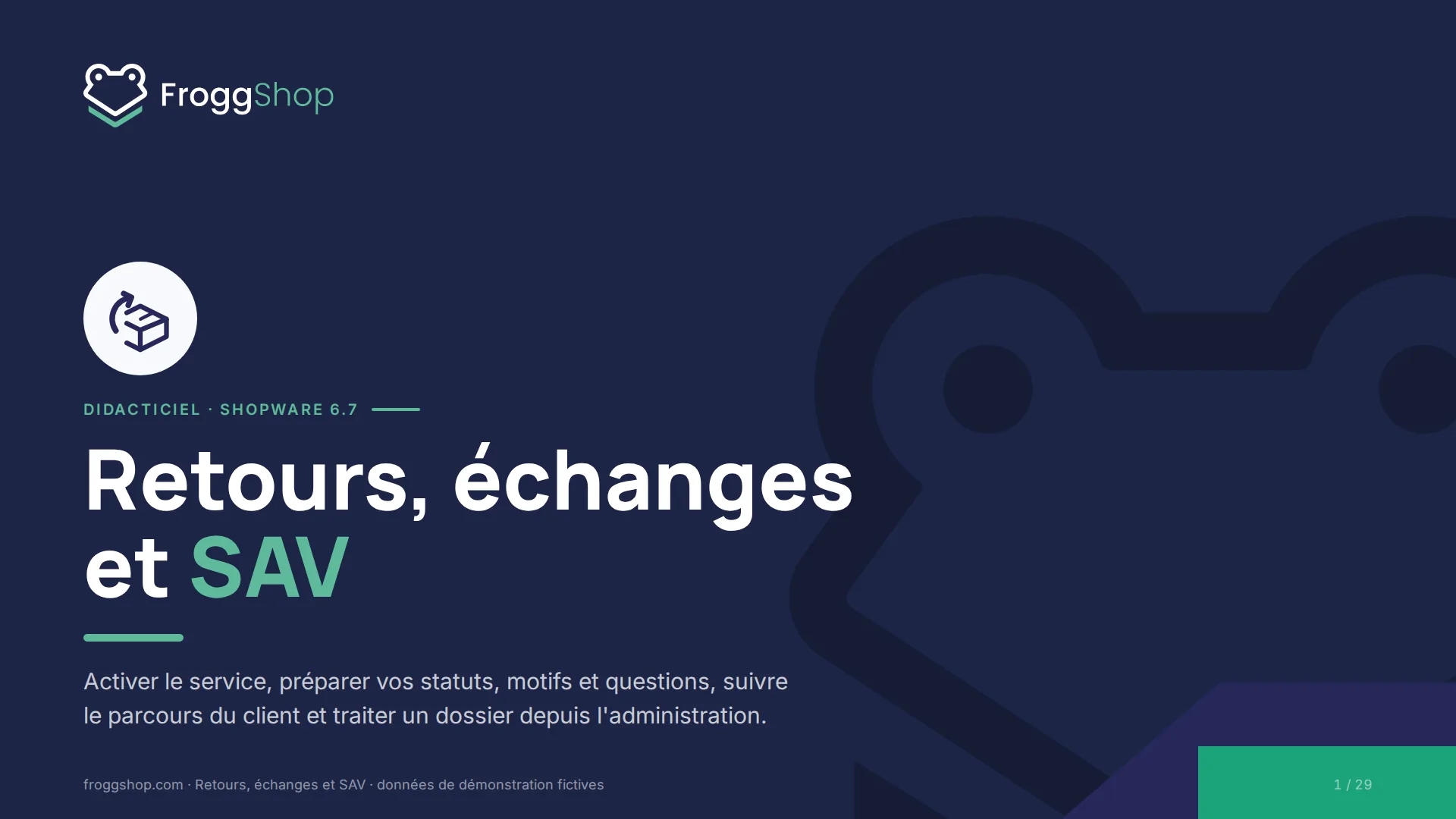
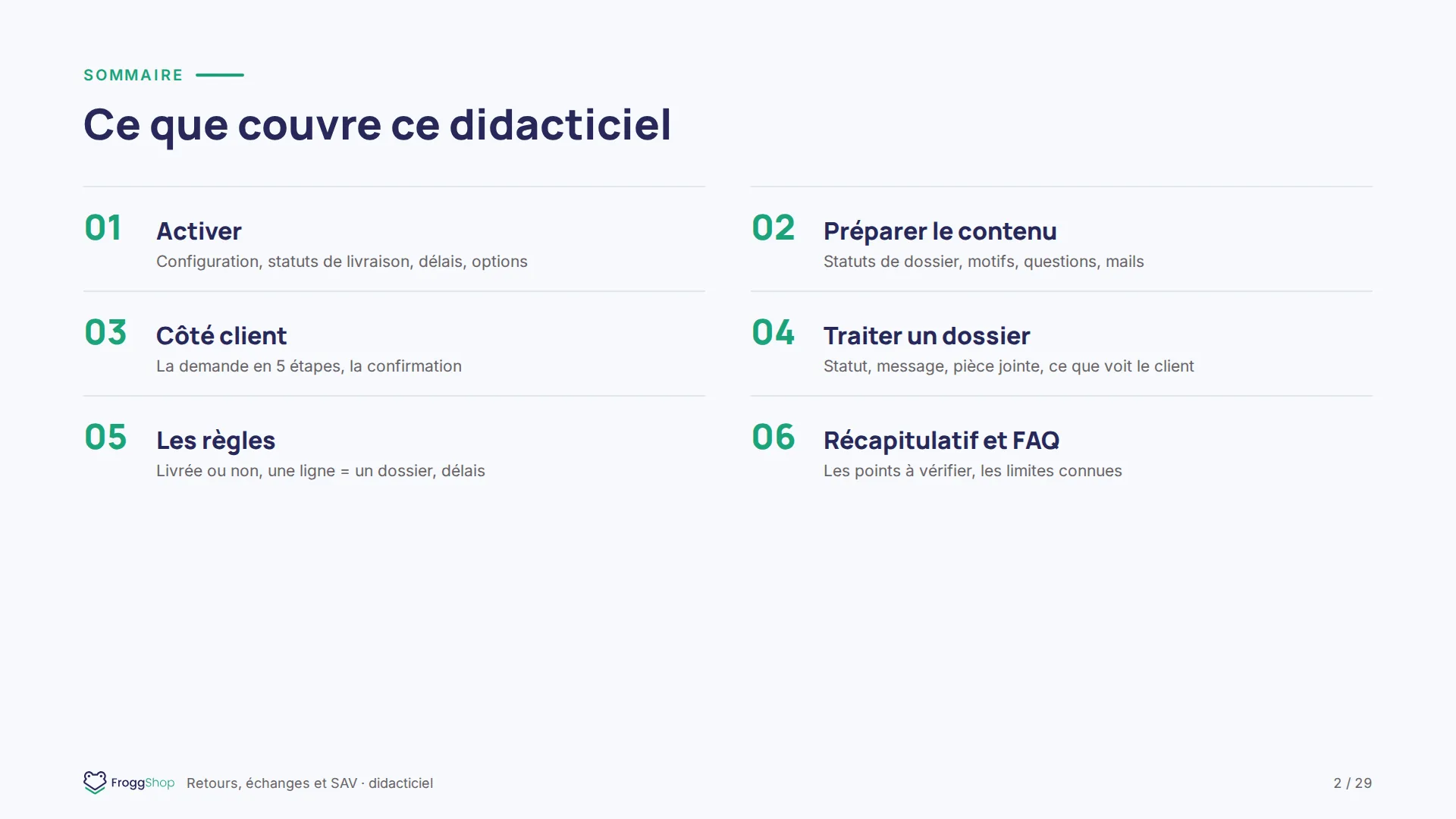
Enable the service, prepare your statuses, reasons and questions, follow the customer journey, then handle a case: the complete setup, with slides in French. Use the arrows or full screen.
What is the scope of your project?
Tell us about your needs and the tools you use. We can clarify the possibilities, conditions, alternatives and scope of work suited to your project.
Discuss your needs