


Flow Builder: your processes automated in Shopware
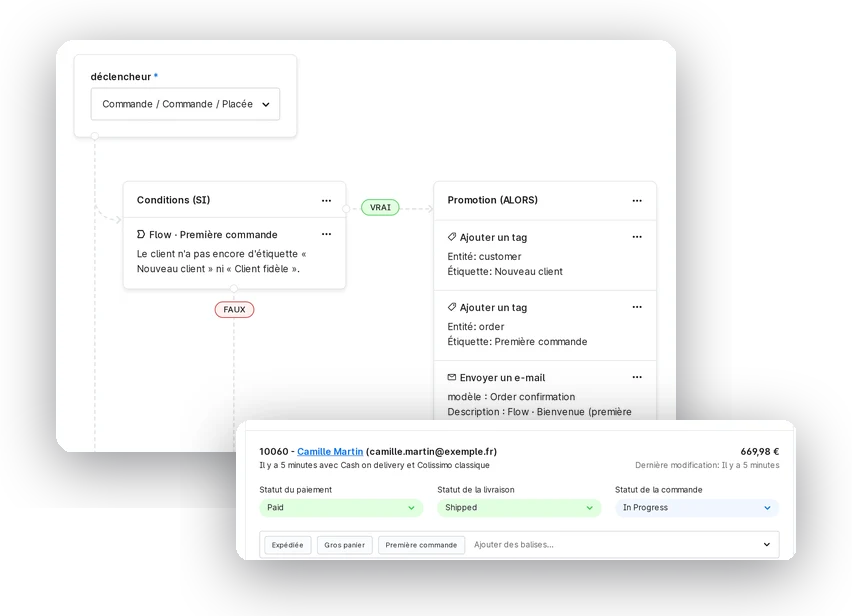
An order is placed, a payment arrives, a parcel ships: with Shopware’s Flow Builder, included in FroggShop, the shop adds the tags, changes the statuses, generates the invoice and sends the emails, following your rules. One event, and everything else happens on its own.
One event, a sequence of actions
Tagging new customers, moving a paid order to “in progress”, generating the invoice, alerting the warehouse, writing to the customer: every day, these tasks are repeated by hand, order after order, and one omission is enough to throw the day off.
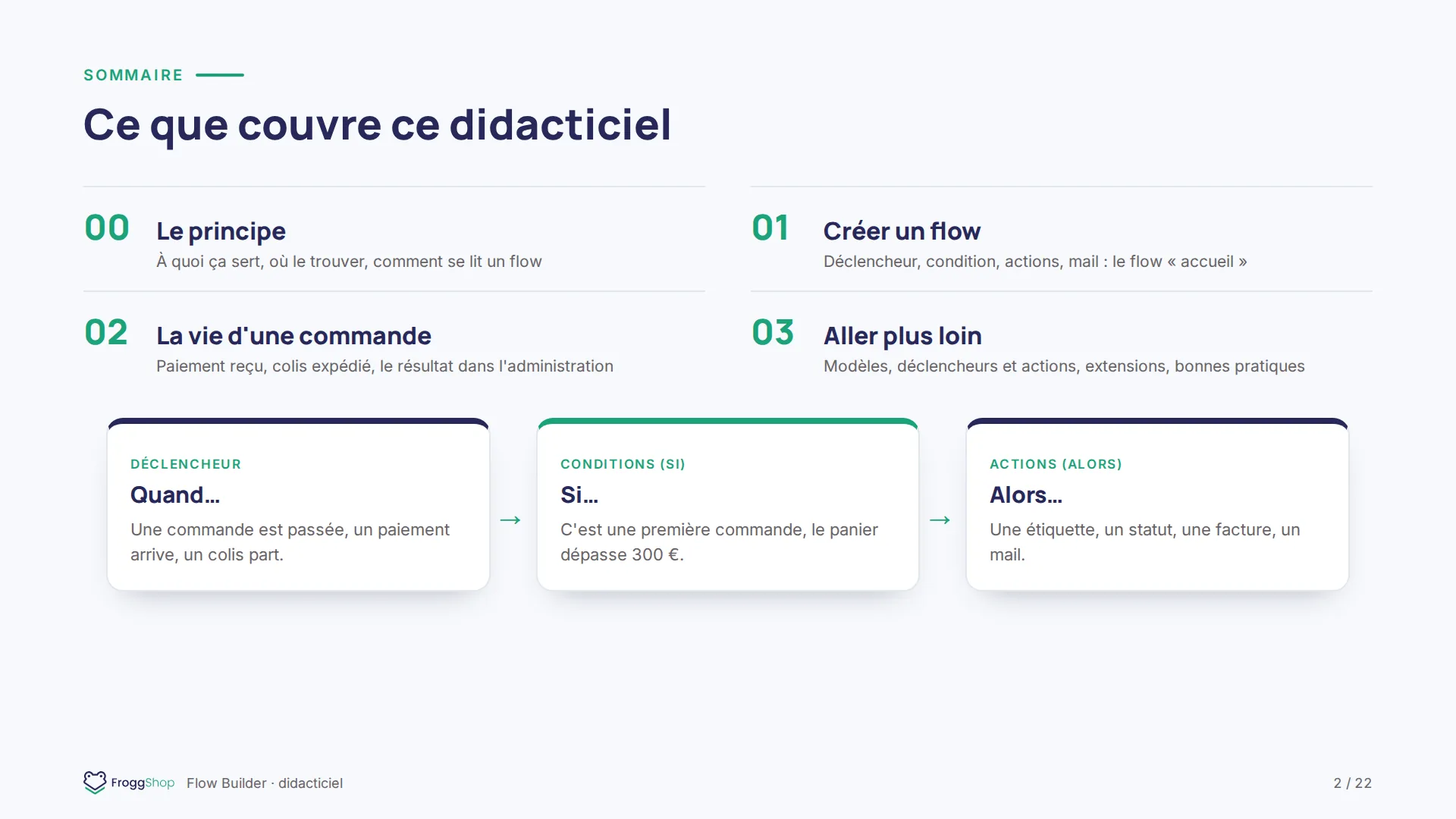
Shopware’s Flow Builder (“Créateur de flux” in the French administration) chains them for you. A trigger listens for a shop event, conditions steer the processing, and actions run when the event happens.
When an event happens (order placed, payment received, parcel shipped, registration…), if a rule is true (first order, basket of €300 or more, customer, shipping, payment…), then the actions follow: tags, statuses, documents, emails, customer group.
A flow reads like a sentence
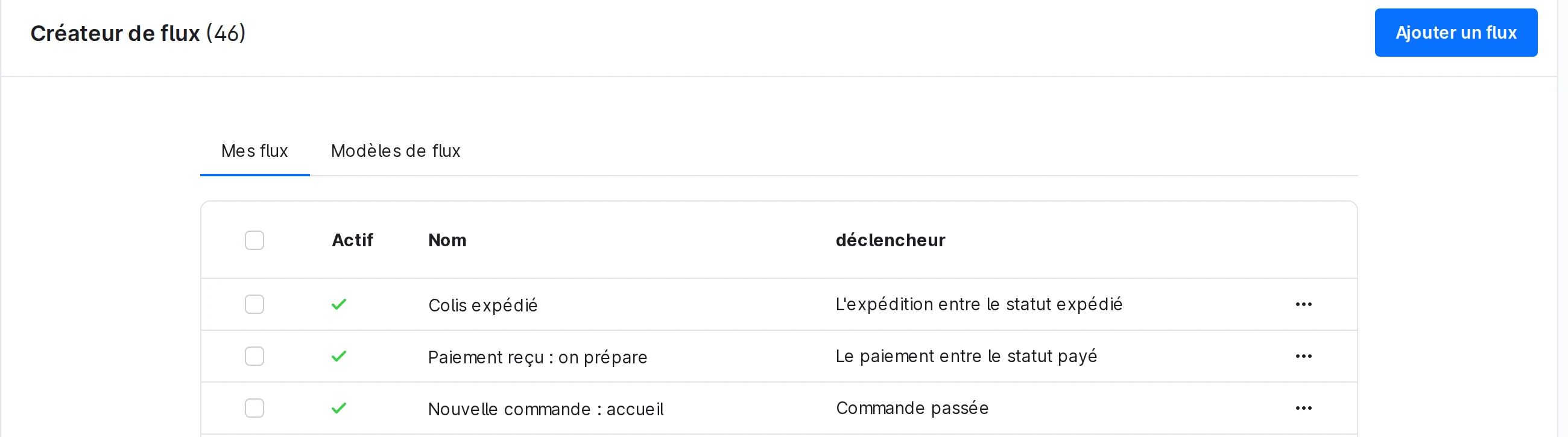
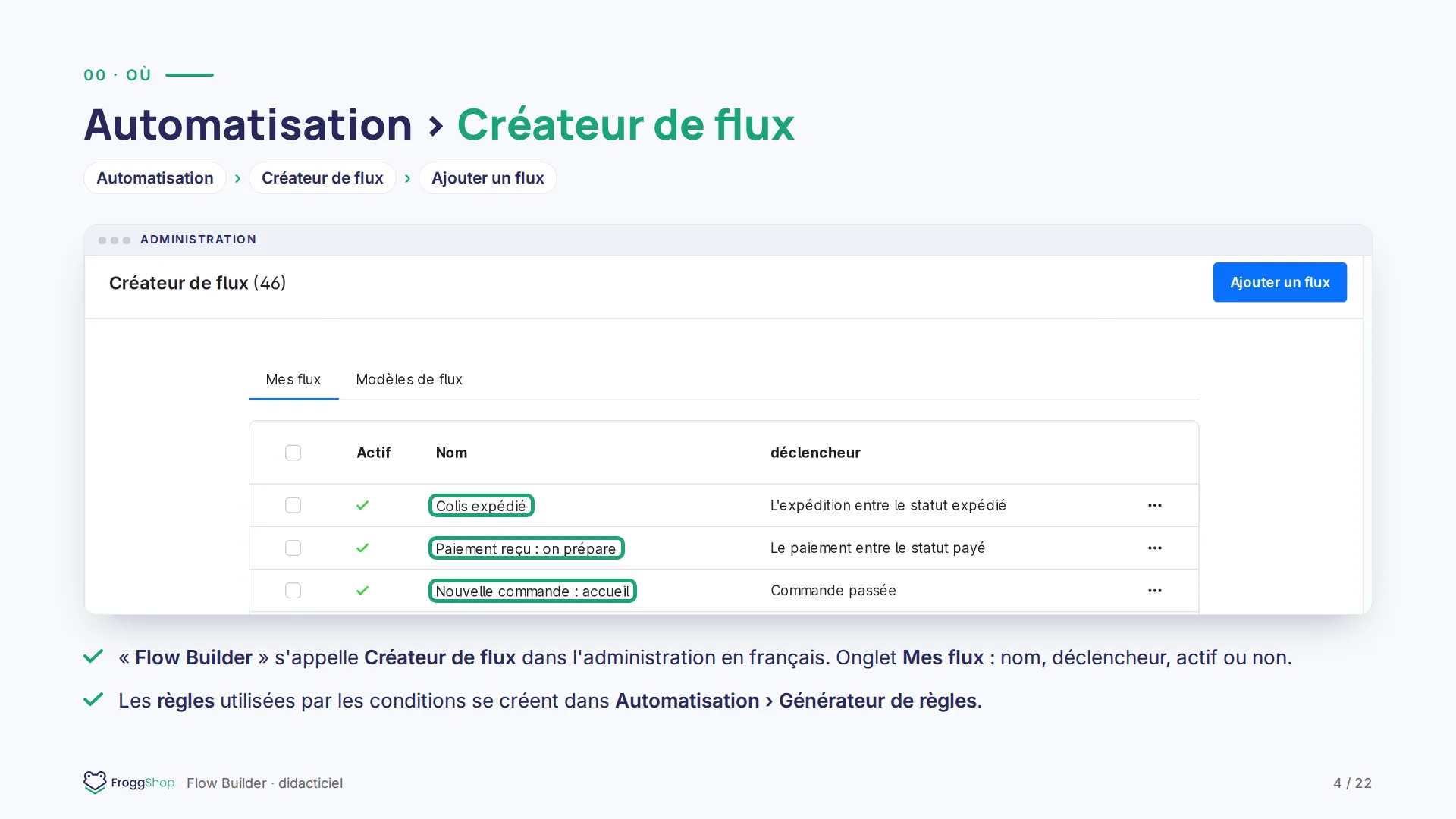
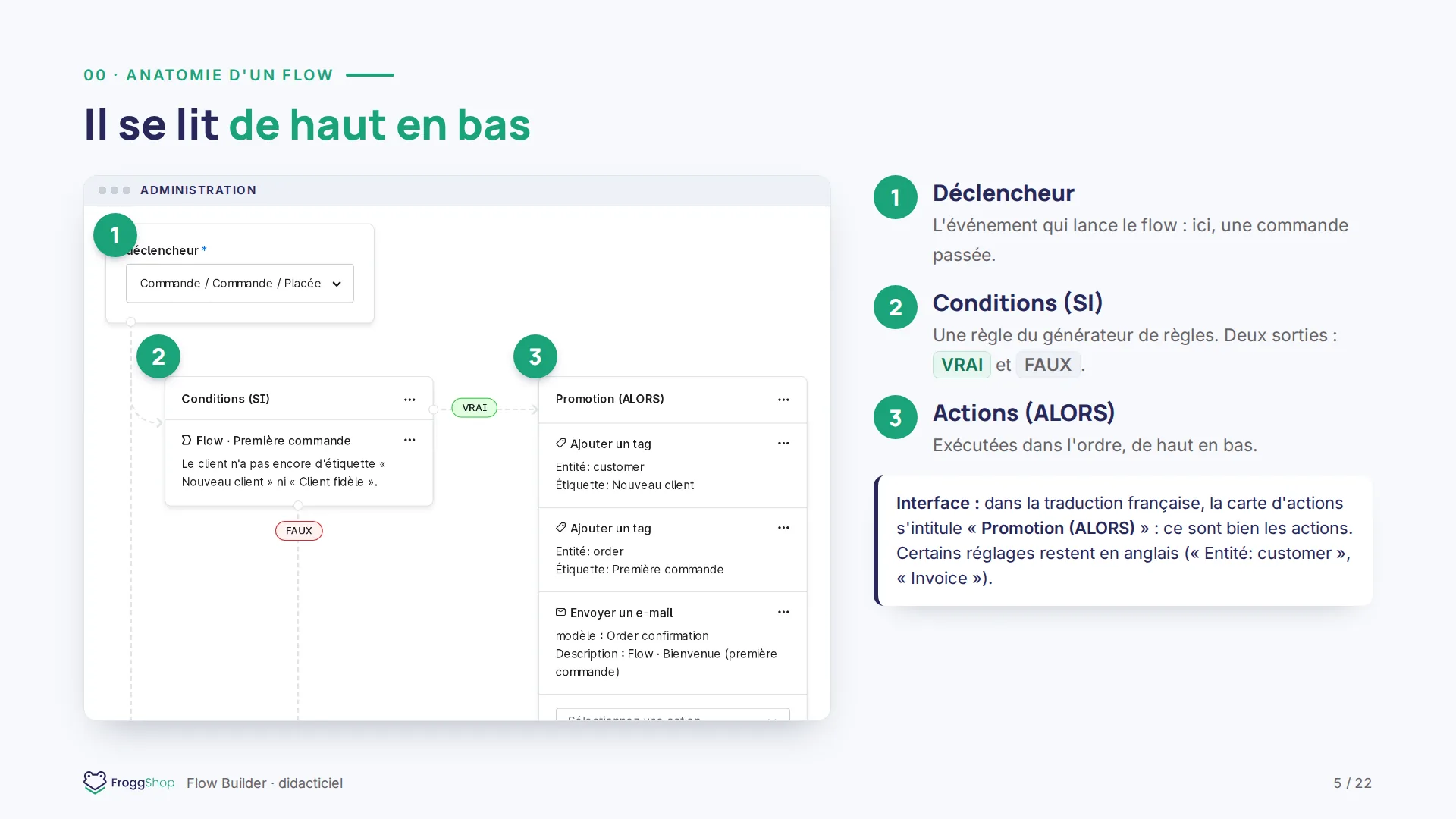
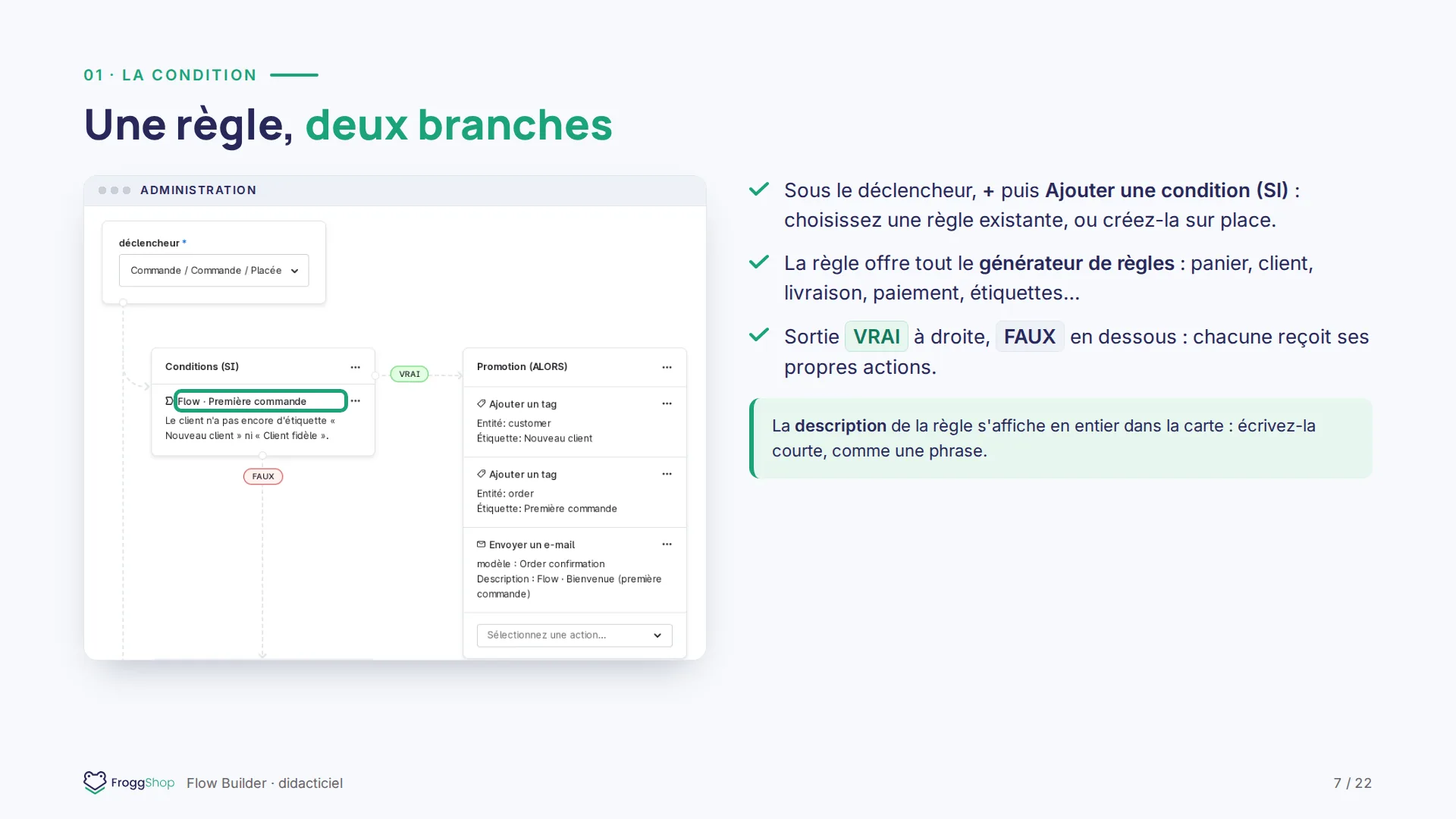
In Automation › Flow Builder, each flow has a name, a description, a priority and an Active switch. The visual editor reads from top to bottom: the trigger, then the IF blocks with their TRUE and FALSE branches, then the actions in the order they run. The whole team can read what happens, with no code.
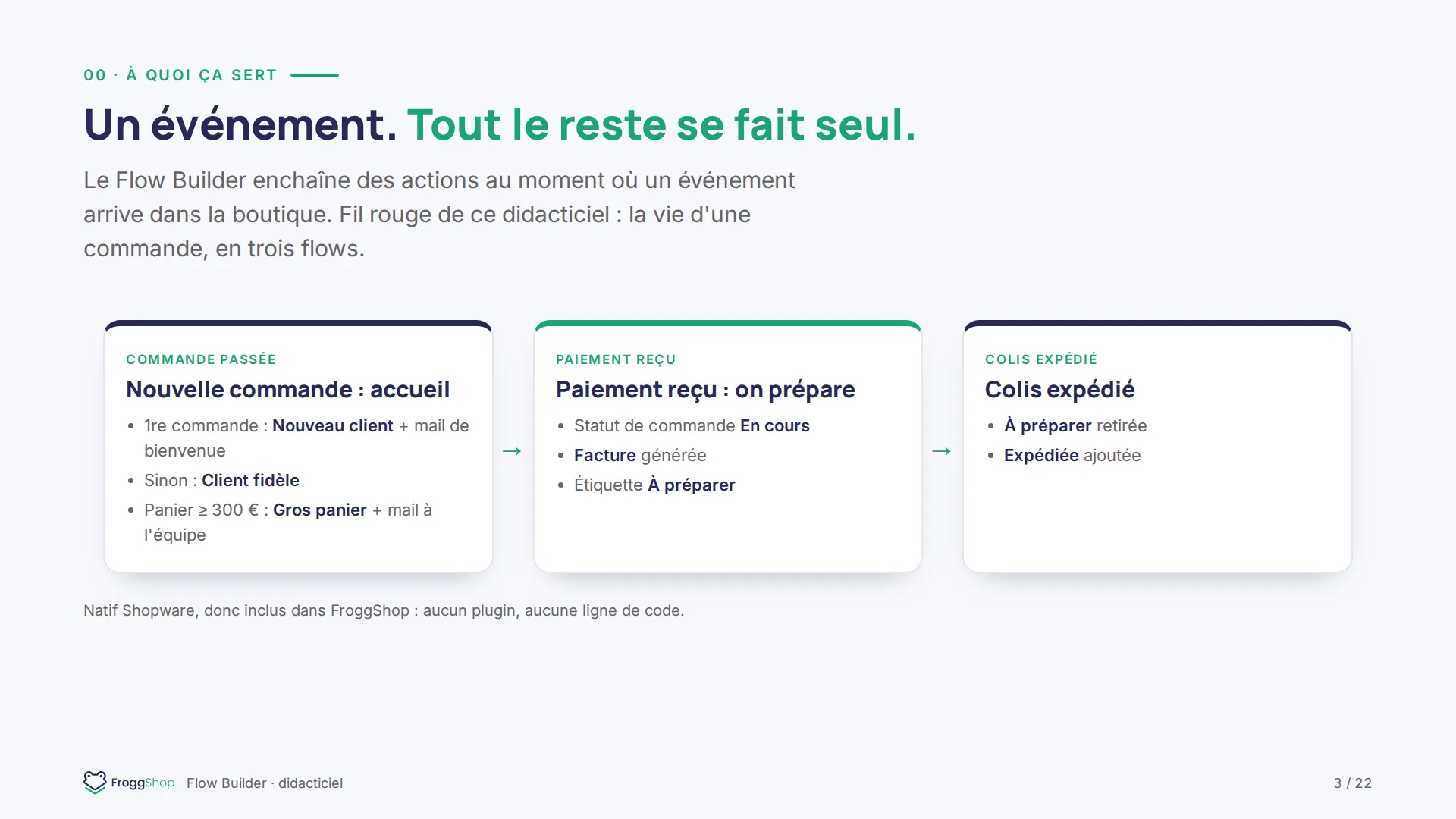
On our demo shop, three flows follow the life of an order: Nouvelle commande : accueil (New order: welcome, on order placed), Paiement reçu : on prépare (Payment received: we prepare, when the payment enters the paid status) and Colis expédié (Parcel shipped, when the delivery enters the shipped status).
Welcome every order
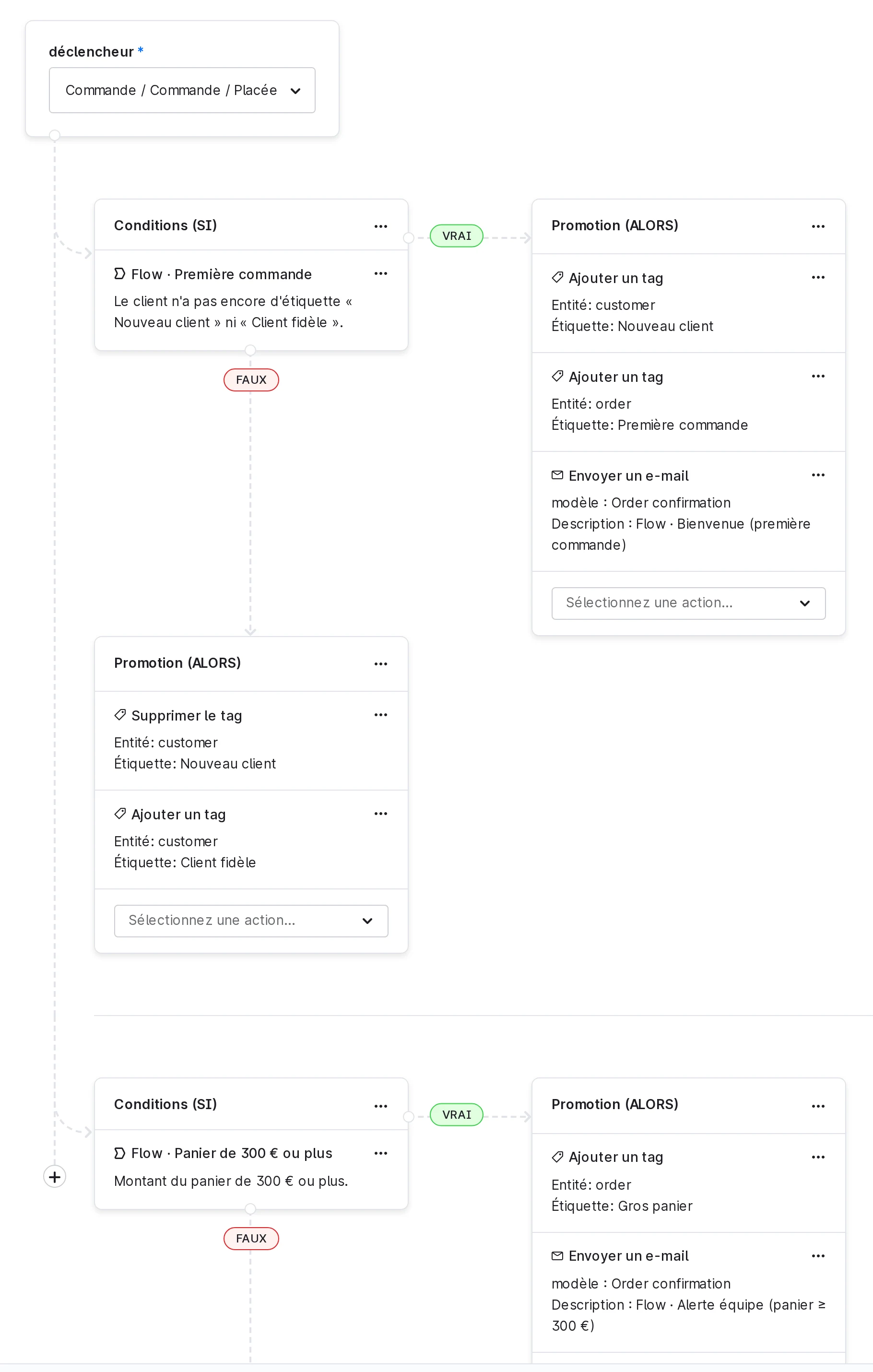
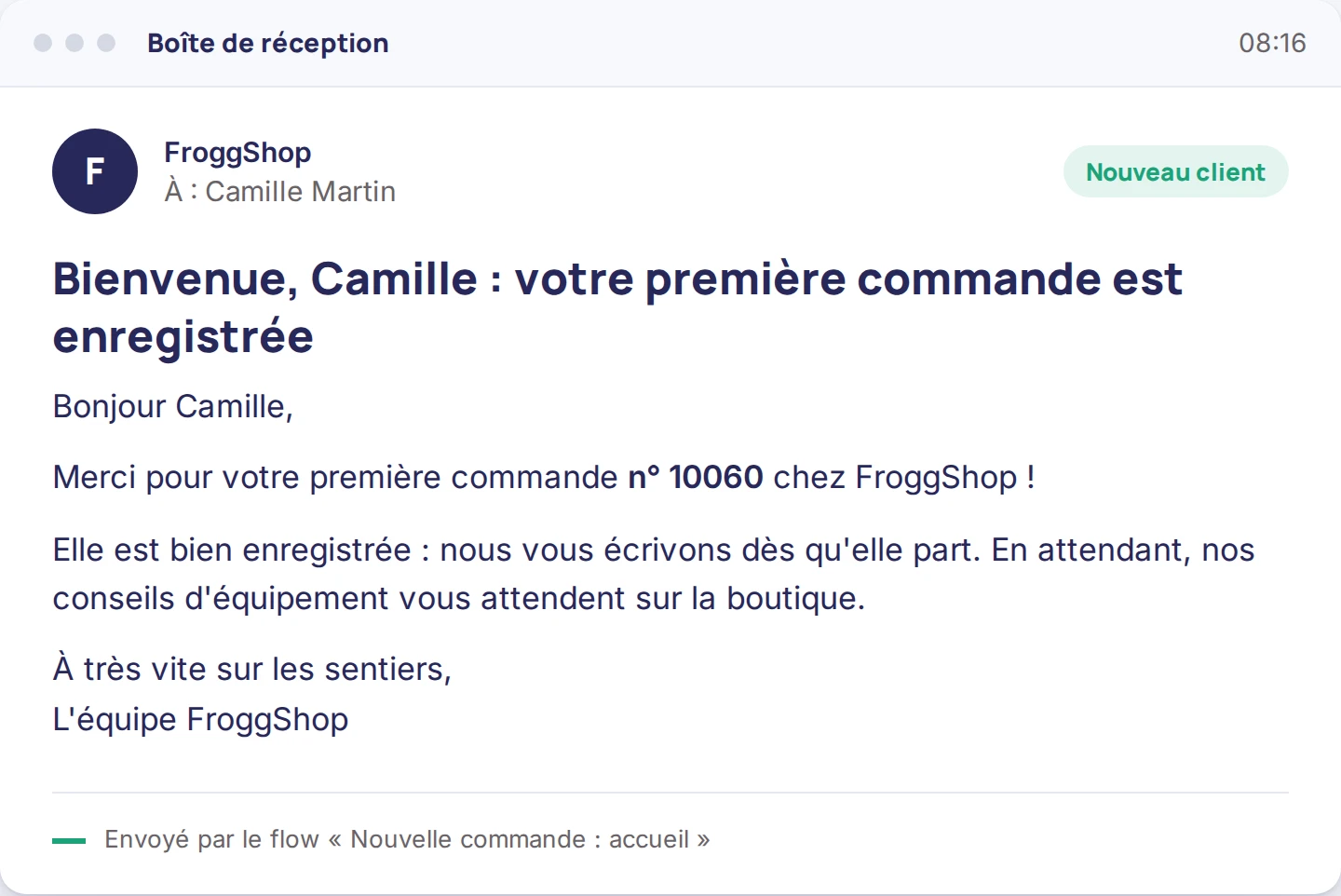
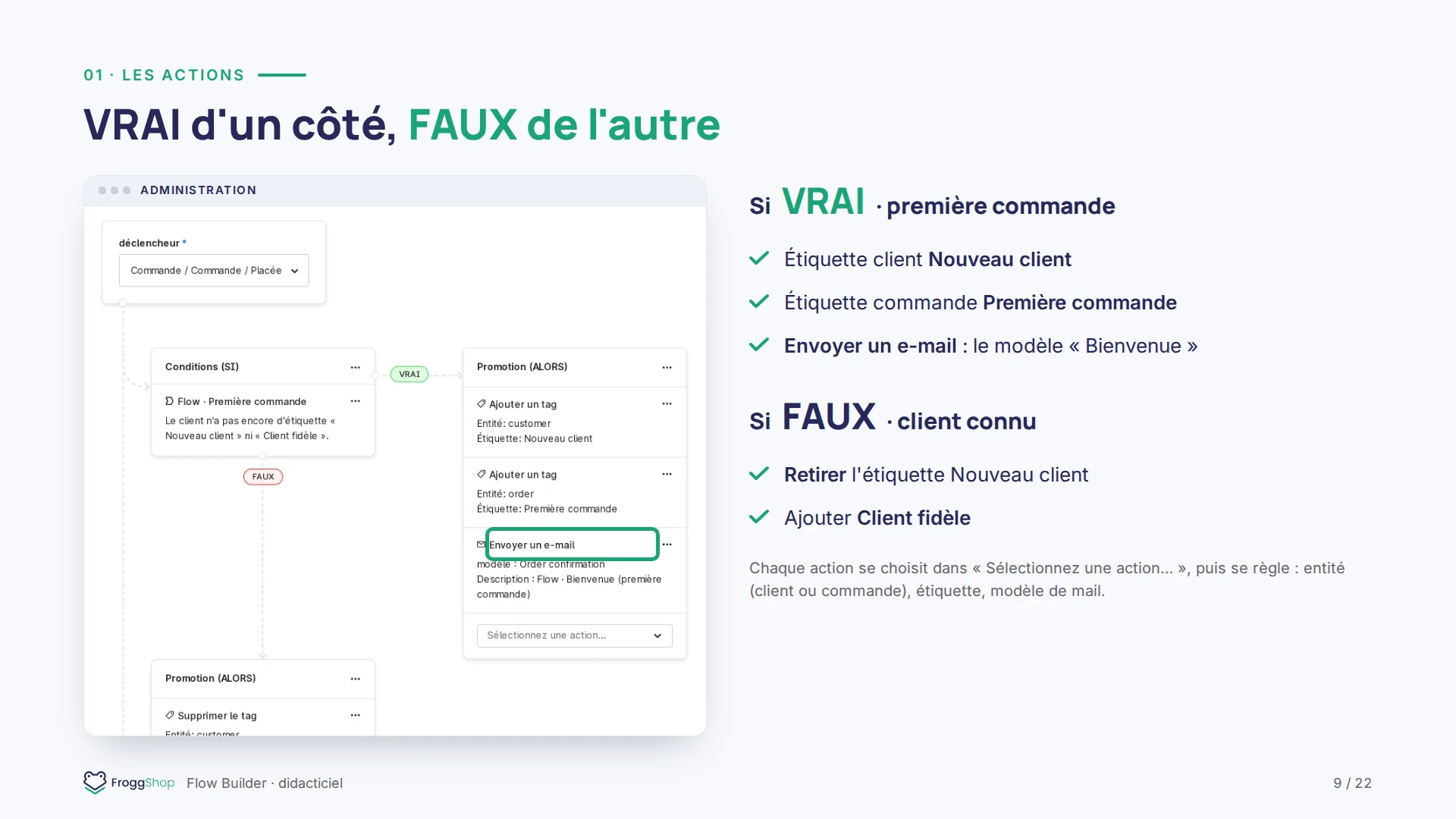
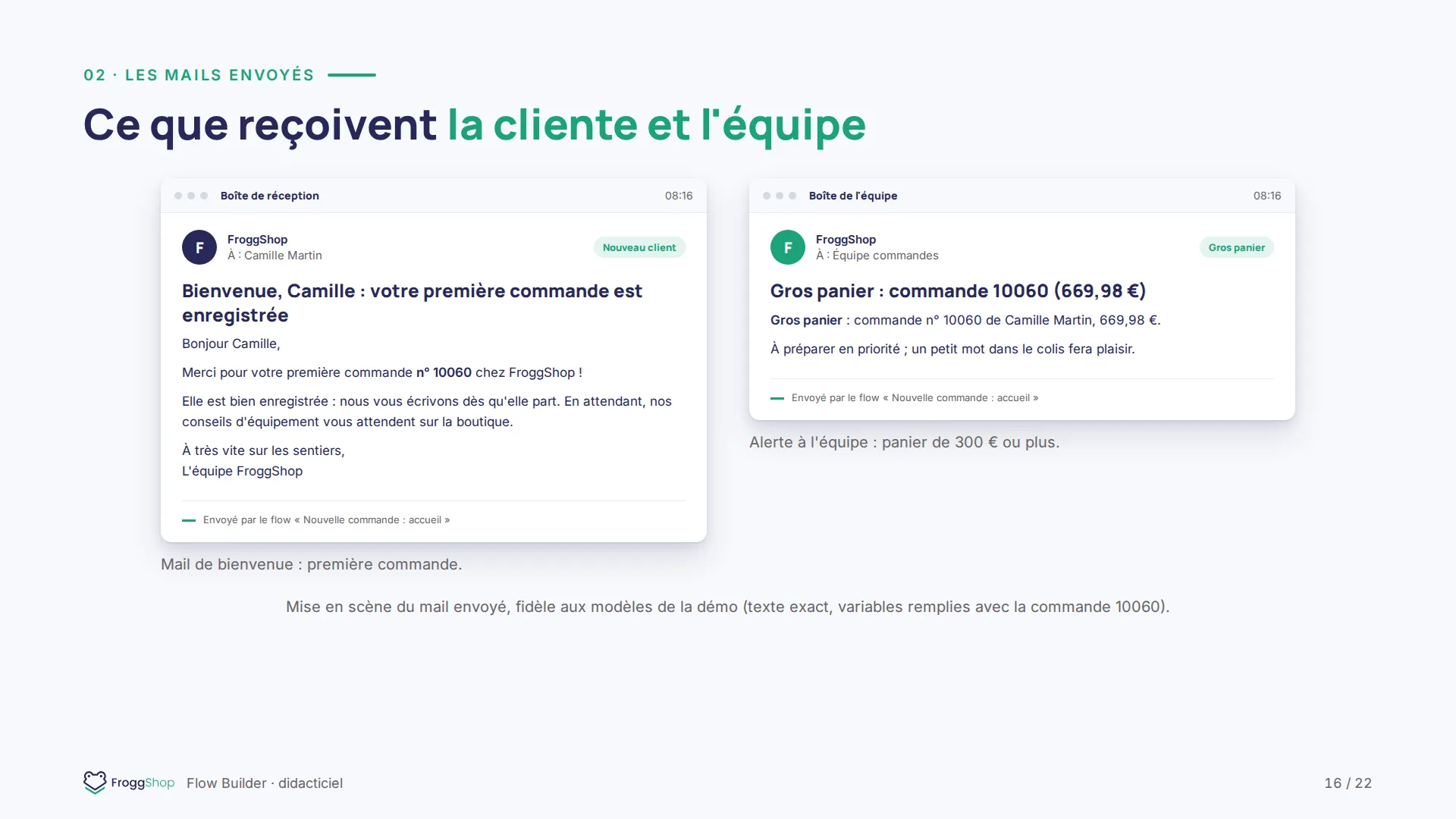
The Nouvelle commande : accueil (New order: welcome) flow starts from the Order placed trigger. A first IF block tells a first order apart from a known customer: the customer receives the “Nouveau client” (New customer) tag, the order the “Première commande” (First order) tag, and a welcome email goes out. Otherwise, the customer becomes “Client fidèle” (Loyal customer).
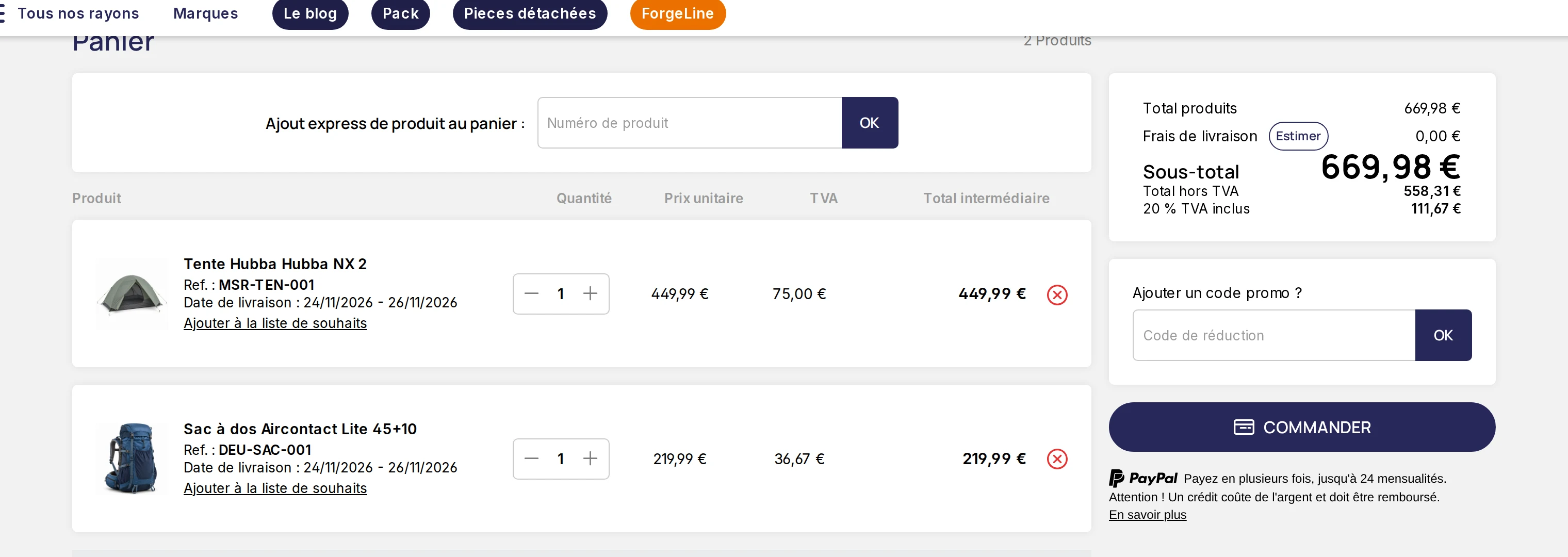
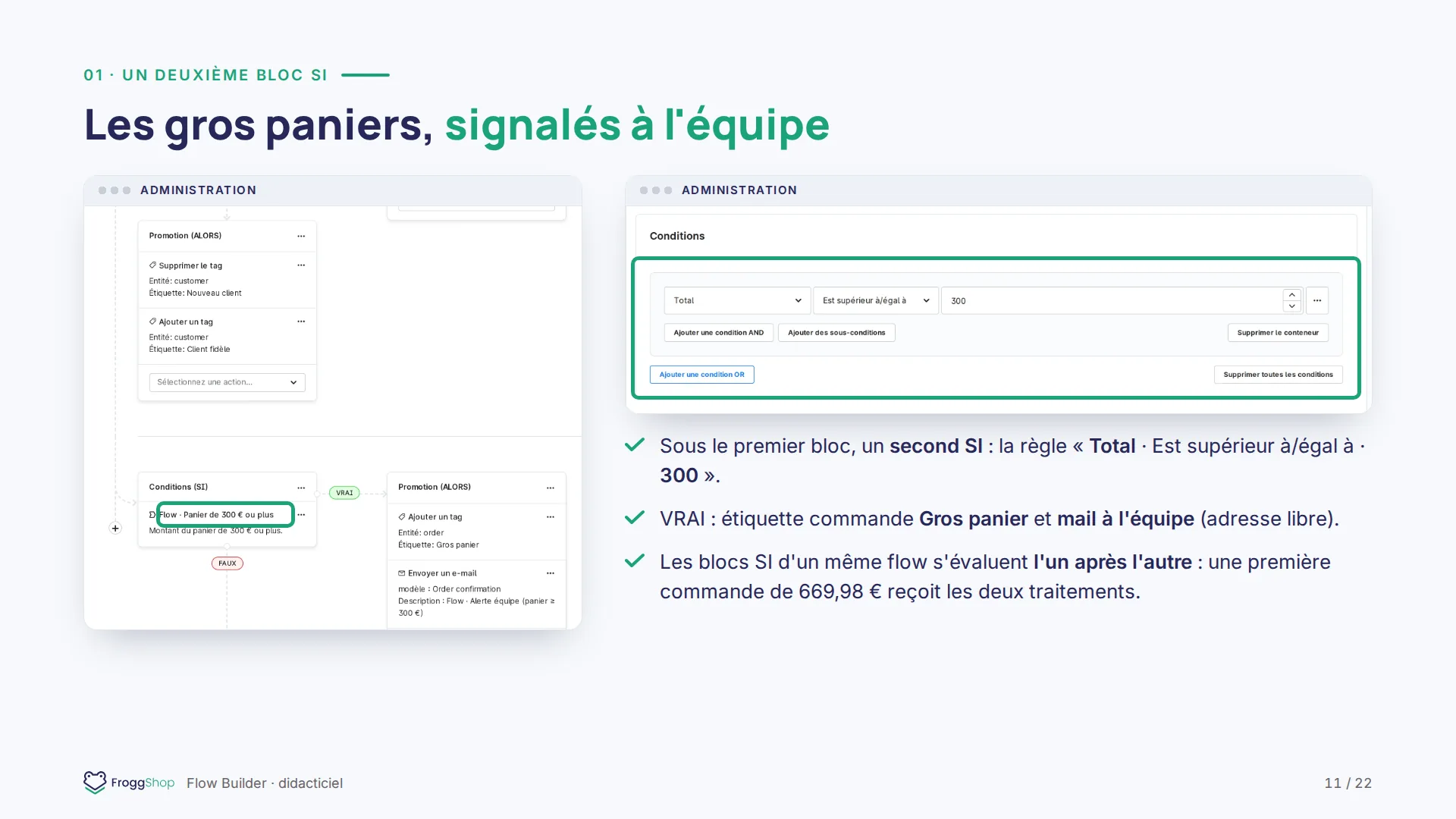
A second IF block spots baskets of €300 or more. The tags are added as soon as the order is saved: a first order of €669.98 goes through both blocks.
Recognise a first order
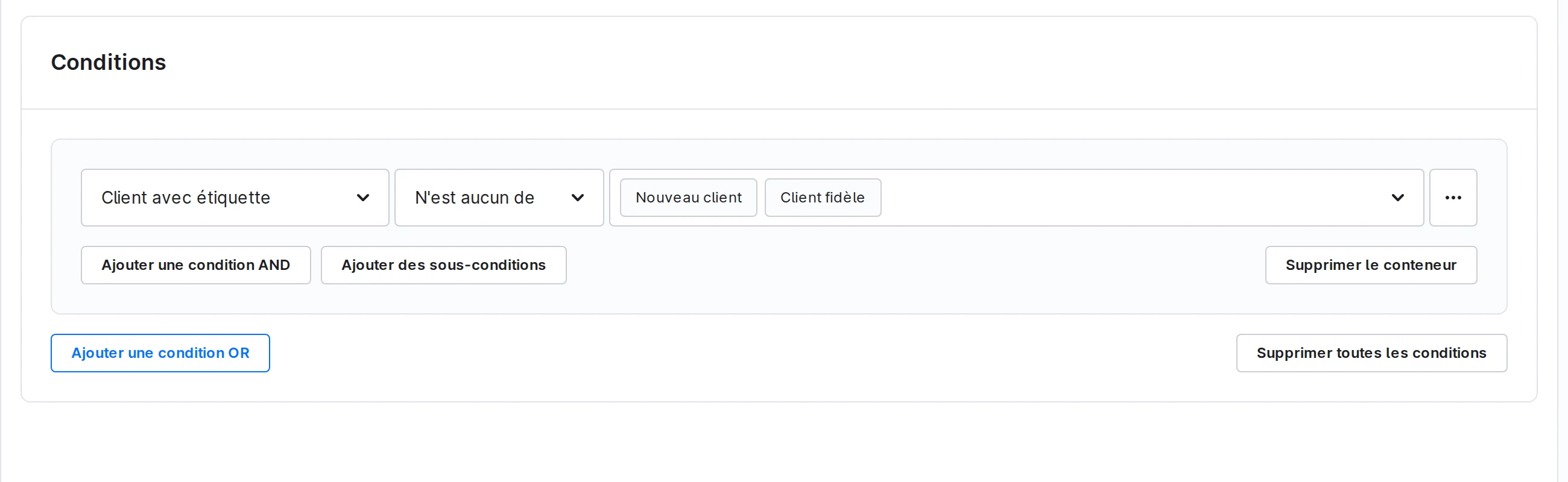
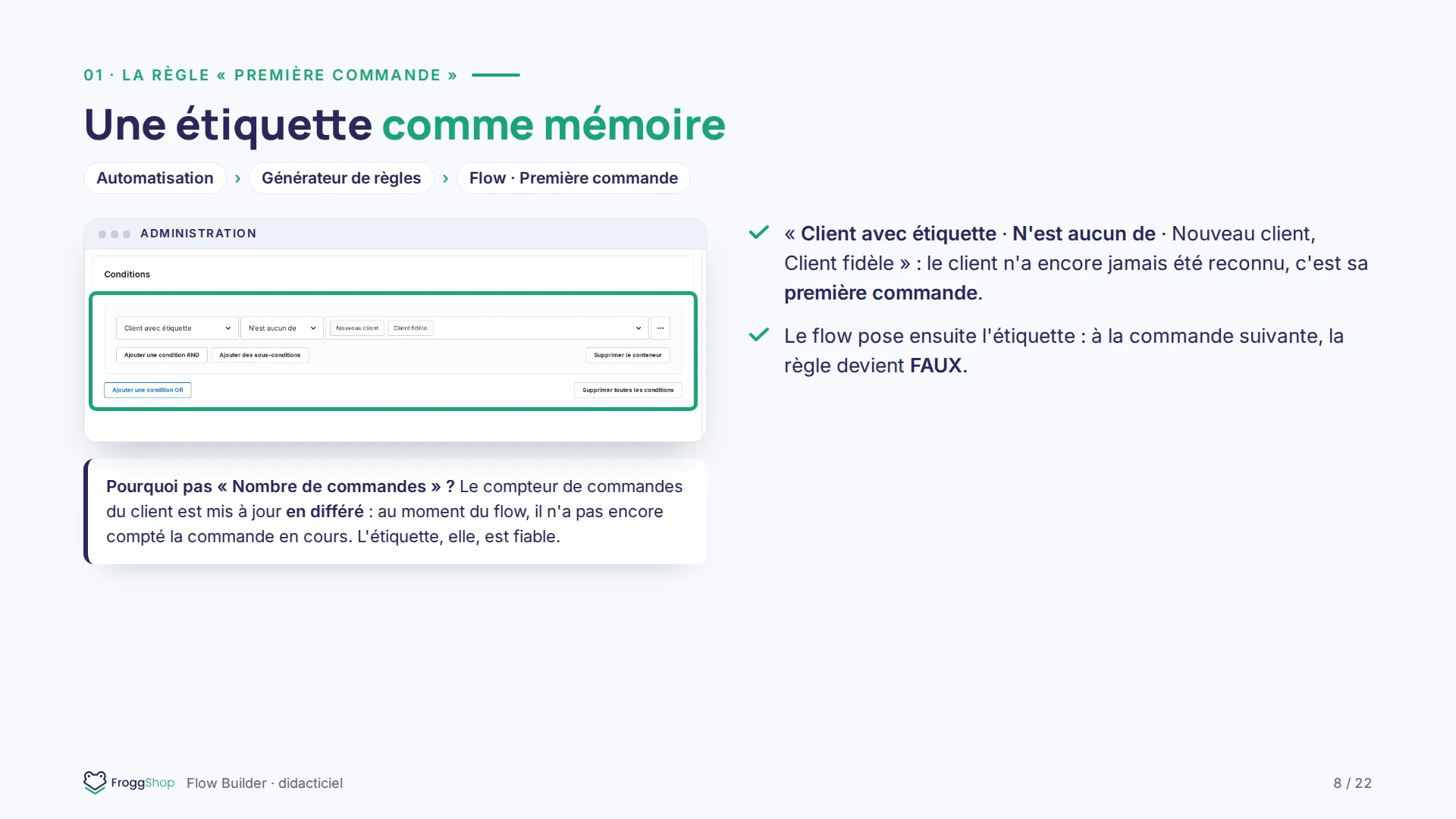
Conditions come from Shopware’s rule builder: basket, customer, shipping, payment, tags… To recognise a first order, the demo relies on a memory tag: the rule “Customer with tag · Is none of · Nouveau client, Client fidèle” is only true for a customer never recognised before.
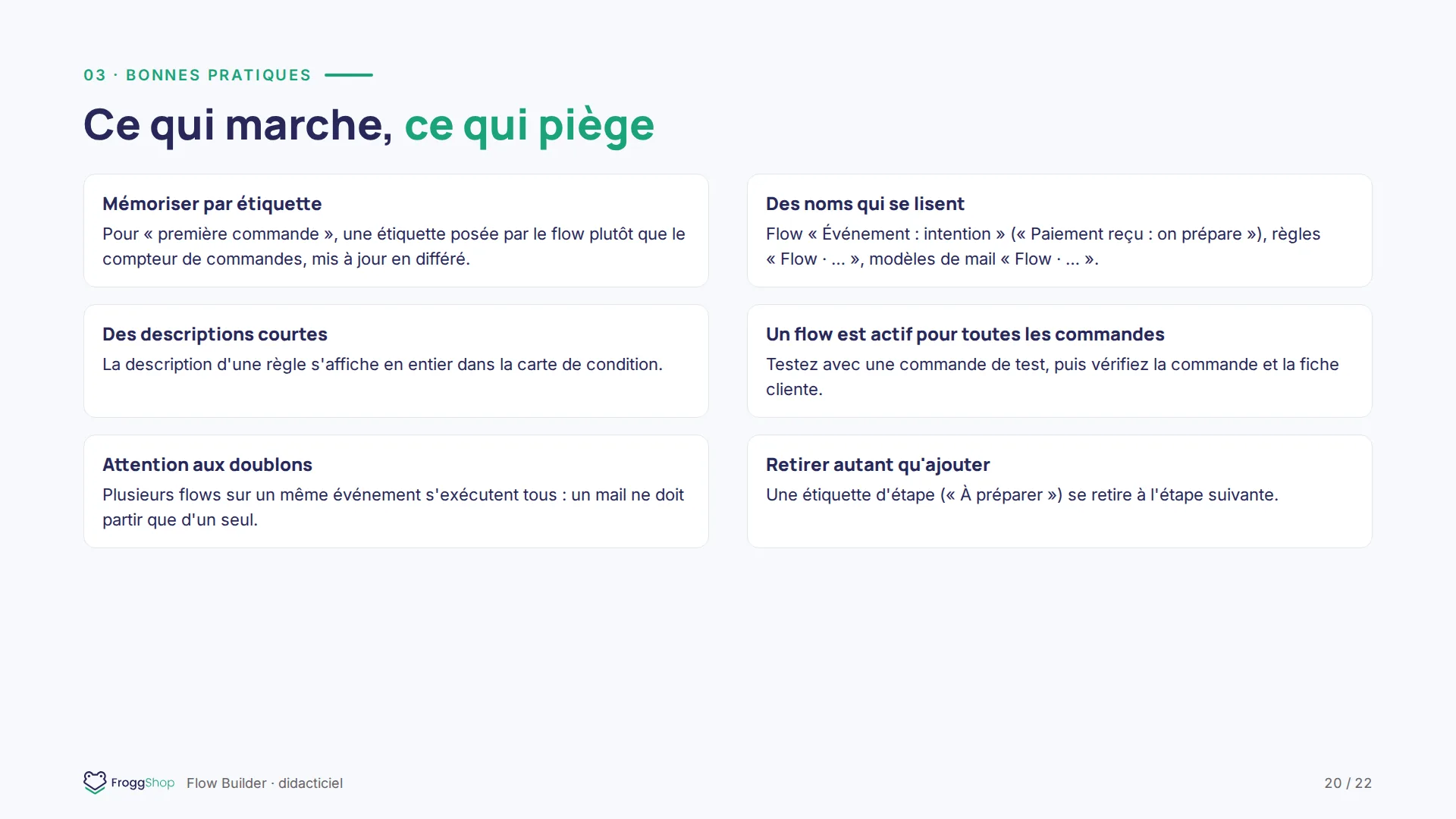
The flow adds the “Nouveau client” tag; on the next order, the rule becomes false, and the FALSE branch removes “Nouveau client” and adds “Client fidèle”. A tag added by the flow stays reliable, whereas the customer’s order counter is updated later.
Flag large baskets
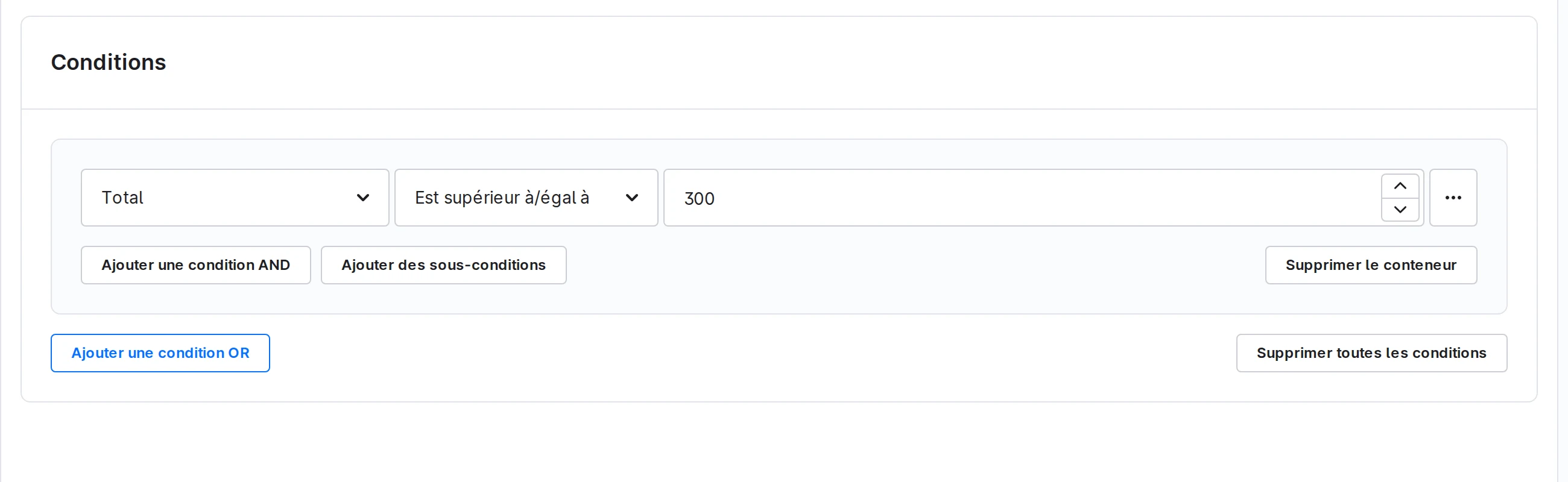
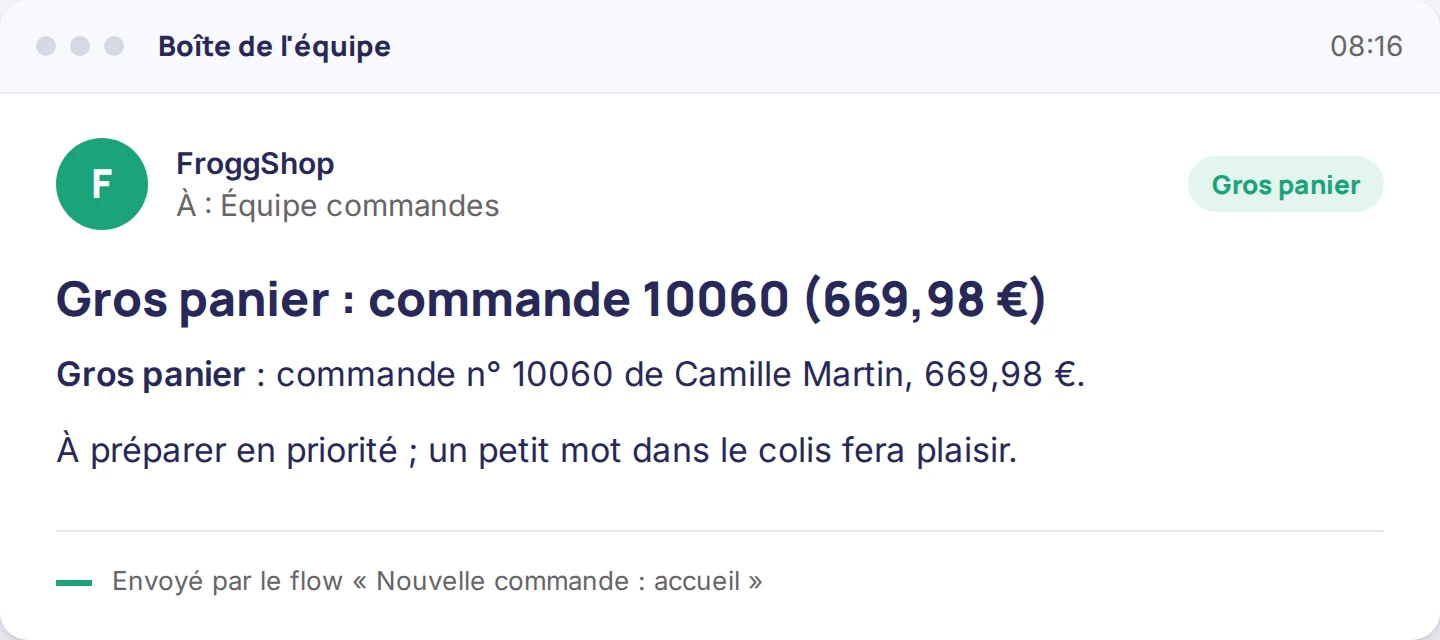
In the same flow, a second IF block tests the total: “Total · Is greater than/equal to · 300”. If it is true, the order receives the Gros panier (Large basket) tag and the team an email, at the address of your choice.
An order of €61.99 goes through without triggering anything.
Emails your way
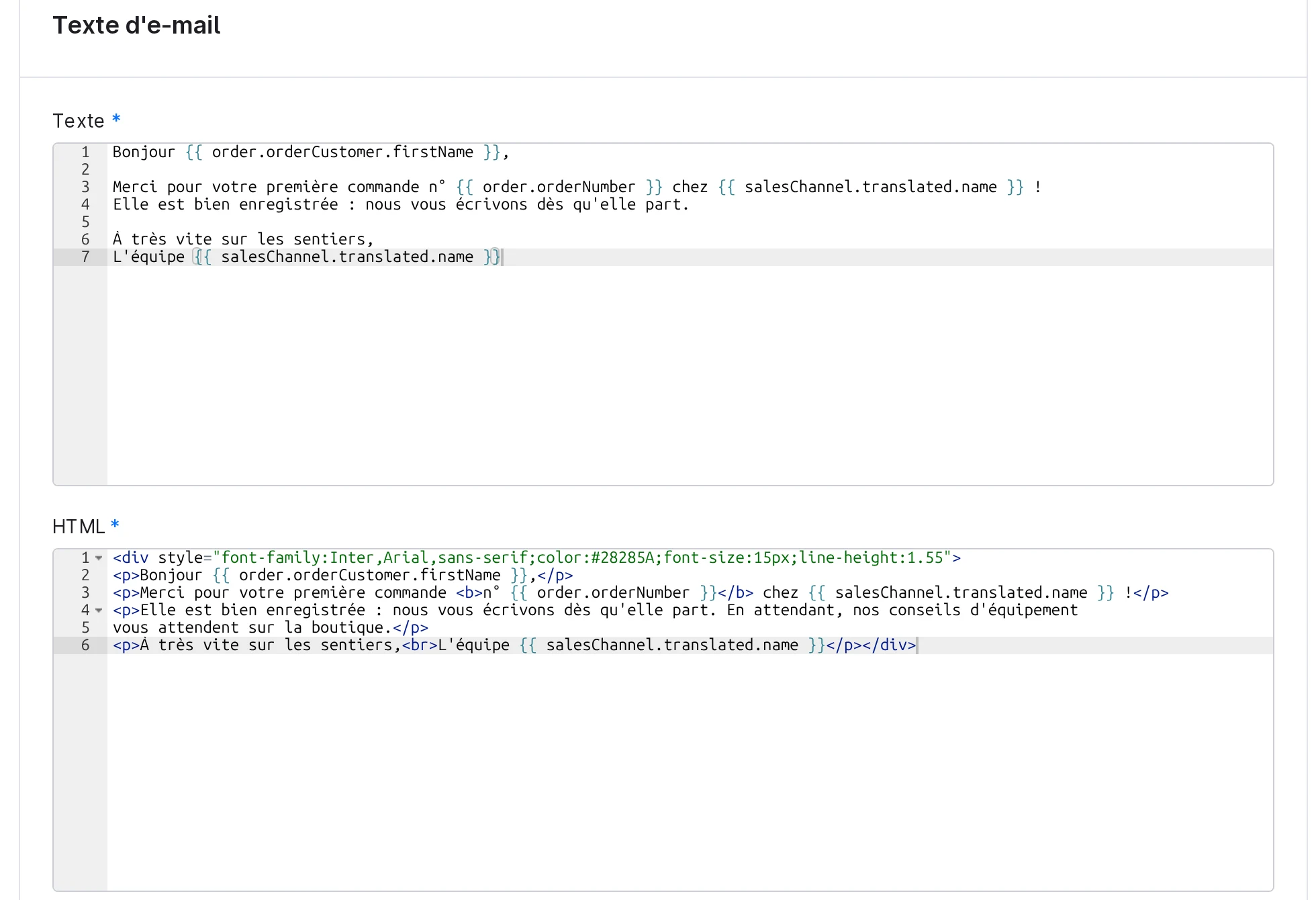
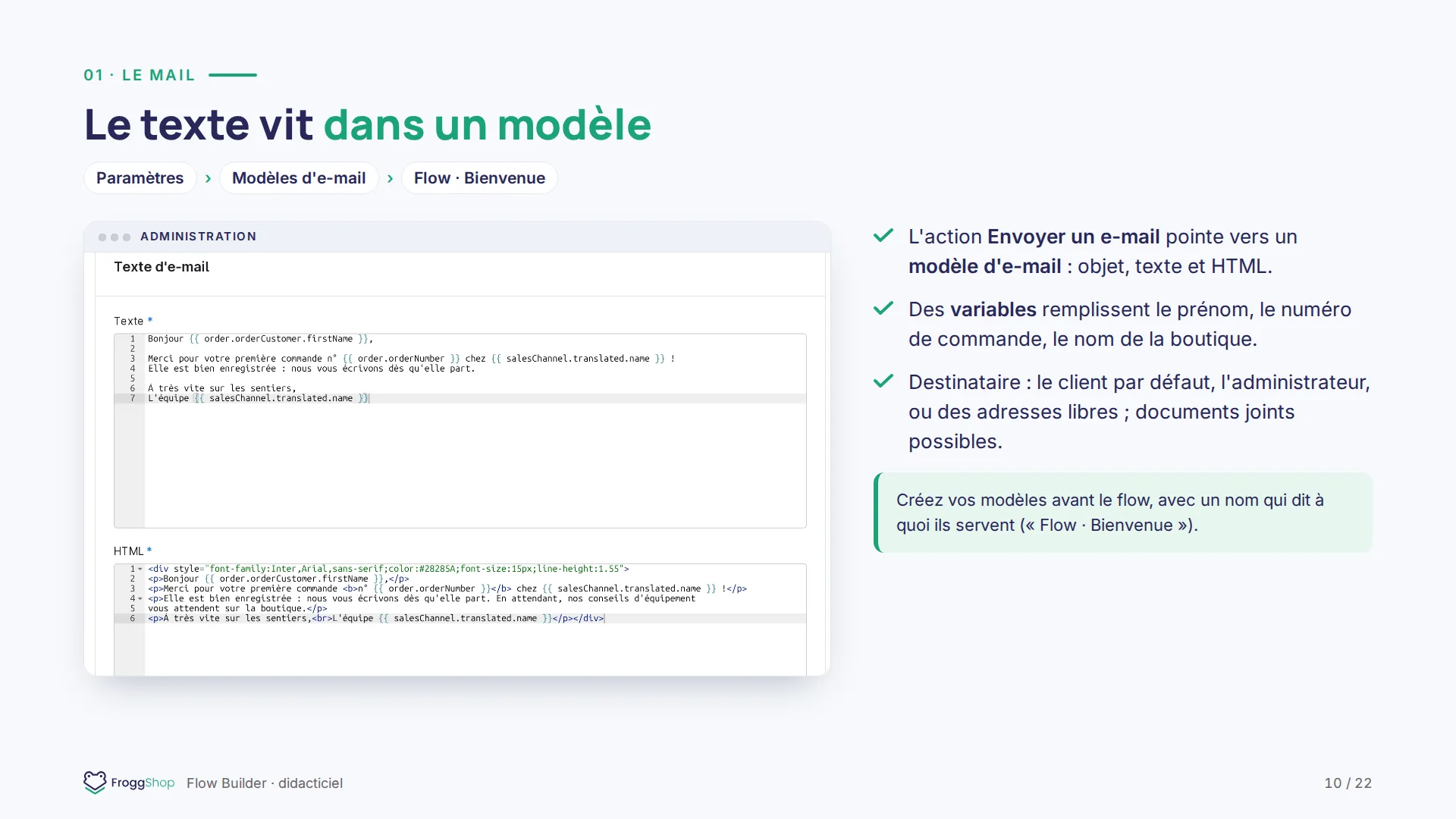
The Send email action relies on Shopware’s email templates (Settings › Email templates): subject, text and HTML, with variables for the first name, the order number or the shop name.
The recipient is up to you: default recipient, administrator or free addresses; documents can be attached, such as the invoice.
From payment to shipping
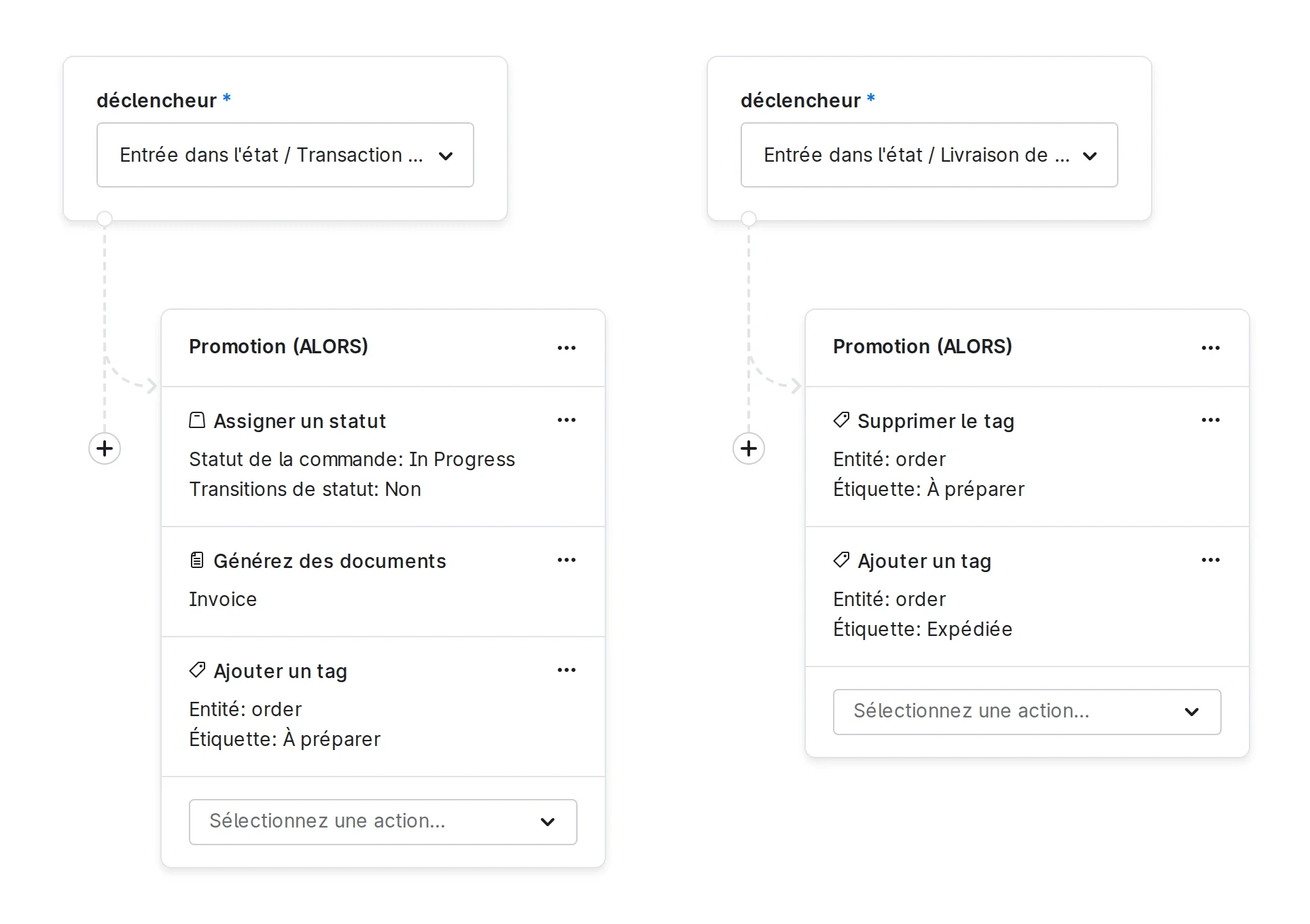
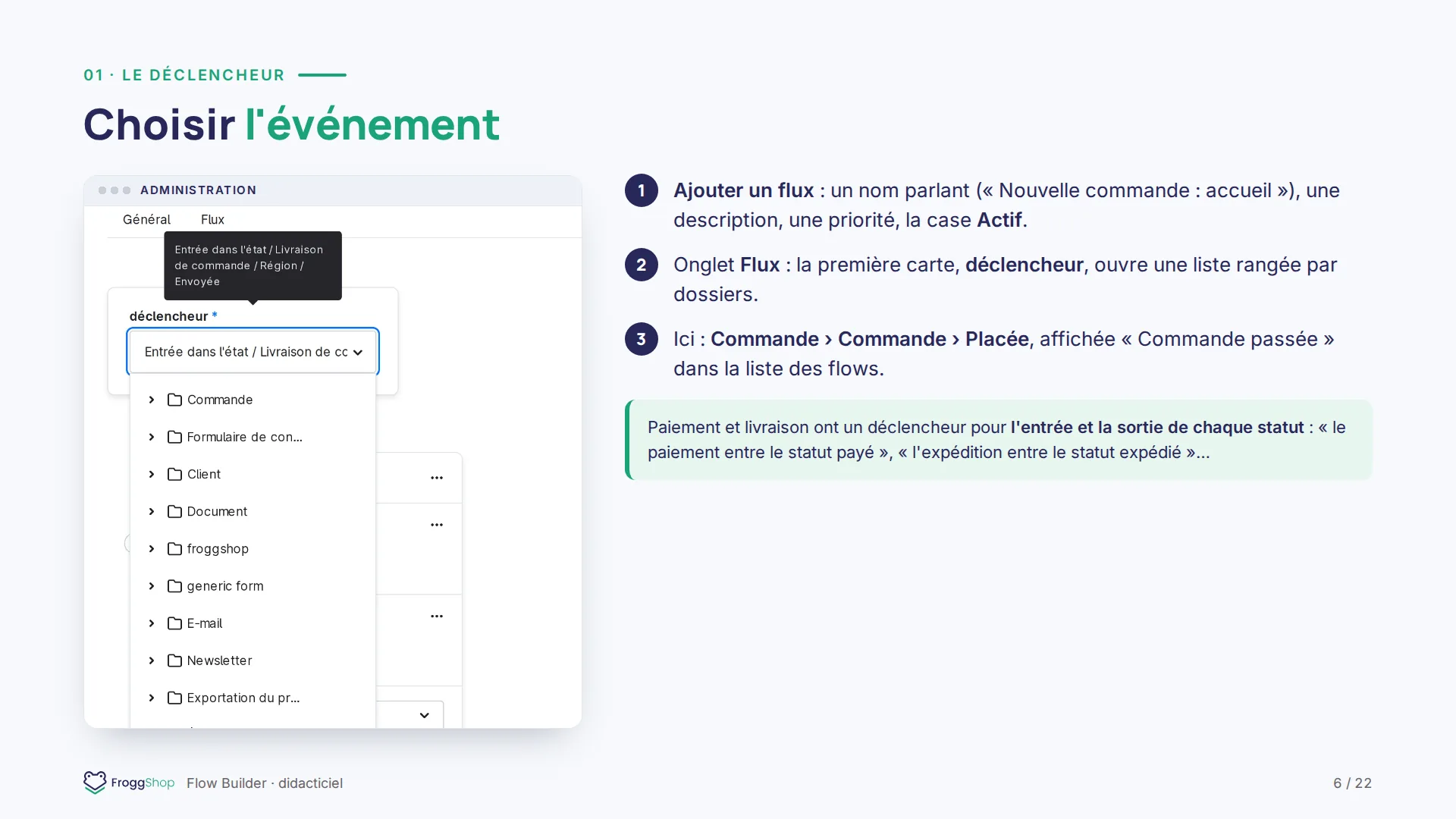
Payment and delivery statuses each have their own triggers, on entering as well as leaving each status. Two short flows are enough to keep preparation on track.
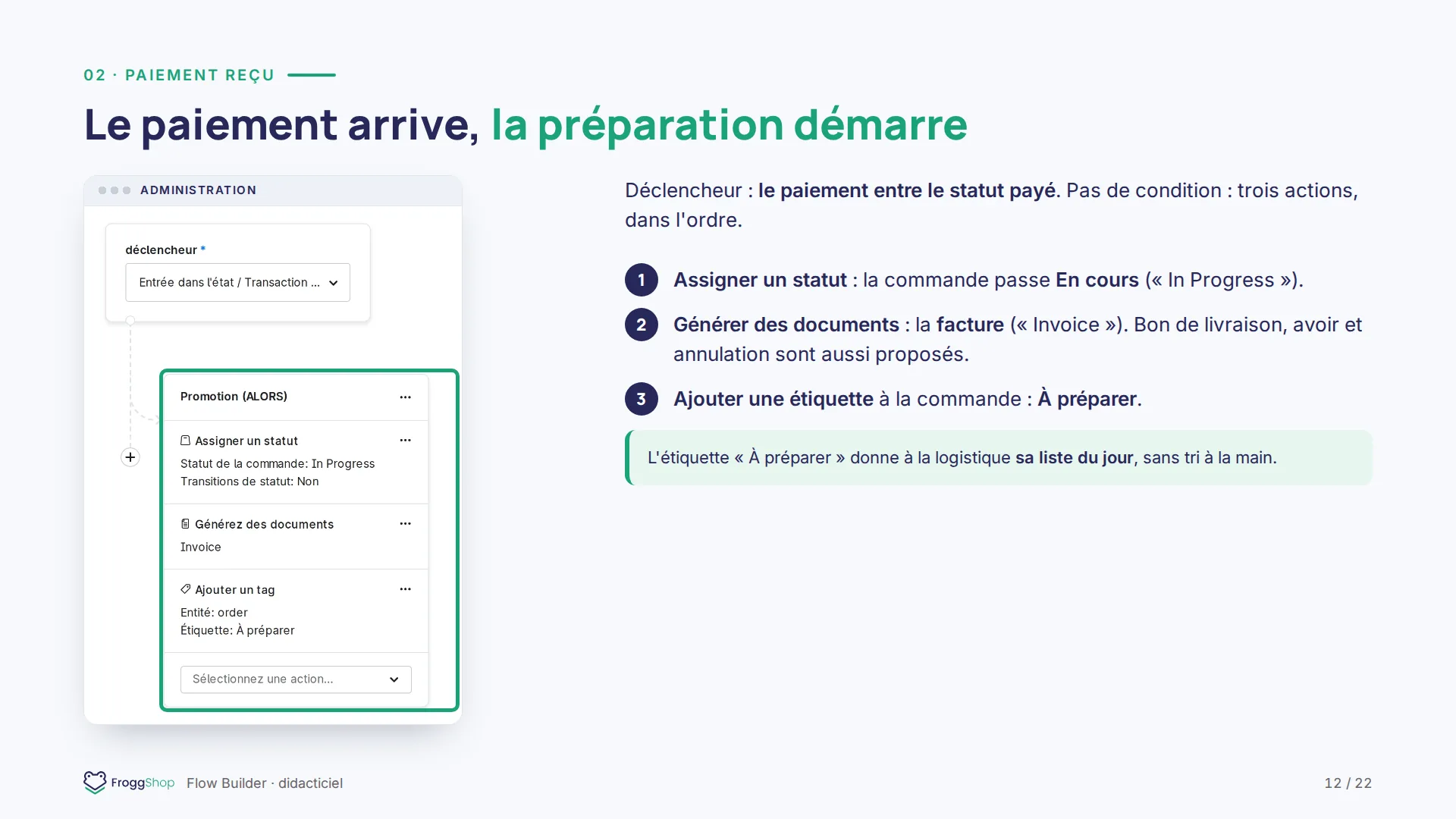
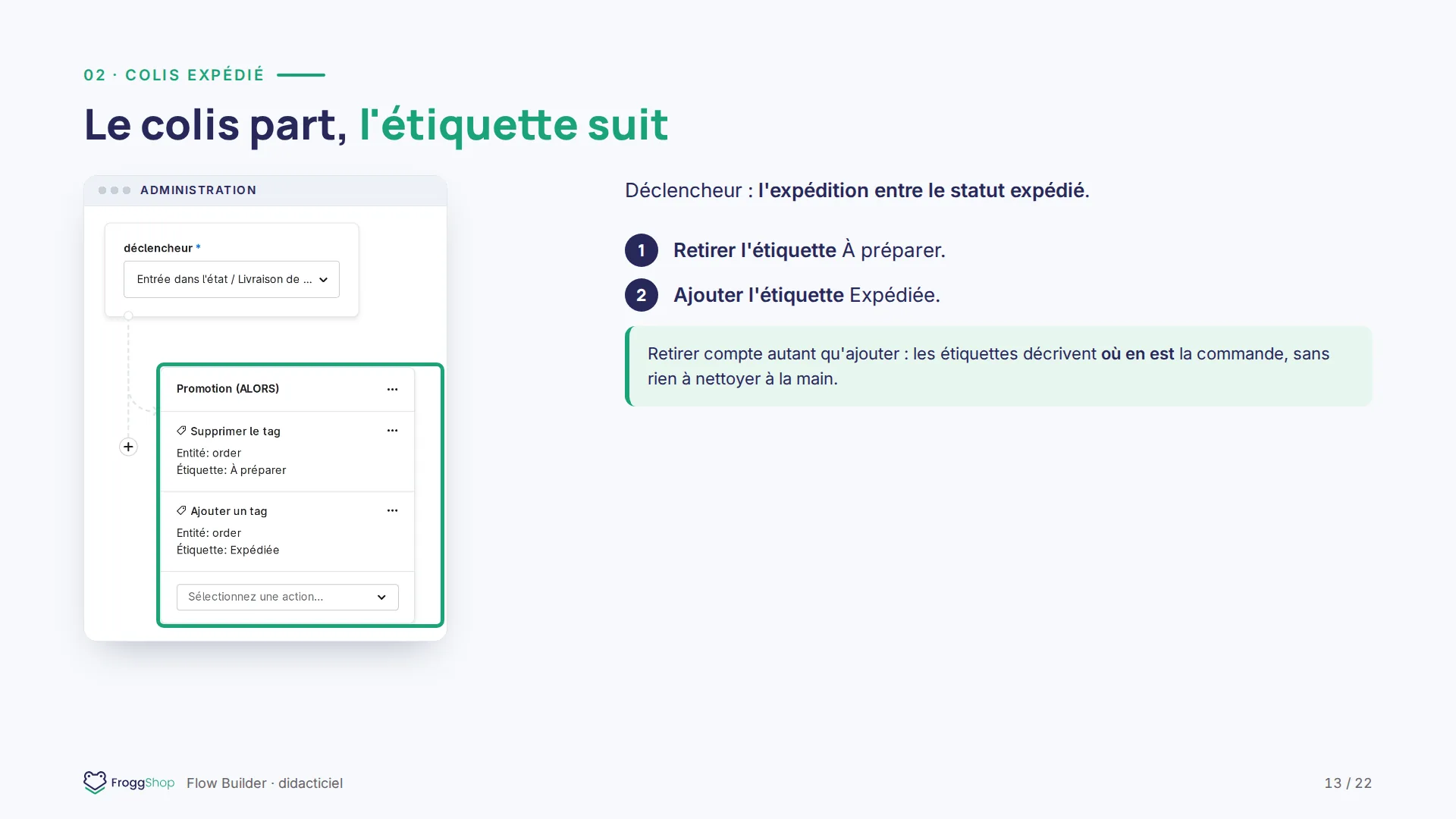
Paiement reçu : on prépare (Payment received: we prepare, when the payment enters the paid status): the order moves to In progress, the invoice is generated, the À préparer (To prepare) tag is added. Colis expédié (Parcel shipped, when the delivery enters the shipped status): “À préparer” is removed, “Expédiée” (Shipped) added. The tags always say where the order stands.
The result, in the administration
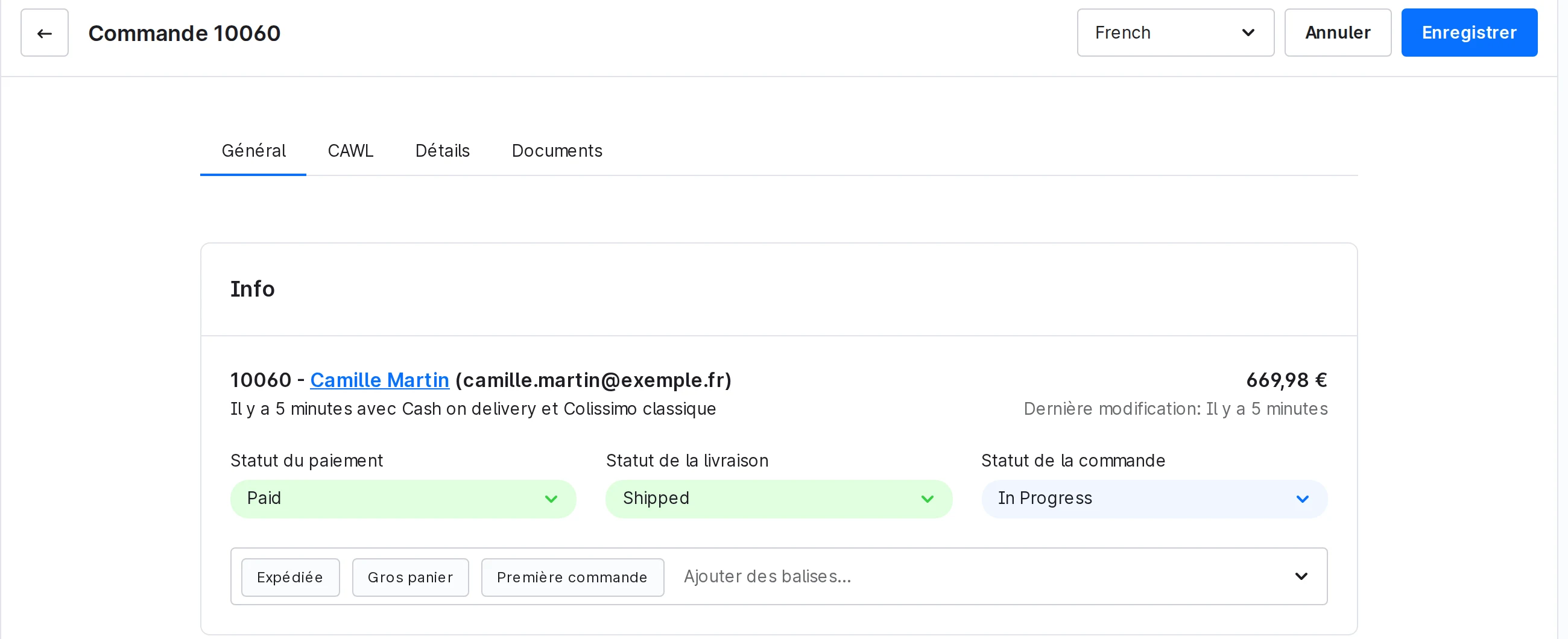
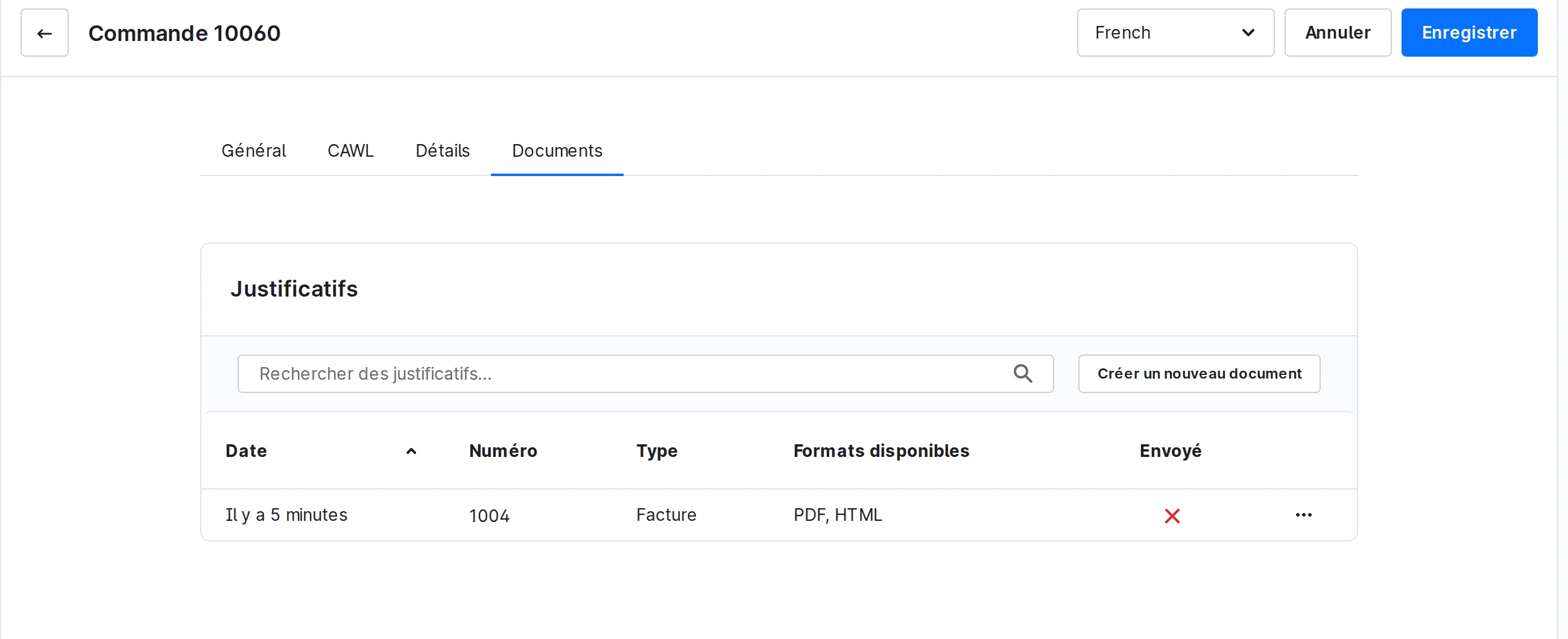
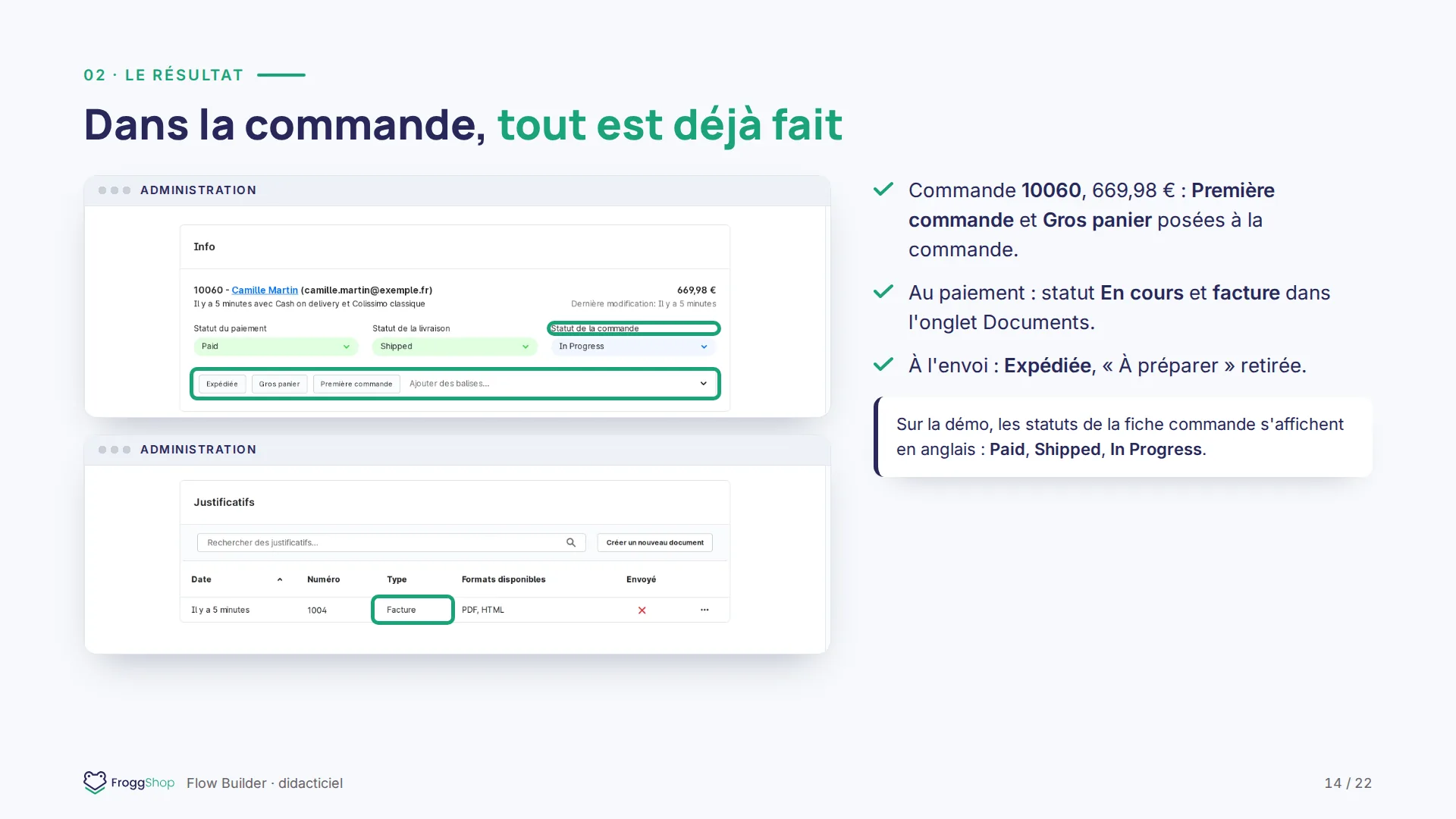
On order 10060, everything is already done: Première commande, Gros panier and Expédiée tags, in progress status, invoice in the Documents tab.
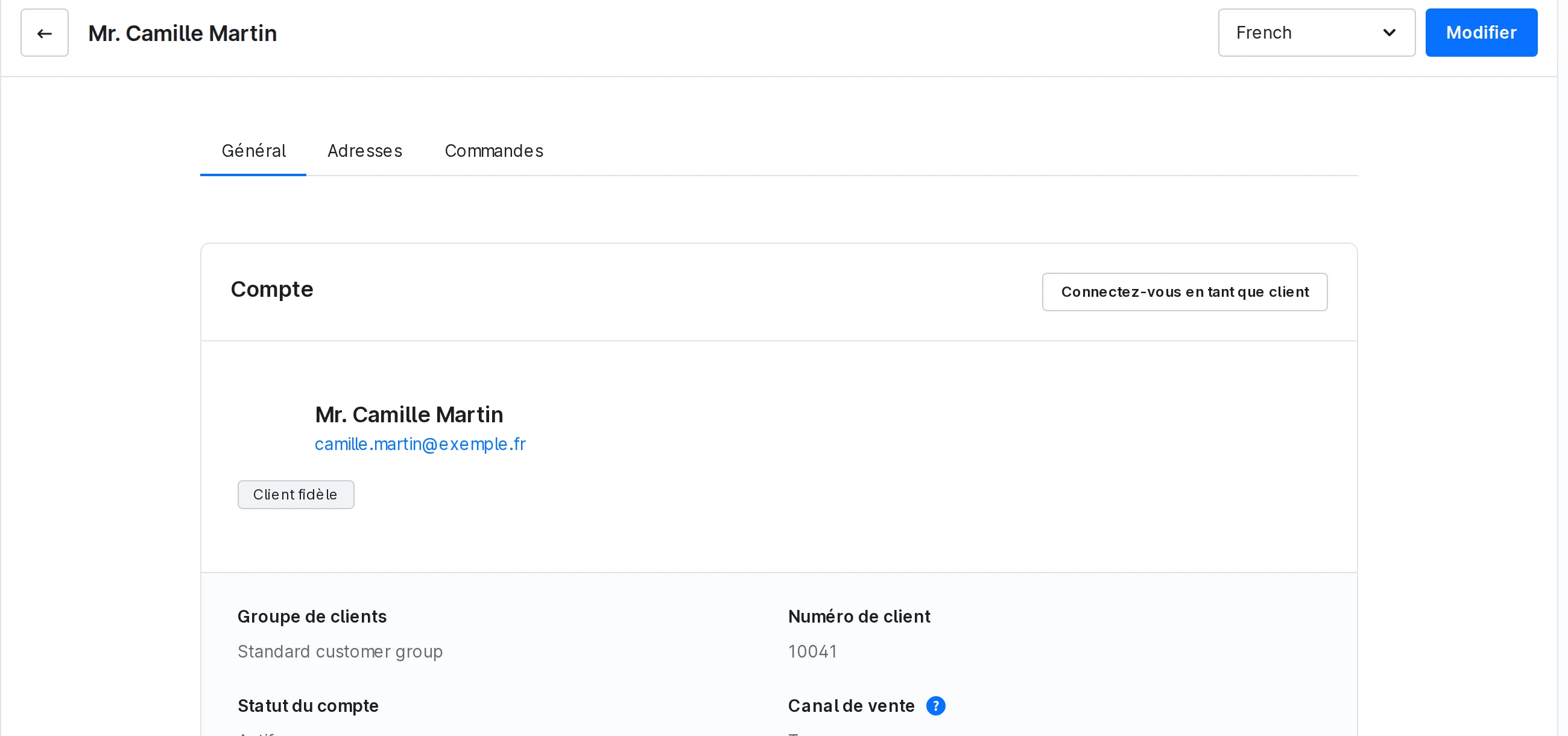
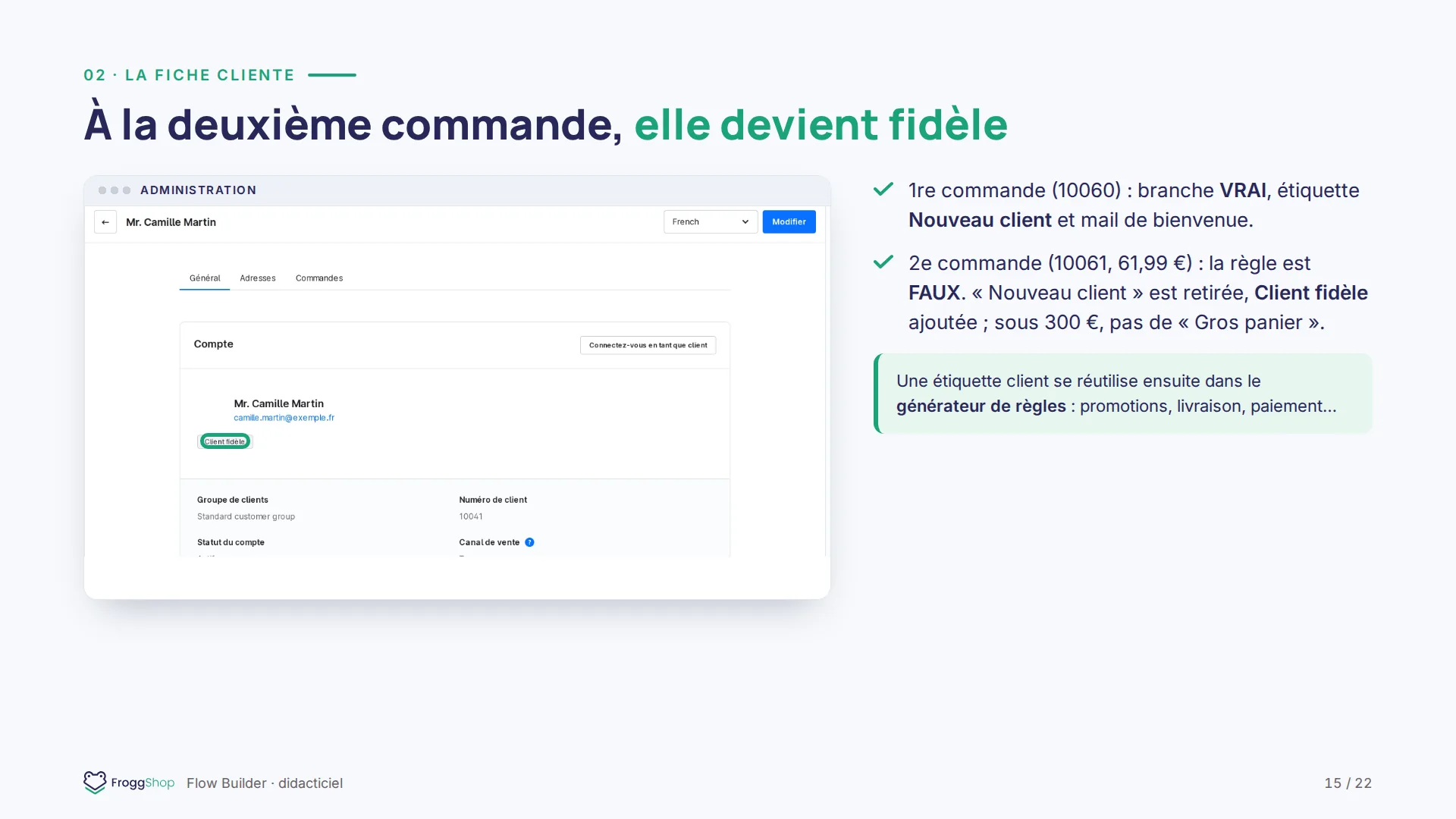
On the customer’s account, her second order has made her a “Client fidèle” (Loyal customer).
The complete journey, commented
Create a flow, set its conditions and actions, then follow an order from checkout to shipping: the complete journey, commented (French voice-over).
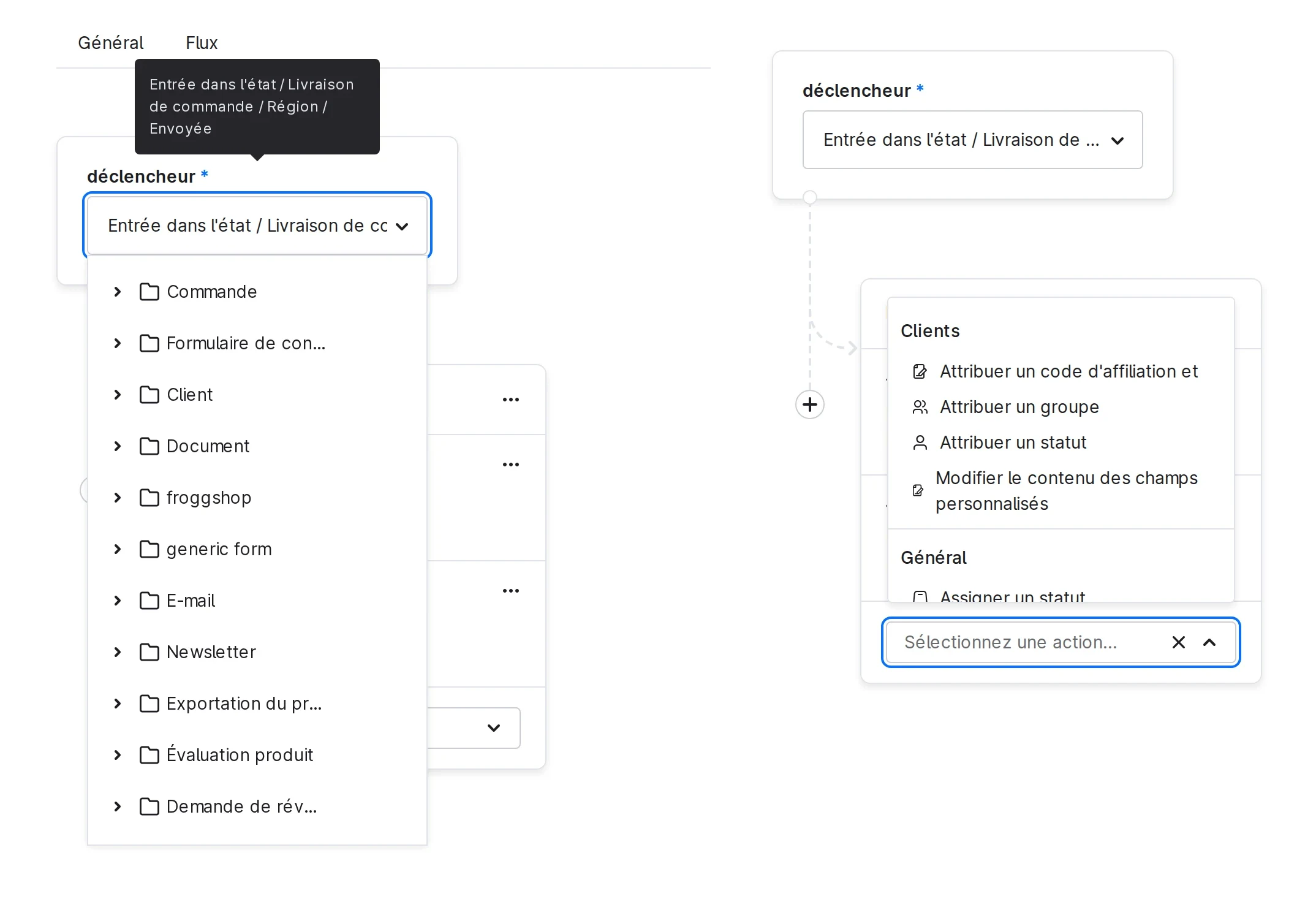
95 triggers, 16 native actions
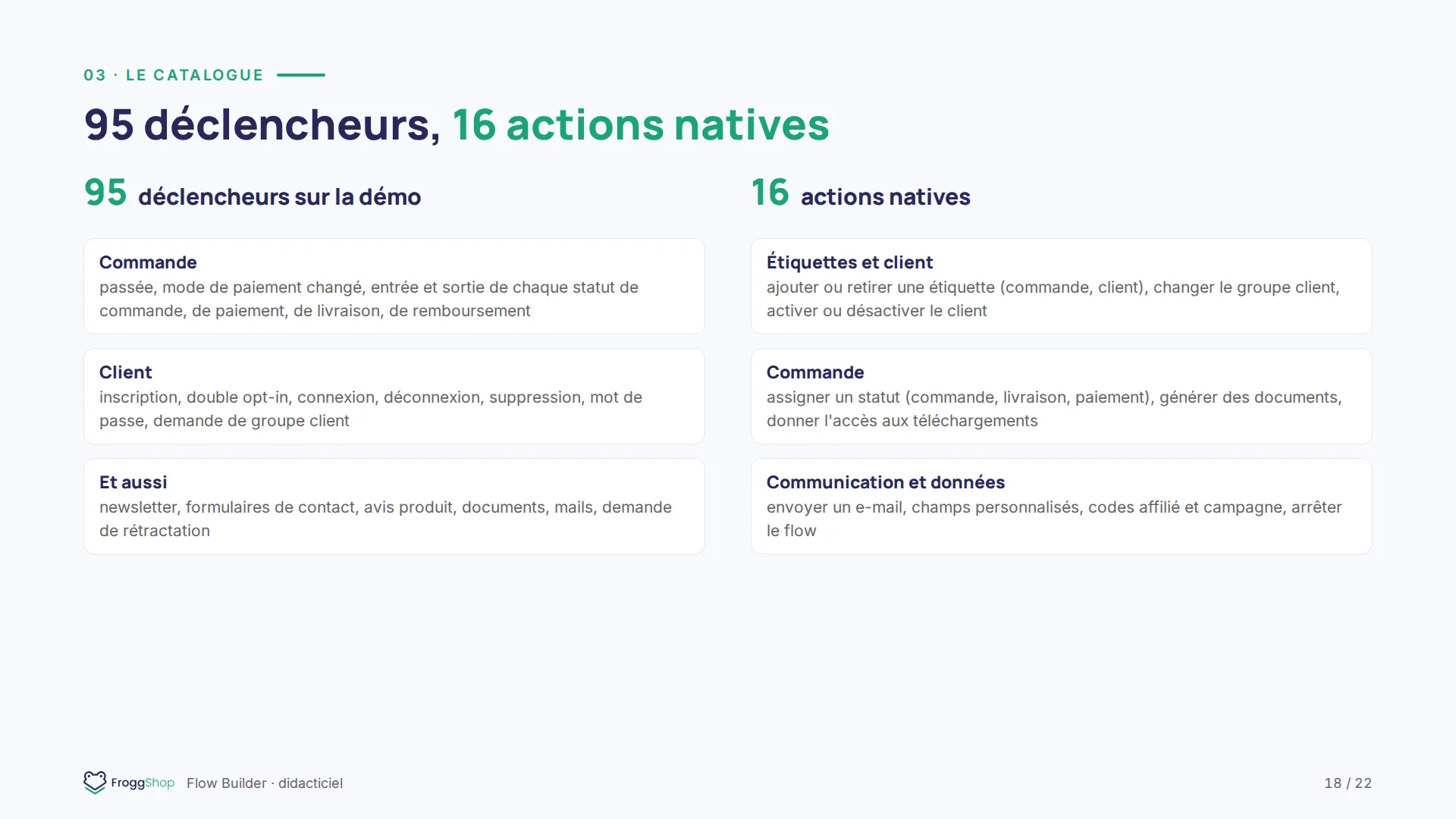
On our demo shop, the list has 95 triggers, sorted into folders, and 16 native actions.
Triggers: order placed, payment method changed, entering and leaving each order, payment, delivery, capture and refund status; registration, double opt-in, login, password, customer group request; newsletter; contact form, product review, withdrawal request.
Actions: add or remove a tag (order, customer), change the customer group, activate or deactivate the customer; assign a status (order, delivery, payment), generate documents (invoice, delivery note, credit note, cancellation), grant access to downloads; send an email (documents can be attached), custom fields, affiliate and campaign codes, stop the flow.
Start from a template
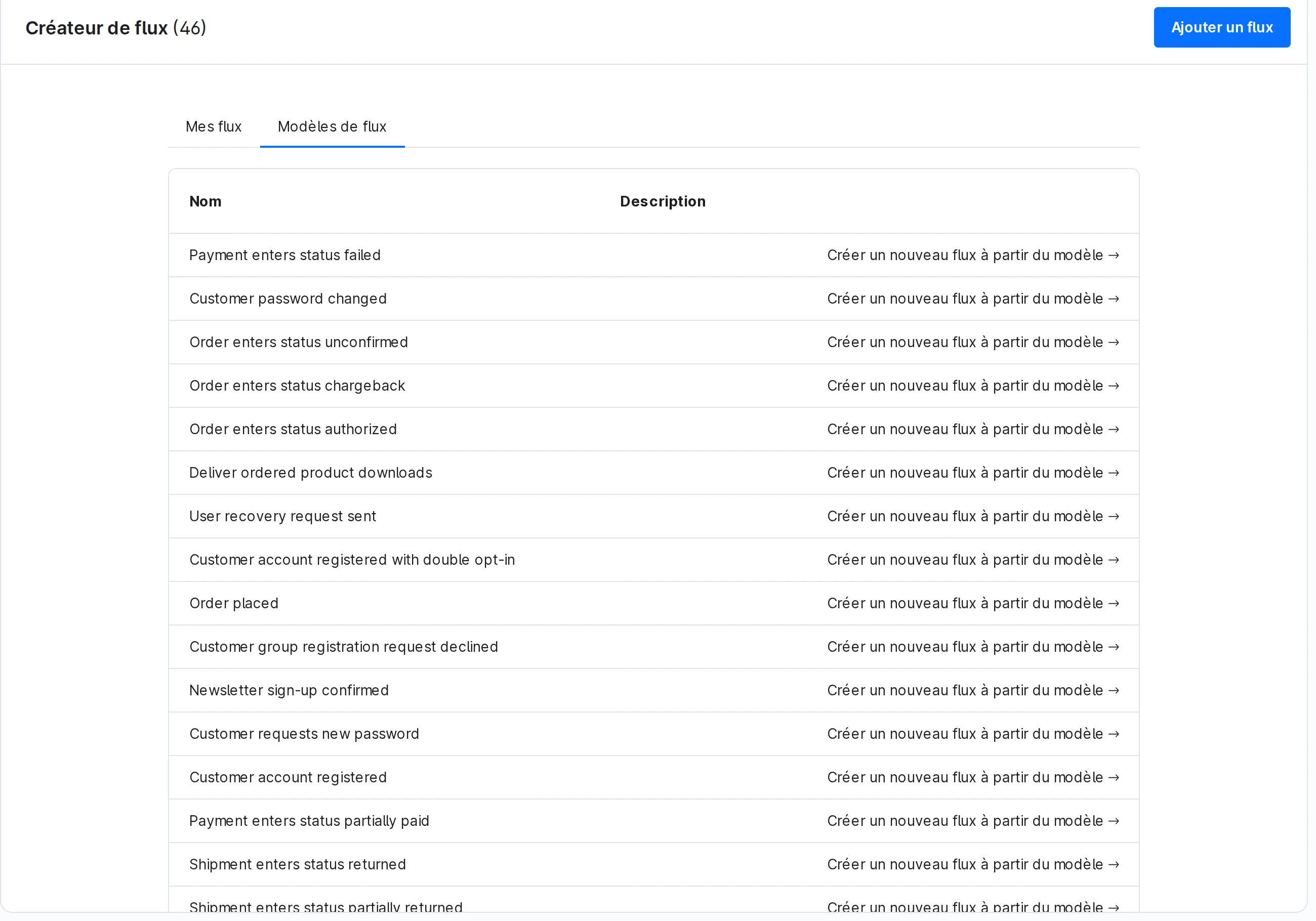
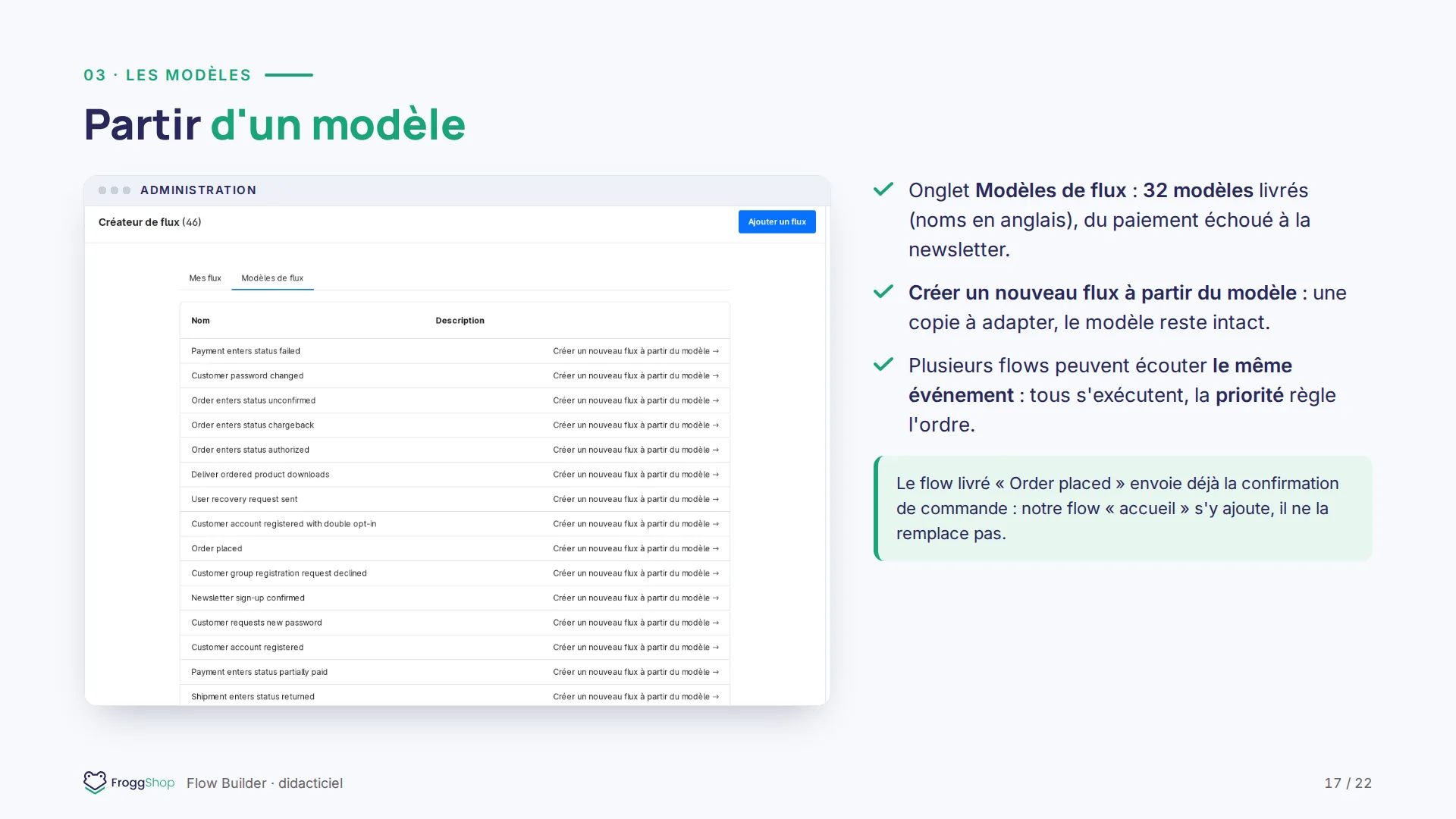
The Flow templates tab offers 32 templates ready to copy: payment failed, order placed, newsletter sign-up confirmed… You create a flow from the template, then adapt it.
Several flows can listen to the same event: they all run, in order of priority. The order confirmation email shipped with Shopware keeps going out alongside the “welcome” flow.
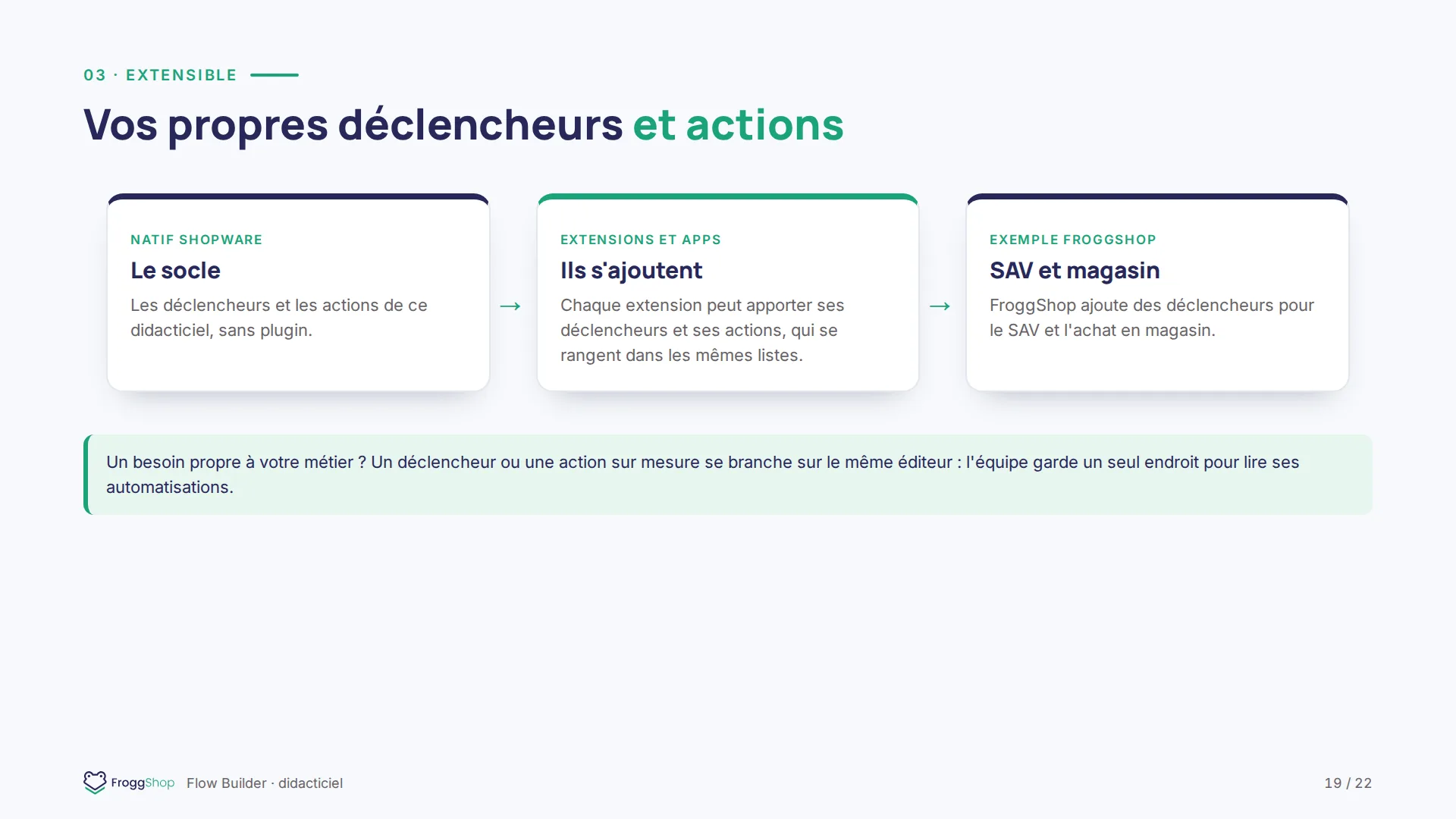
Your own triggers and actions
The list is not fixed: each extension or app can add its triggers and actions, which sit in the same editor. FroggShop thus adds triggers for after-sales service and in-store purchases.
A need specific to your business plugs in at the same place, and the team keeps a single view of its automations.
What you need to know
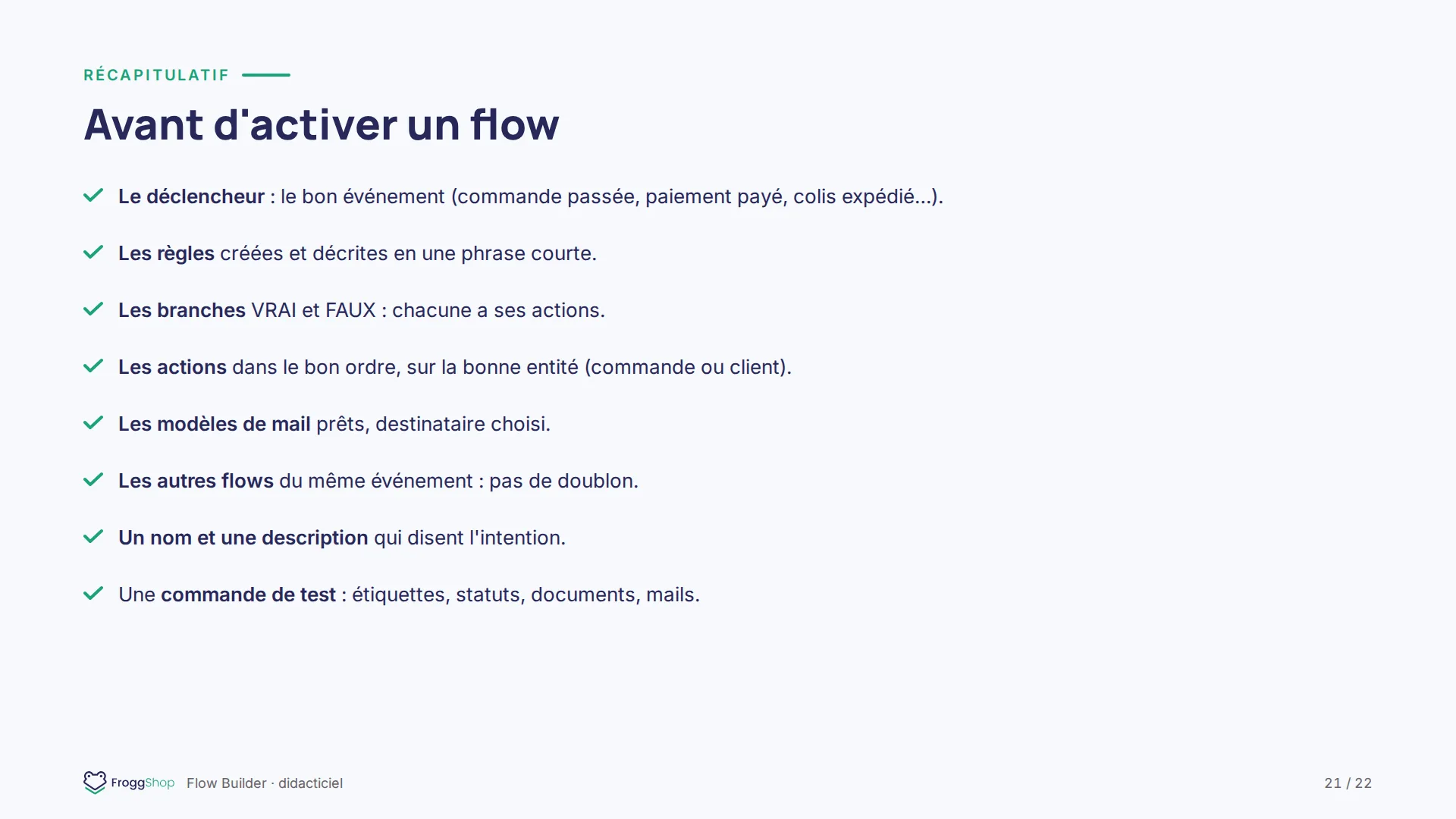
Remember with a tag: to know whether a customer has already ordered, a tag added by the flow is reliable; the customer’s order counter is updated later and does not yet count the current order. An active flow applies to every order: test it with a test order, then check the order and the customer account.
Several flows, one event: they all run, so make sure the same email does not go out twice. Short descriptions: a rule’s description is shown in full in the condition card of the editor.
The Flow Builder is included in Shopware, and therefore in FroggShop, with no plugin.
To prepare with us
Your repeated tasks: what the team does by hand for each order, payment or shipment; these are the first flows. Your tags and statuses: a shared vocabulary (“To prepare”, “Shipped”, “Loyal customer”) that the whole team reads the same way.
Your emails: the messages to send to the customer or the team, written as email templates, with their recipients.

The tutorial, slide by slide
Create a flow step by step, follow an order from start to finish, then start from a template and avoid the pitfalls: the complete setup, with slides in French. Use the arrows or full screen.

What is the scope of your project?
Tell us about your needs and the tools you use. We can clarify the possibilities, conditions, alternatives and scope of work suited to your project.
Discuss your needs