


GetResponse: your Shopware shop feeds GetResponse, with no manual entry
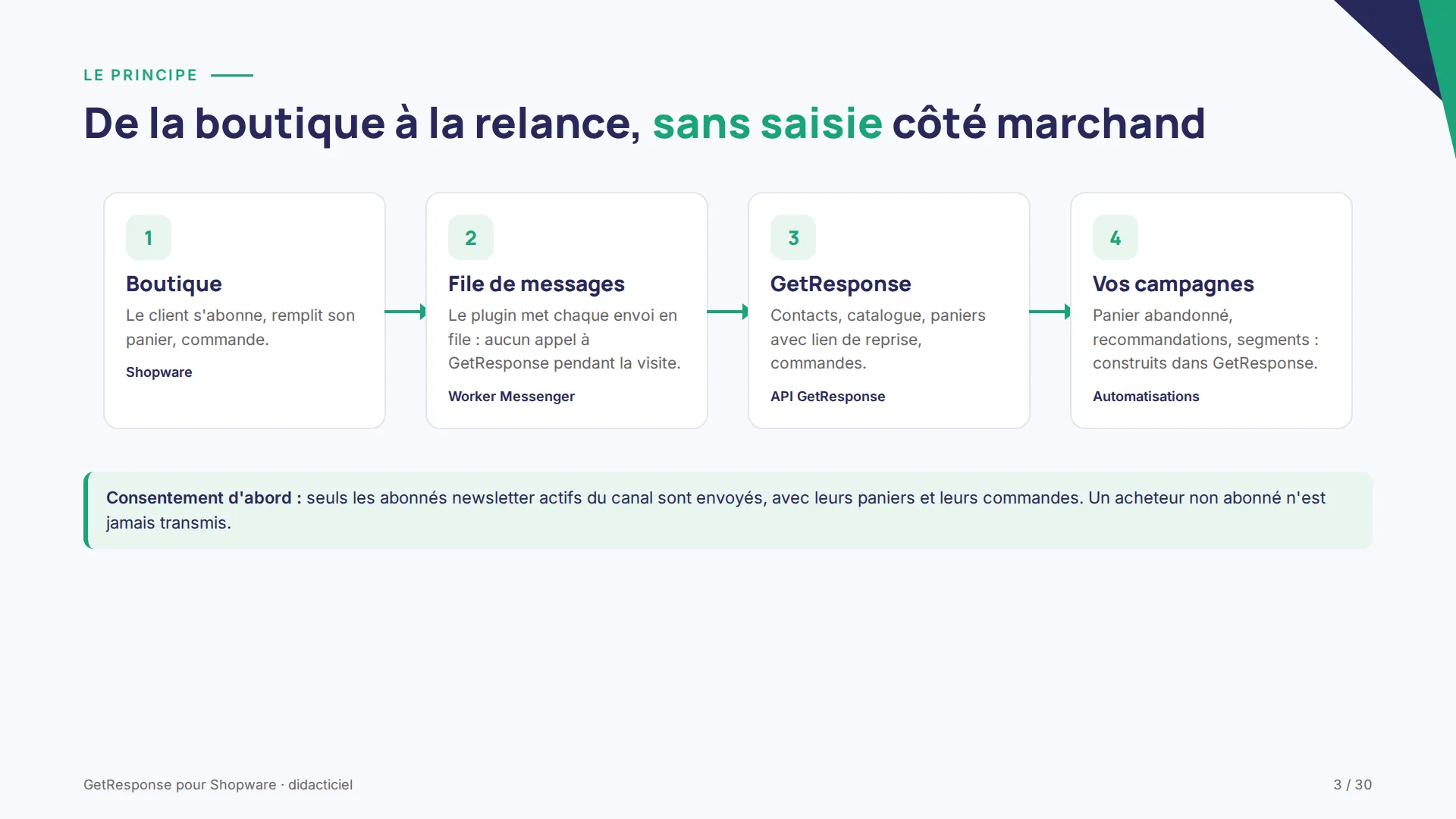
Confirmed newsletter subscribers, catalogue, carts with a “resume my cart” link and orders: everything goes to GetResponse in the background. You then build your follow-ups and campaigns in GetResponse. Only people subscribed to your newsletter are sent.
The subscriber joins your list, once confirmed
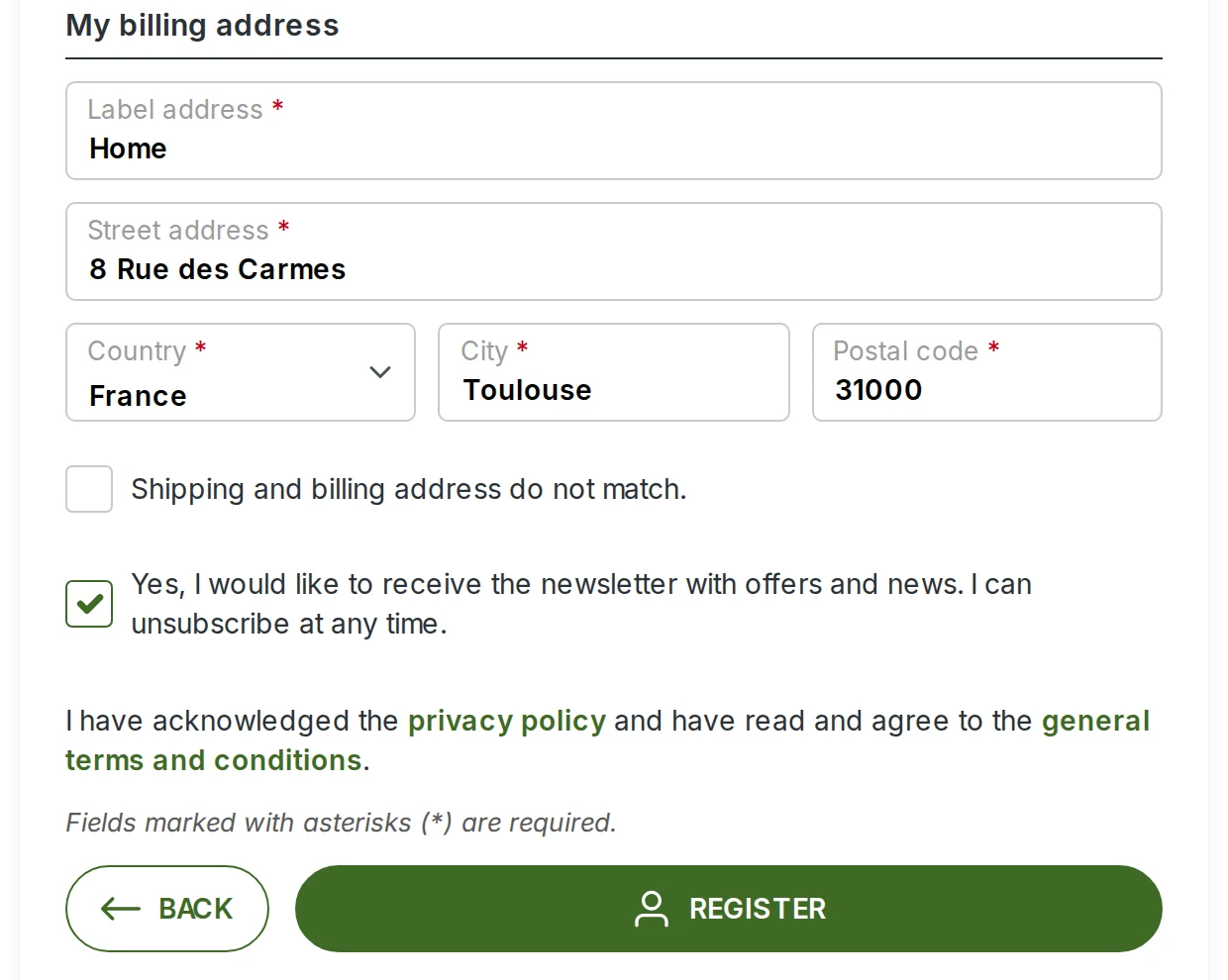
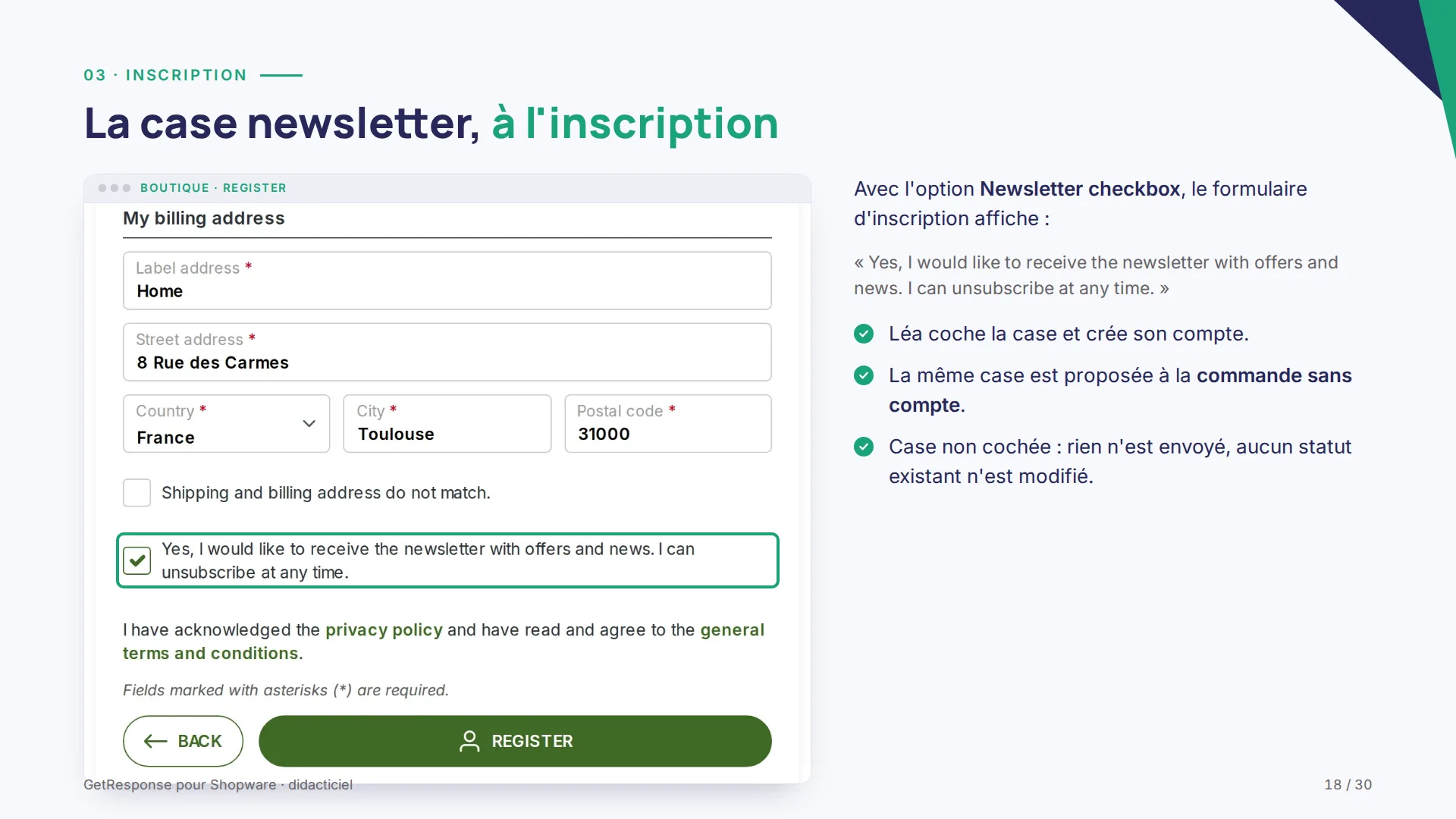
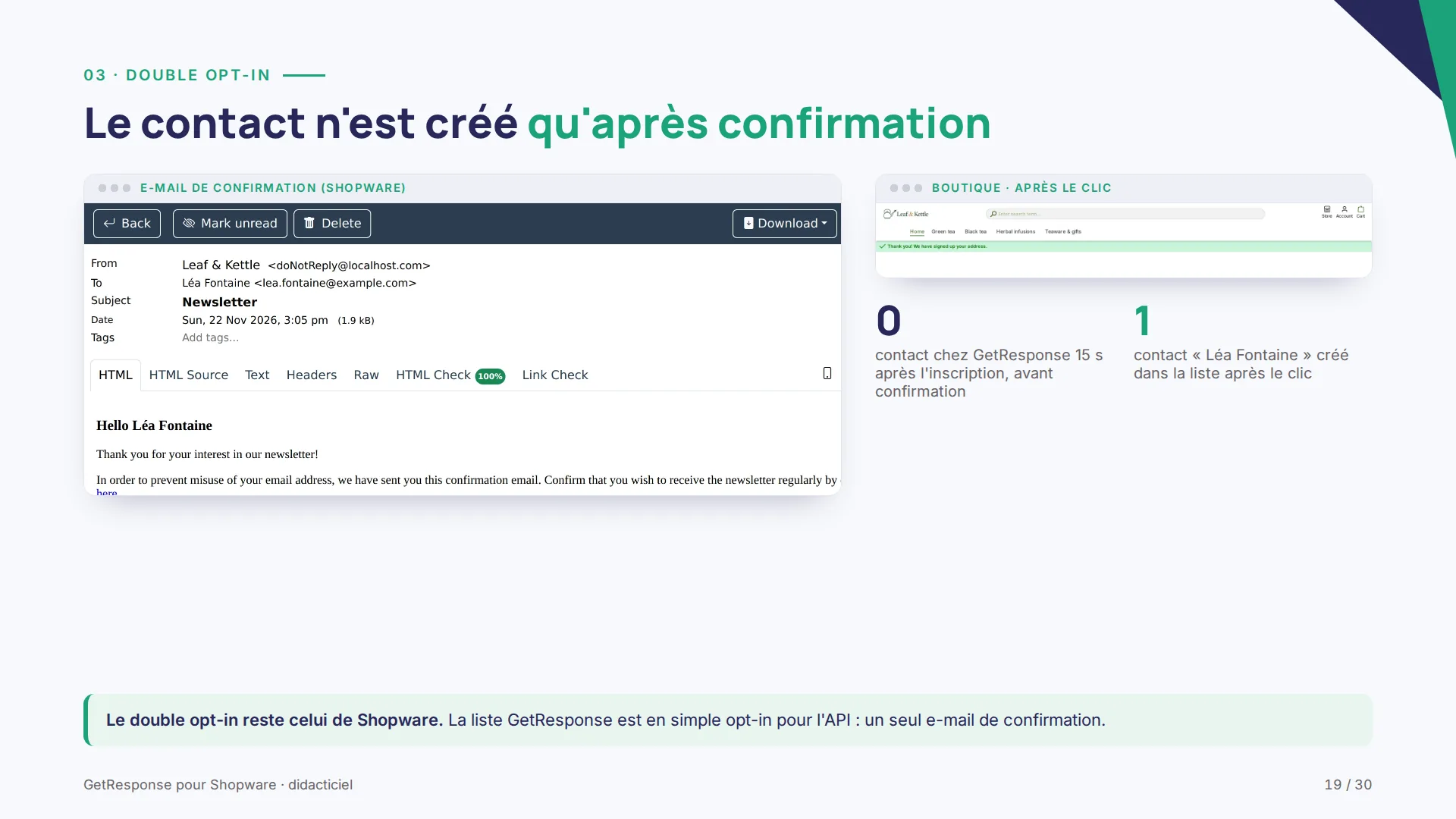
Léa Fontaine creates her account on Leaf & Kettle and ticks the newsletter box added by the plugin to the registration form (it is also offered at guest checkout). Shopware sends her its usual confirmation email: the double opt-in remains Shopware’s.
Until Léa clicks, nothing is sent: in our tests, GetResponse had no contact in her name 15 seconds after registration. As soon as she confirms, she appears in your GetResponse list, with her first and last name.


The cart goes to GetResponse, with its recovery link
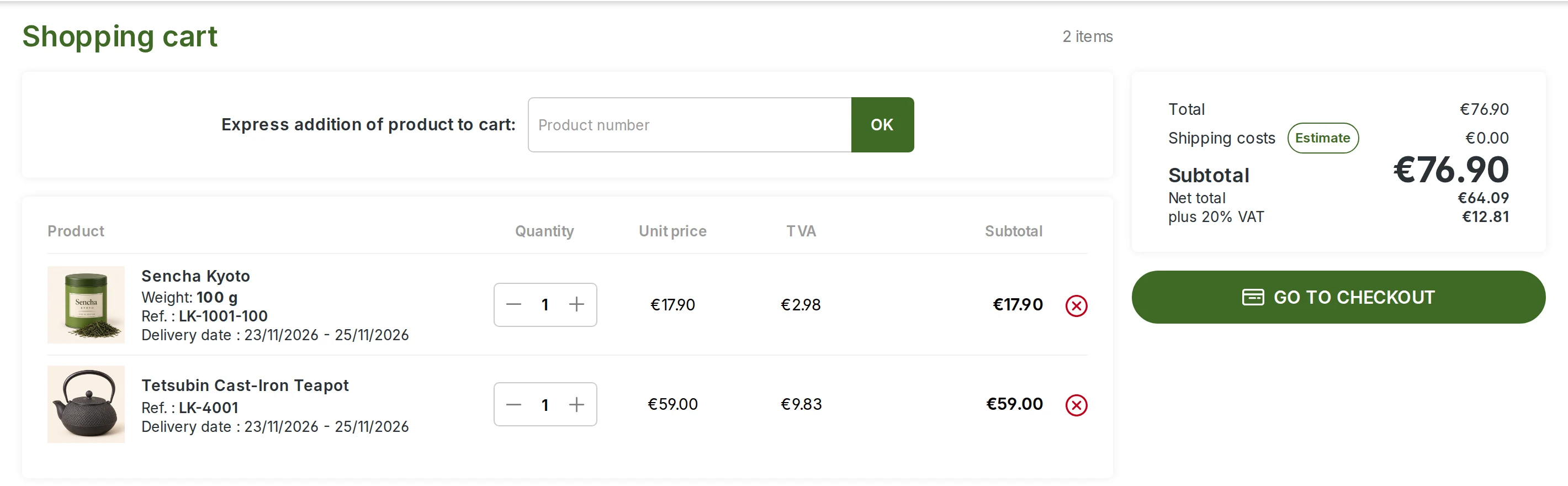
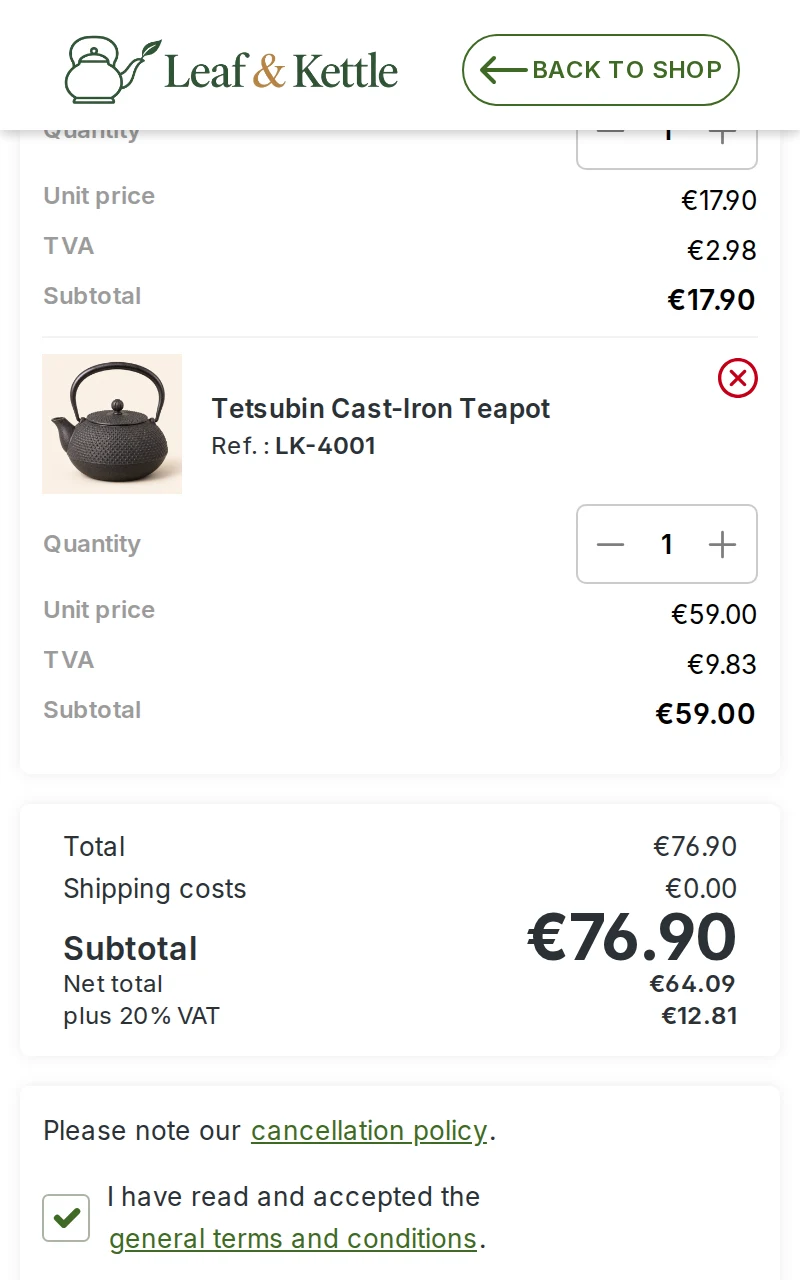
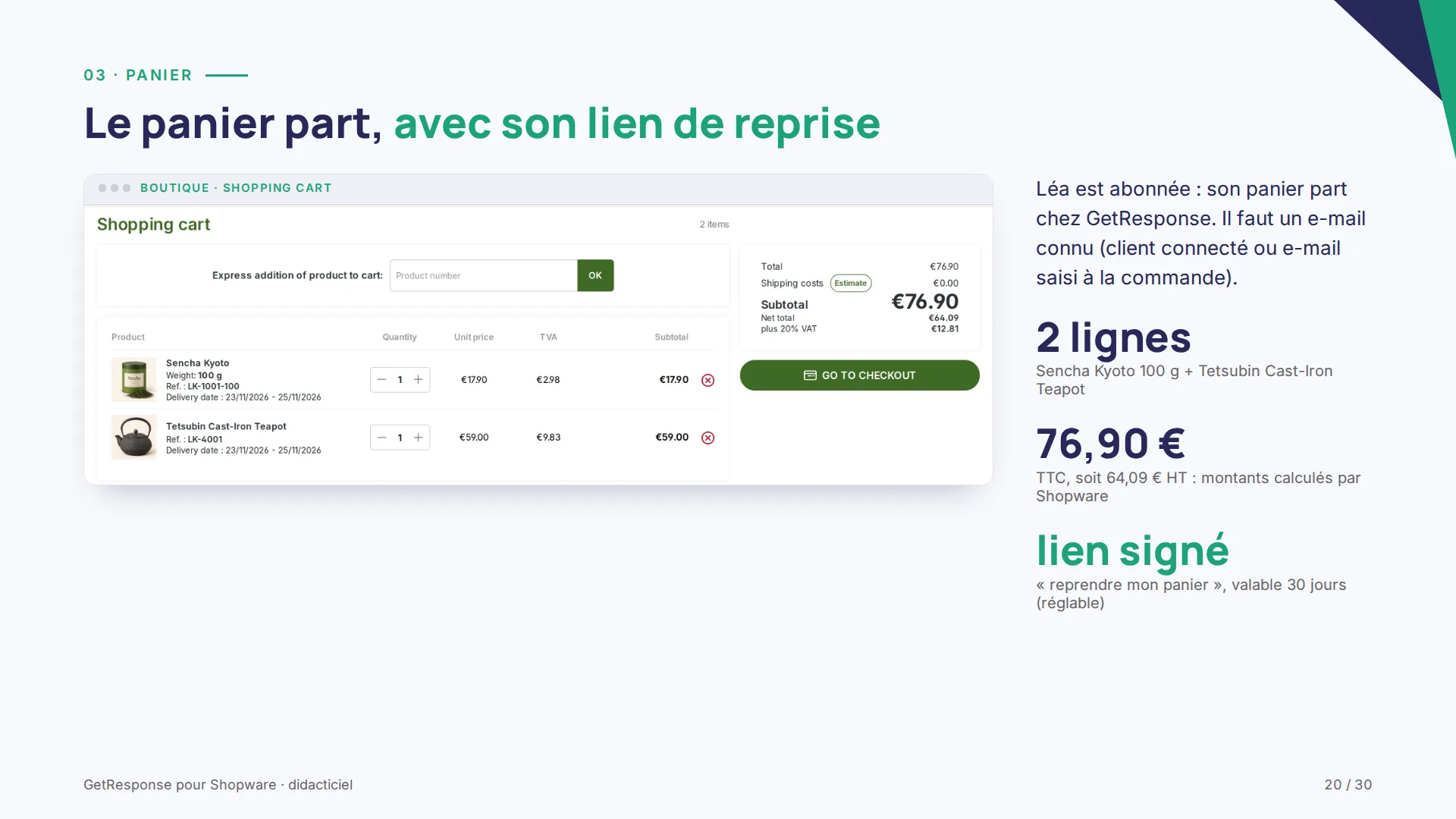
Léa adds Sencha Kyoto 100 g and a Tetsubin Cast-Iron Teapot to her cart, then leaves the shop. The plugin sends the cart to GetResponse: 2 lines, €64.09 net and €76.90 gross, as calculated by Shopware.
Each cart comes with a signed “resume my cart” link, valid for 30 days by default. In GetResponse, an “abandoned cart” automation can use this link in the follow-up email.
A cart is only sent for a known email address subscribed to the newsletter. An emptied cart is removed from GetResponse.
The cart reopens on another device
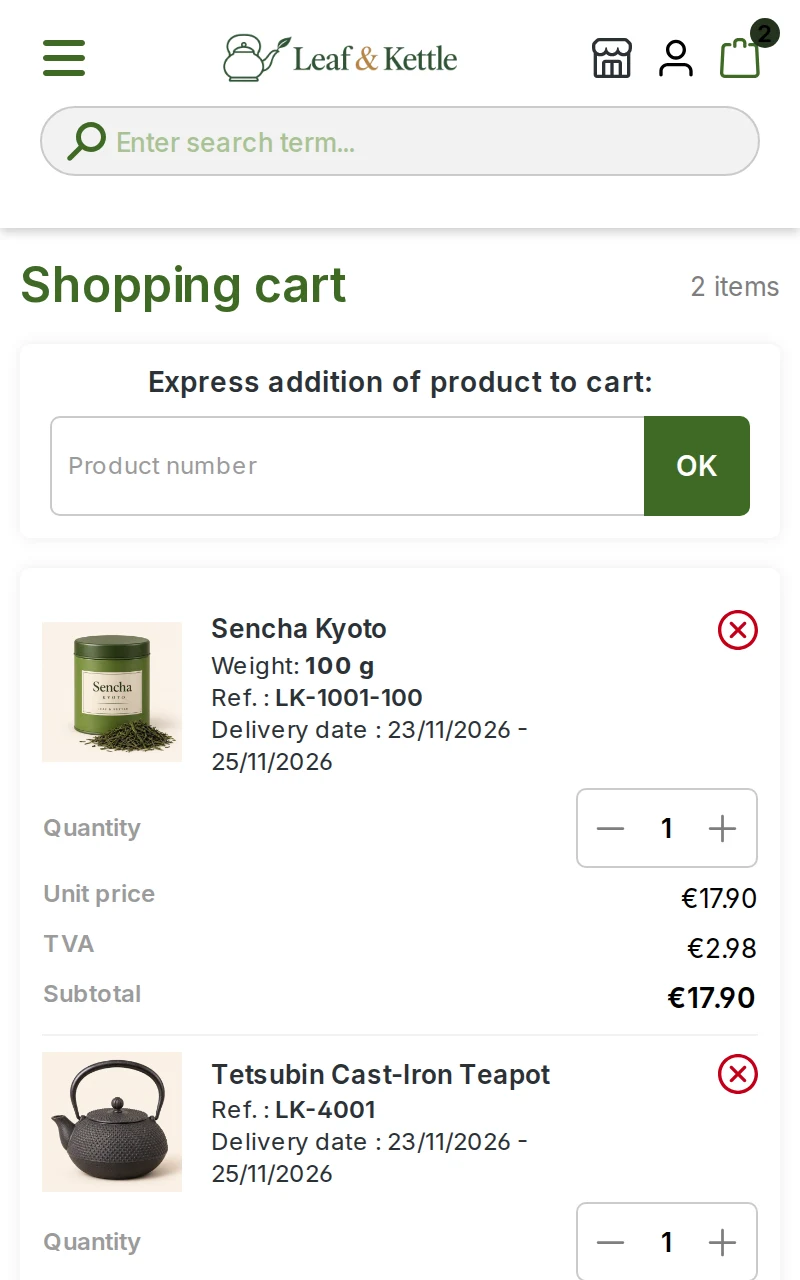
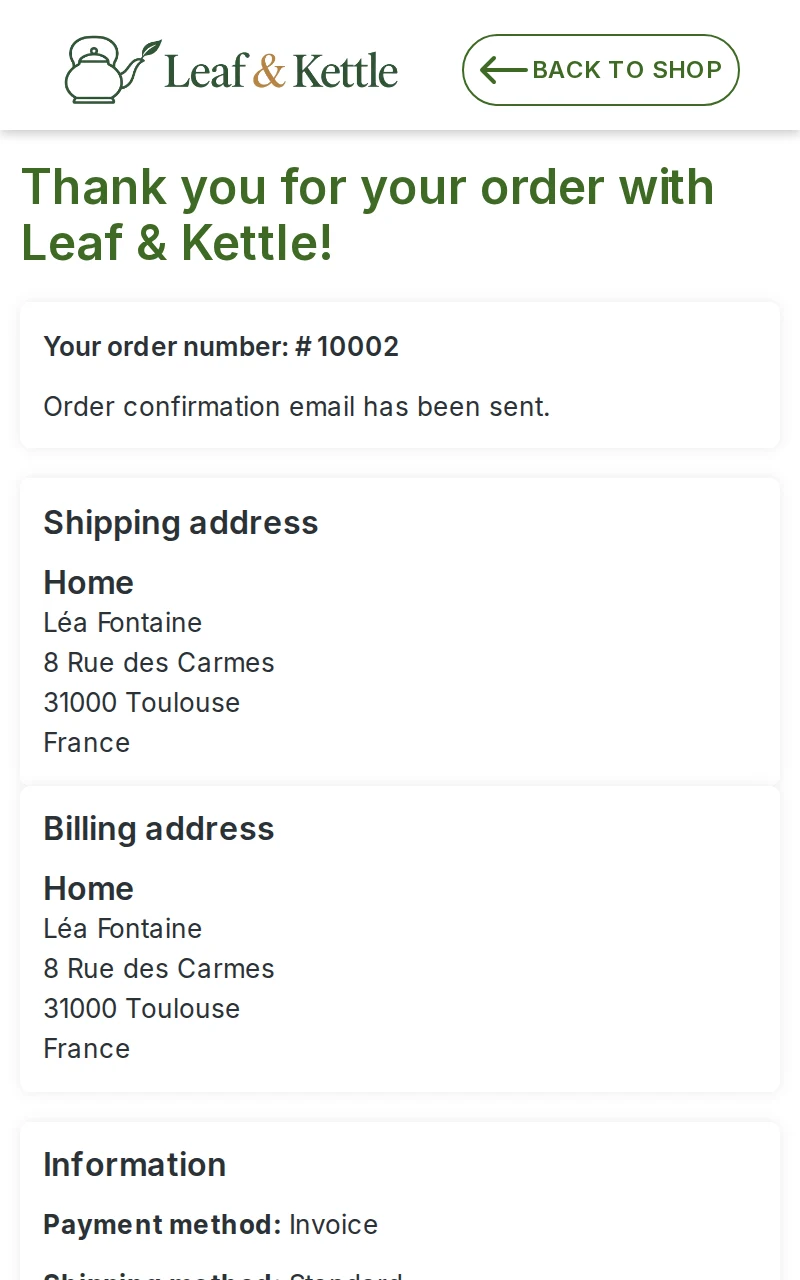
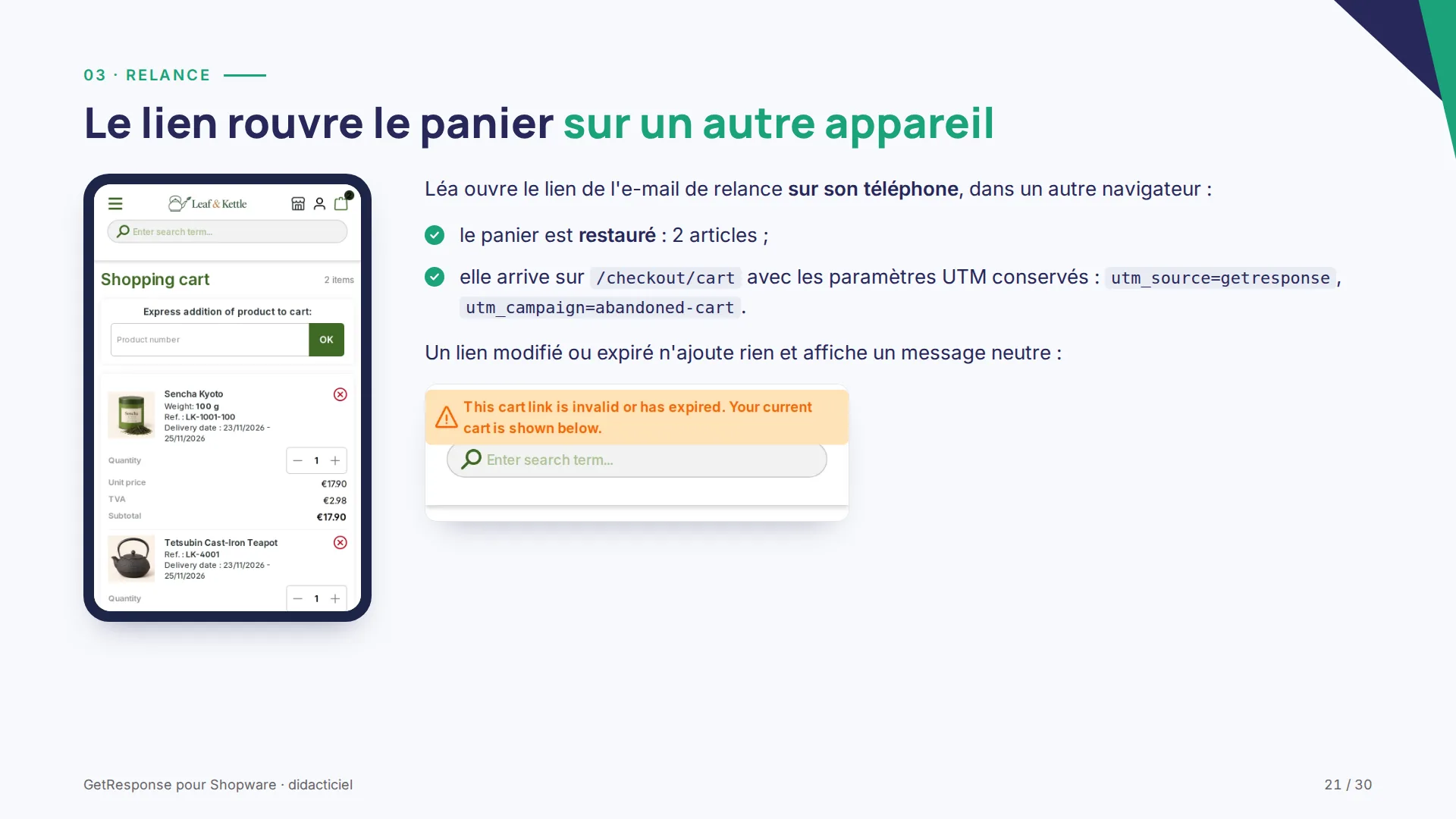
Léa opens the recovery link on her phone, in another browser. Her cart is restored (both items) and she lands on the cart page with the campaign tracking parameters: utm_source=getresponse, utm_campaign=abandoned-cart.
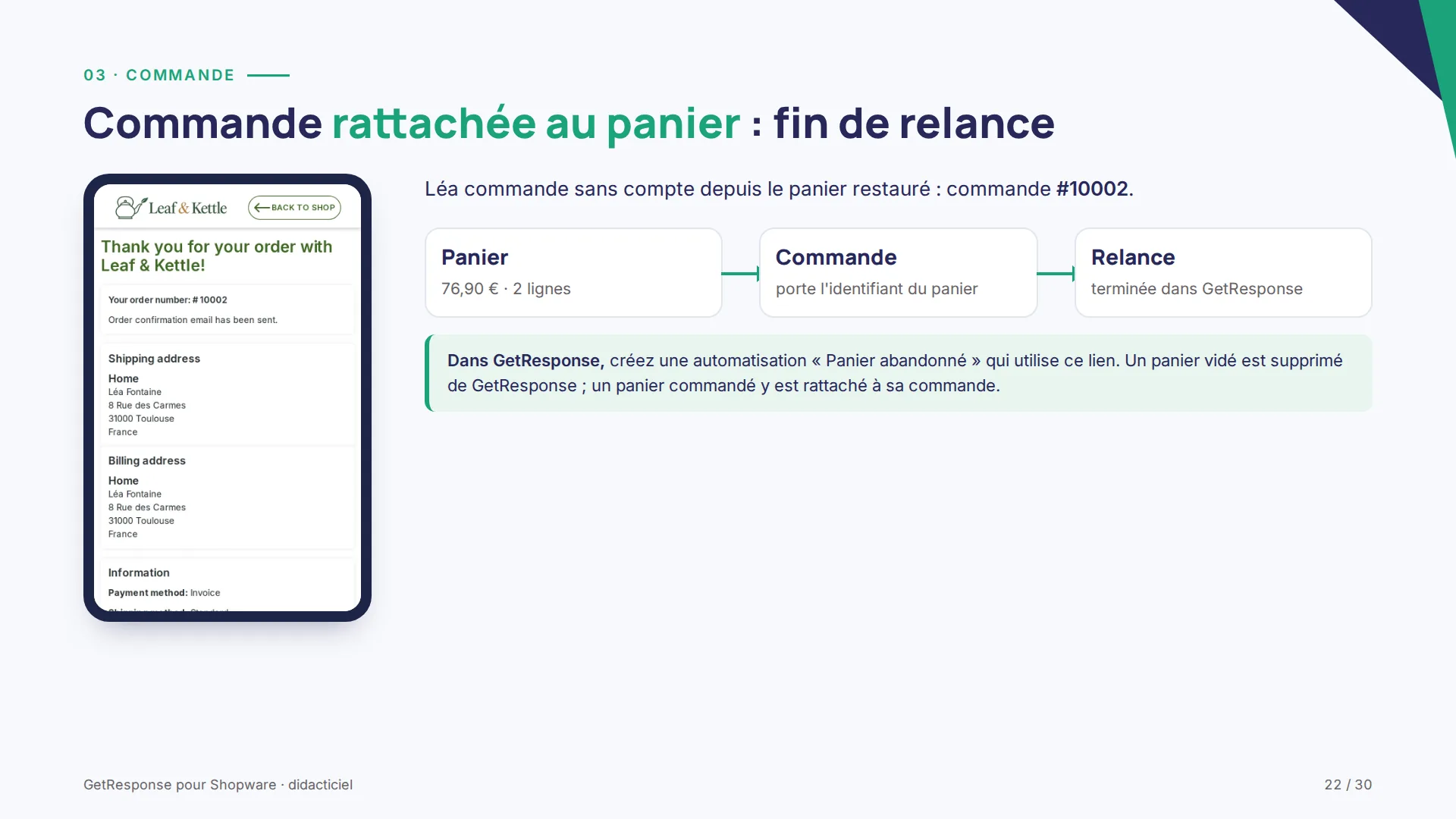
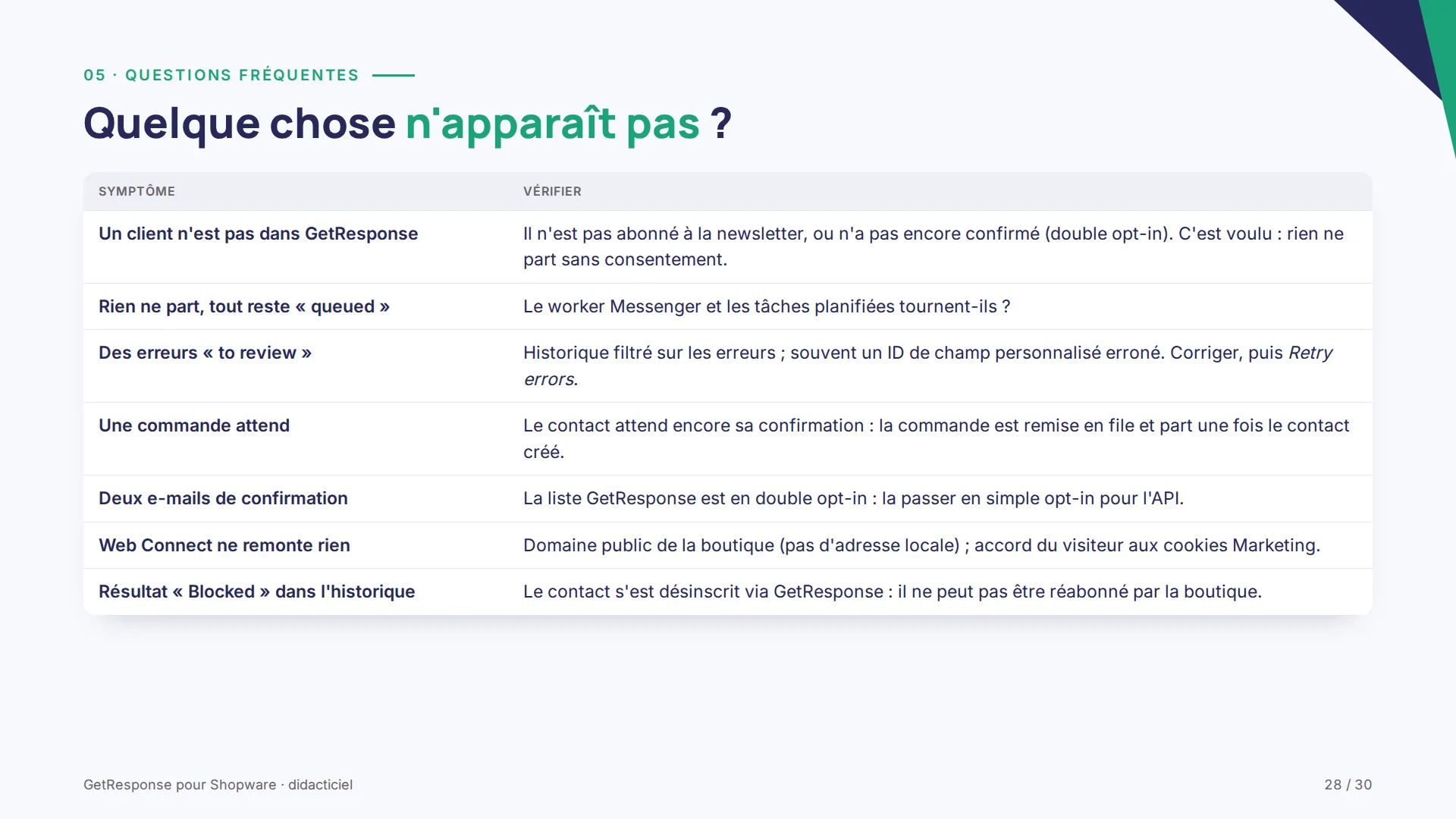
She places her order from this cart. On the GetResponse side, the order is linked to the original cart: the follow-up for this cart stops.
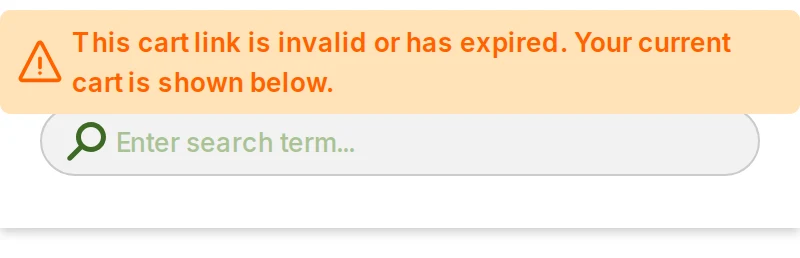
A modified or expired link adds nothing to the cart: the shop shows a neutral message and the current cart.
Consent, at every step
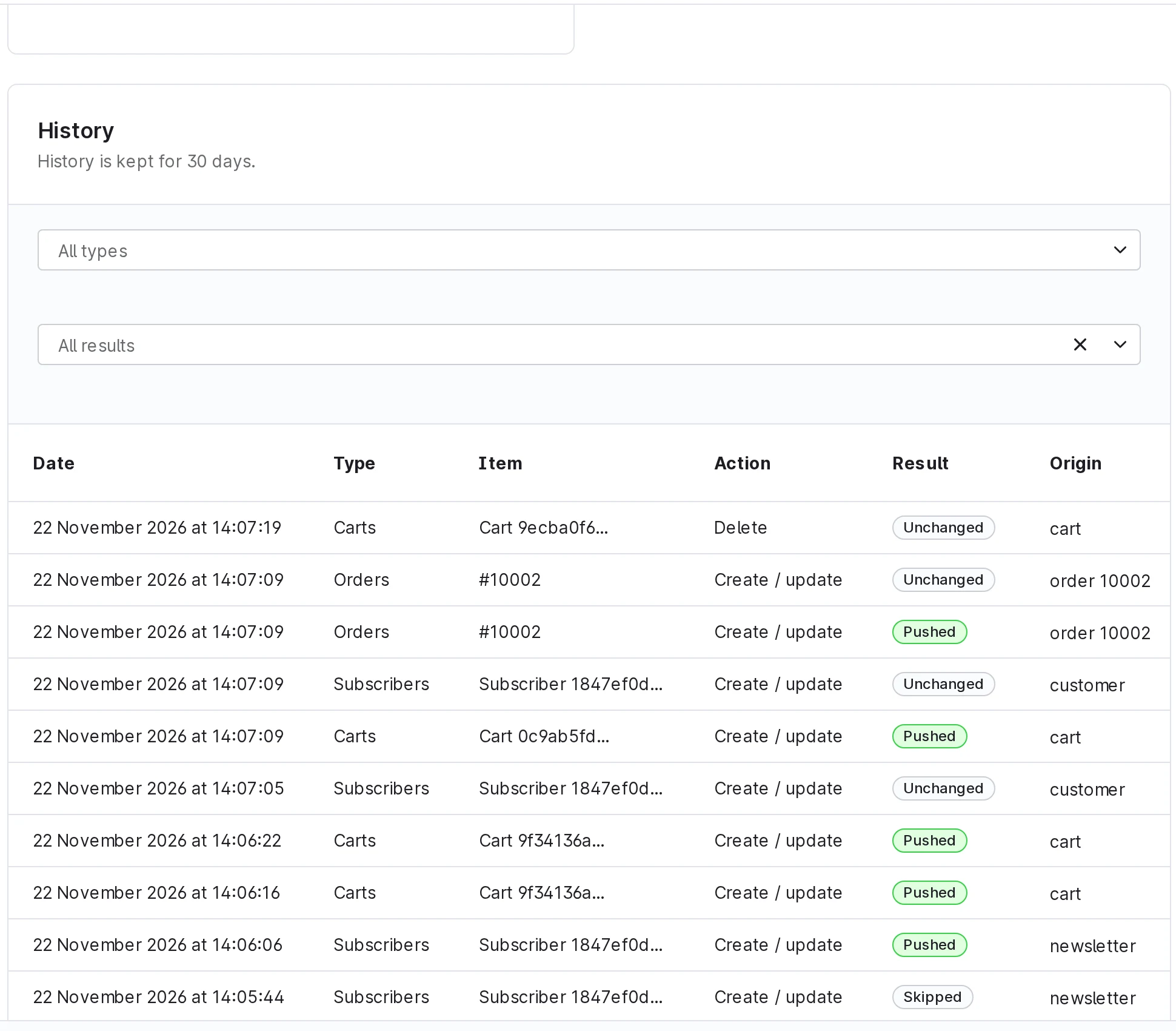
Subscribers only. Contacts, carts and orders are only sent for an active newsletter subscriber of the channel. Hugo, a non-subscribed customer, placed an order: it was never sent and shows as “skipped” in the history.
Double opt-in. A subscriber is only sent once their registration is confirmed. An order placed in the meantime waits for confirmation, then goes.
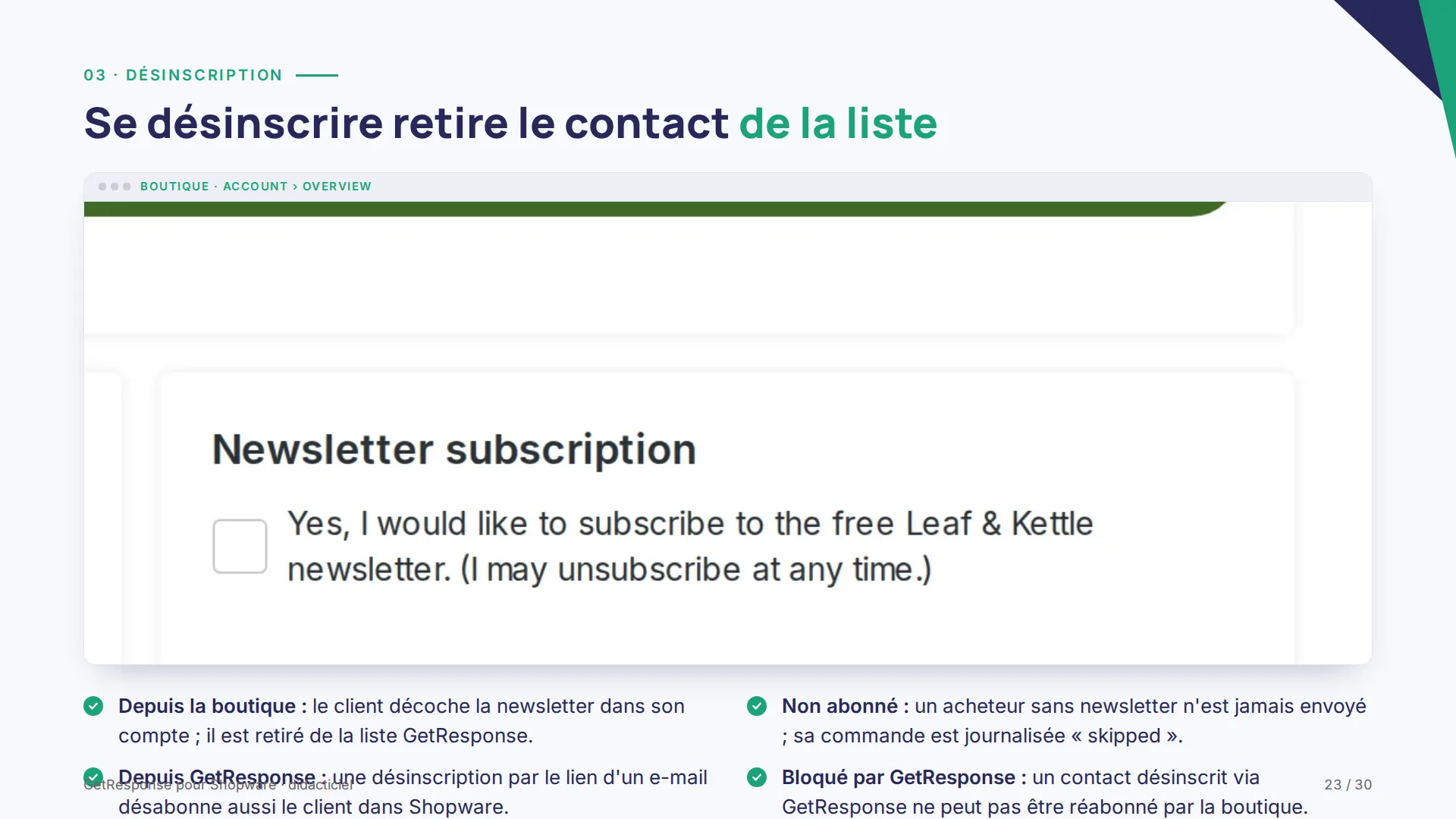
Unsubscribe. Lucas unticks the newsletter in his account: he is removed from the GetResponse list.
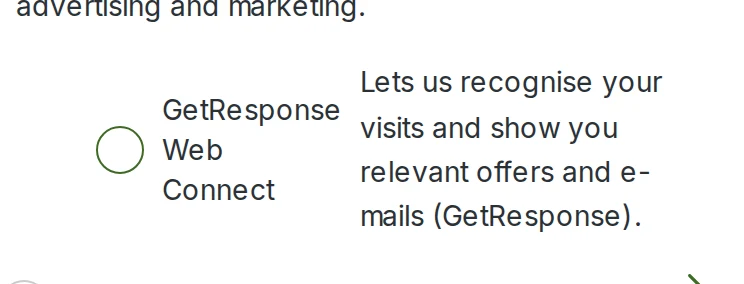
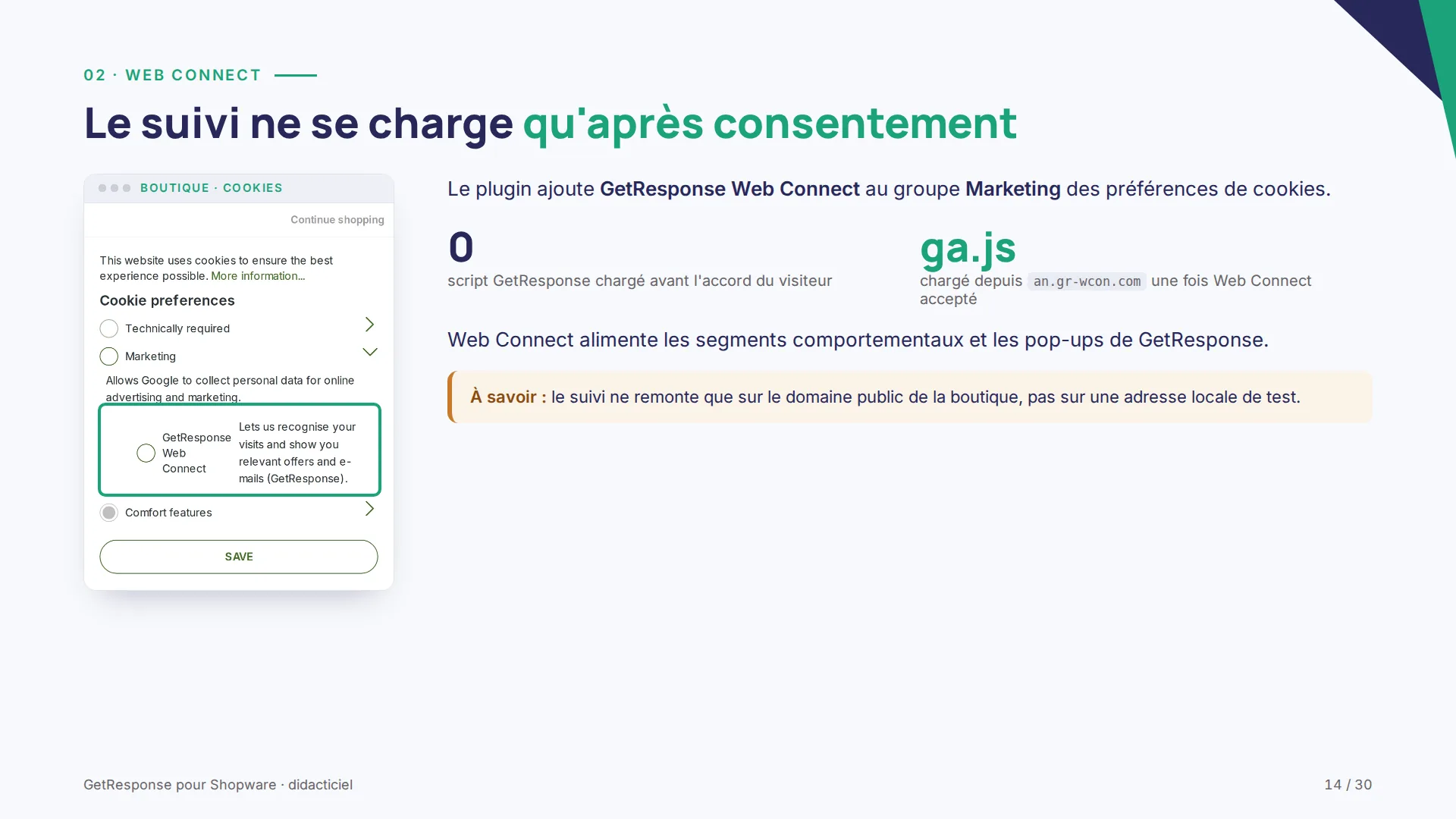
Web Connect after consent. GetResponse visit tracking sits in the Marketing group of Shopware cookies. Before the visitor agrees, no GetResponse script is loaded.

The complete tour, commented
Two and a half minutes following Léa, from registration to the recovered order, then setup and monitoring (French voice-over). Fictional Leaf & Kettle shop, demonstration data.
A guided setup
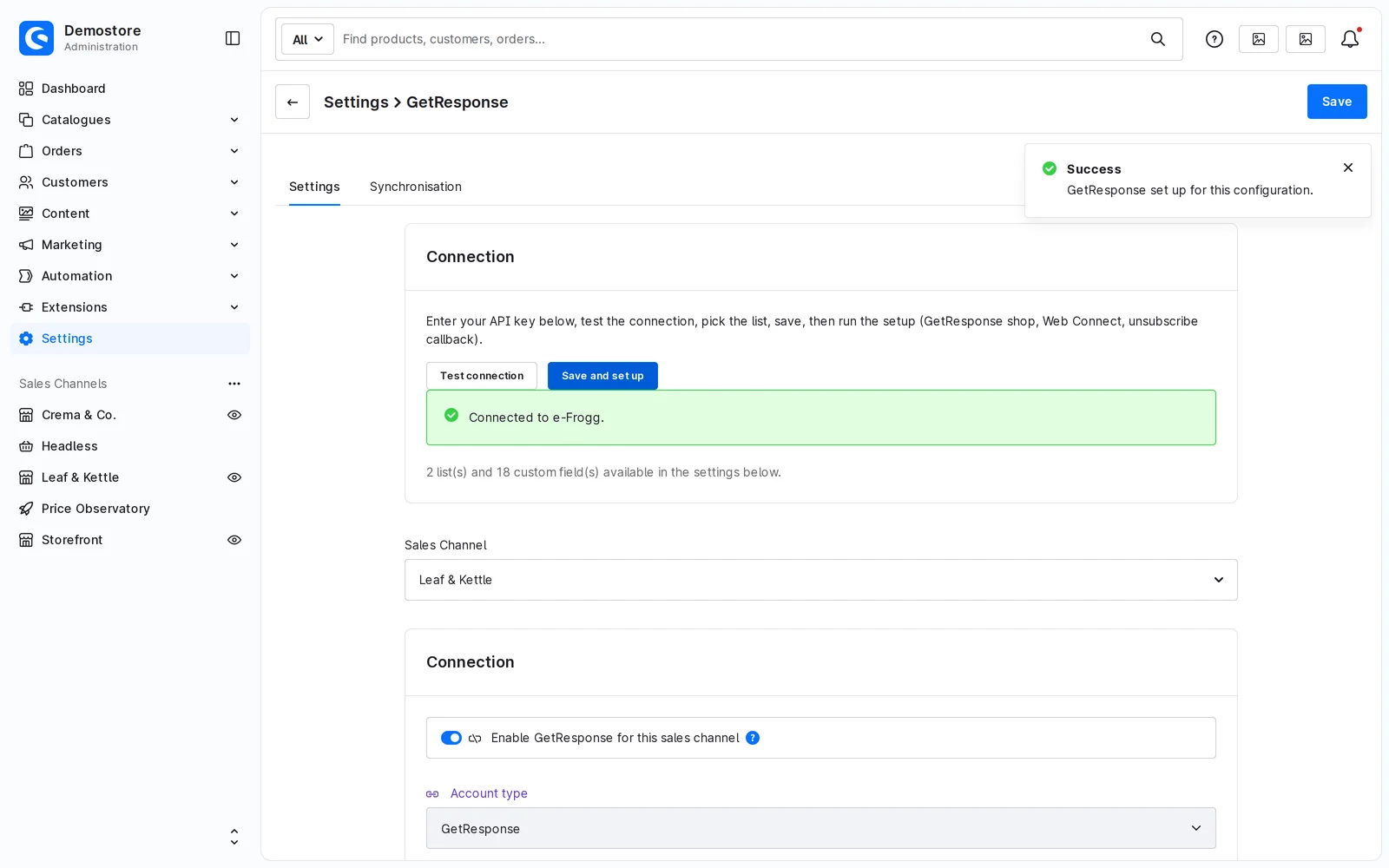
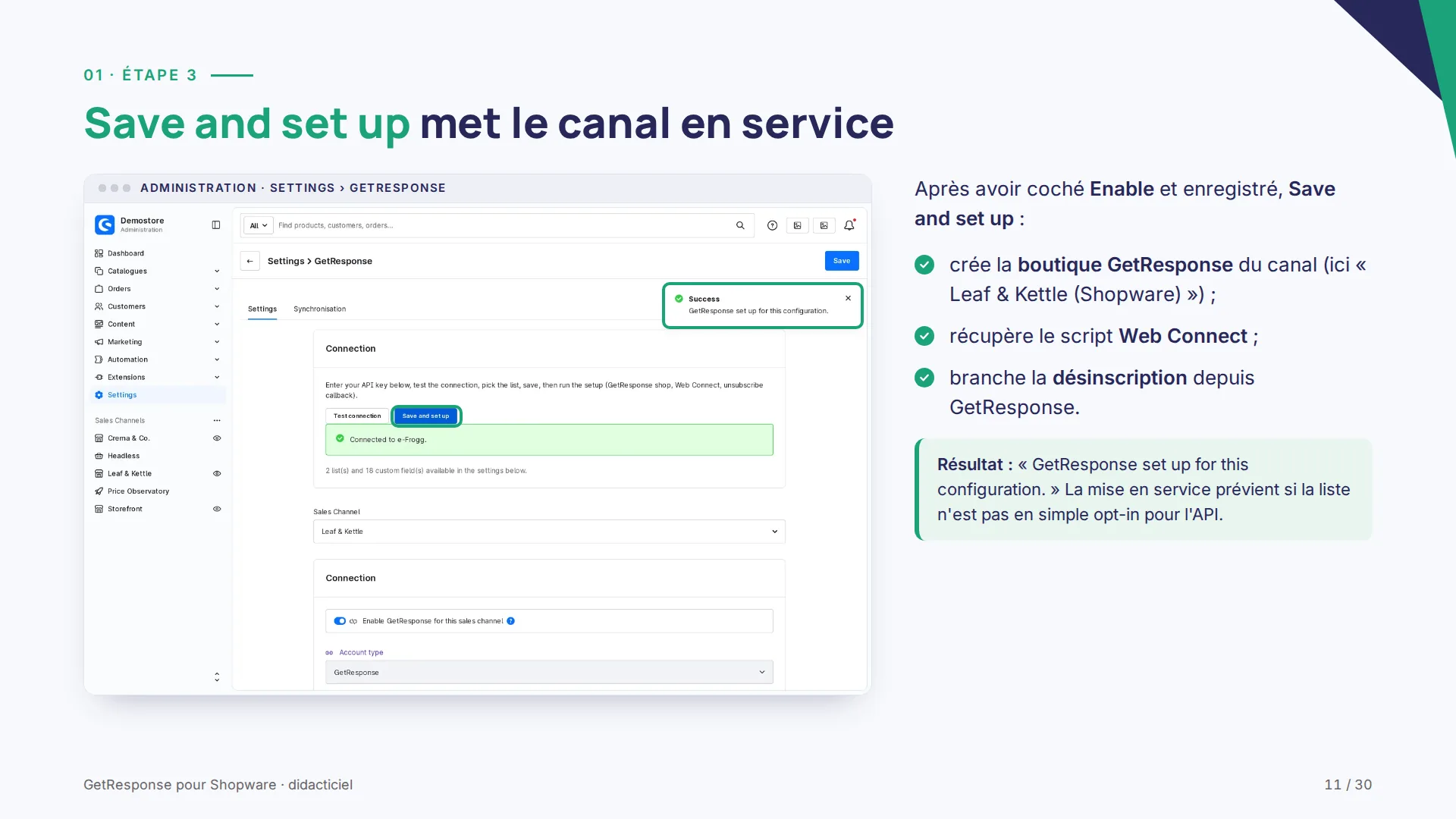
Everything is set in Settings › GetResponse, Settings tab. We did it from scratch on Leaf & Kettle, in four clicks.
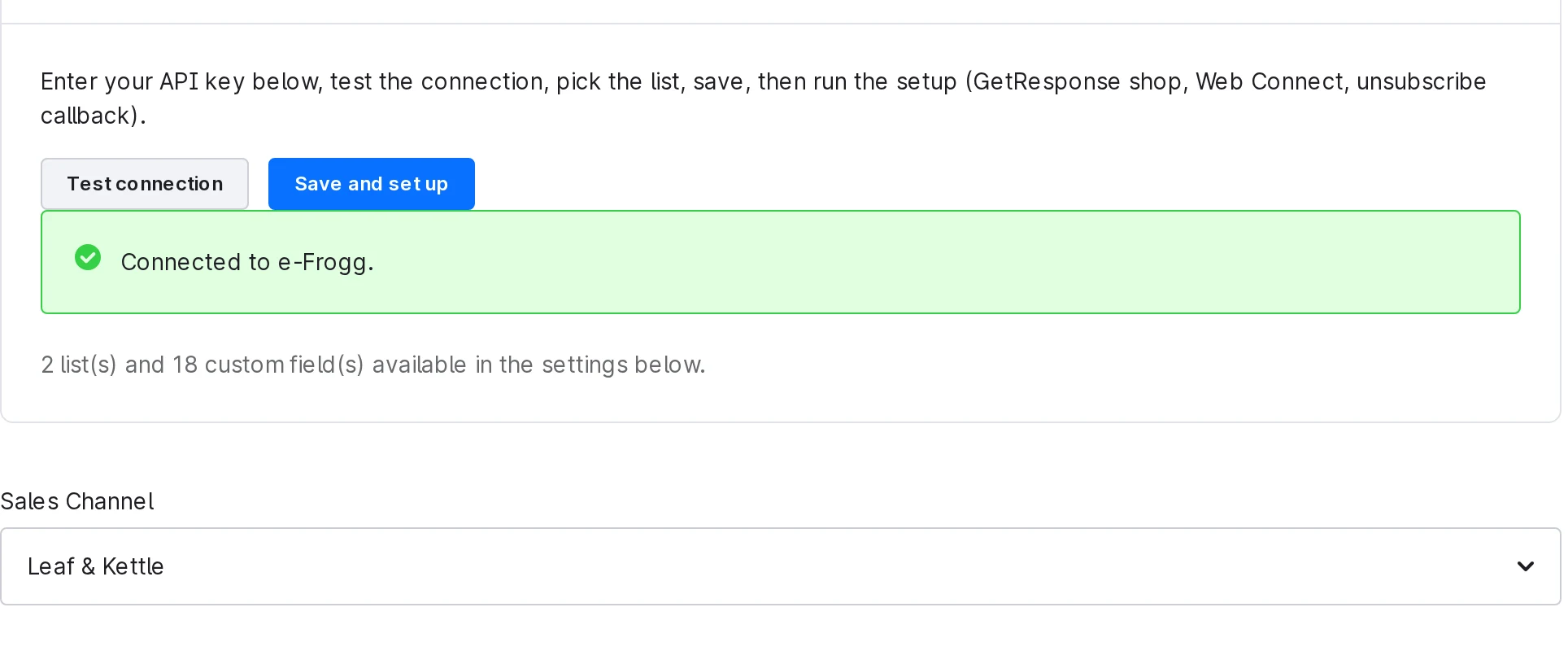
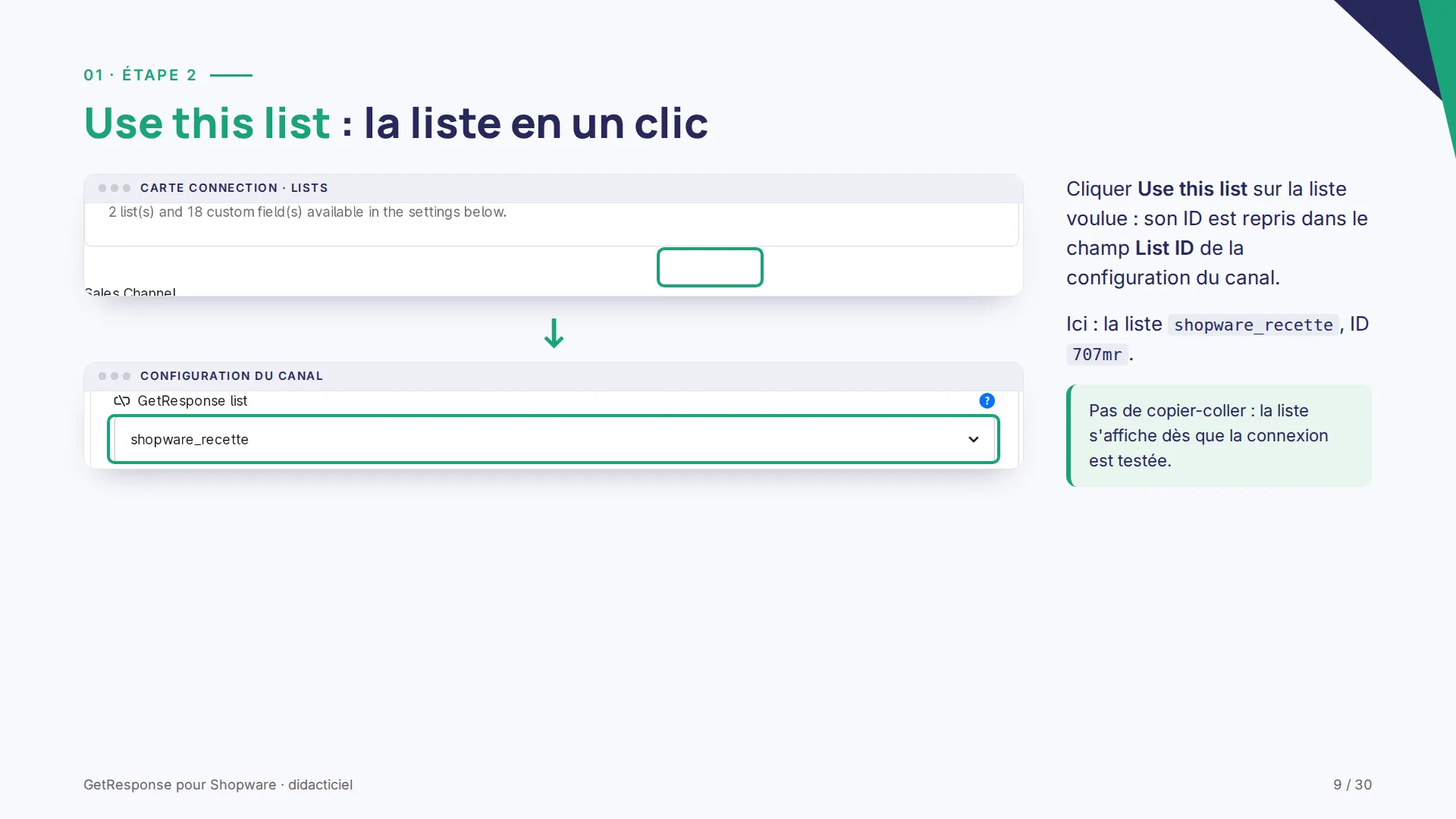
Test connection: paste the GetResponse API key; the account name appears, with your lists and custom fields. Use this list: one click on the list you want, and its ID is copied into the channel configuration.
Save and set up: the channel’s GetResponse shop is created (here “Leaf & Kettle (Shopware)”) and the Web Connect script retrieved. Start import, in the Synchronisation tab: existing subscribers, products and orders are sent to GetResponse.
Your settings, channel by channel
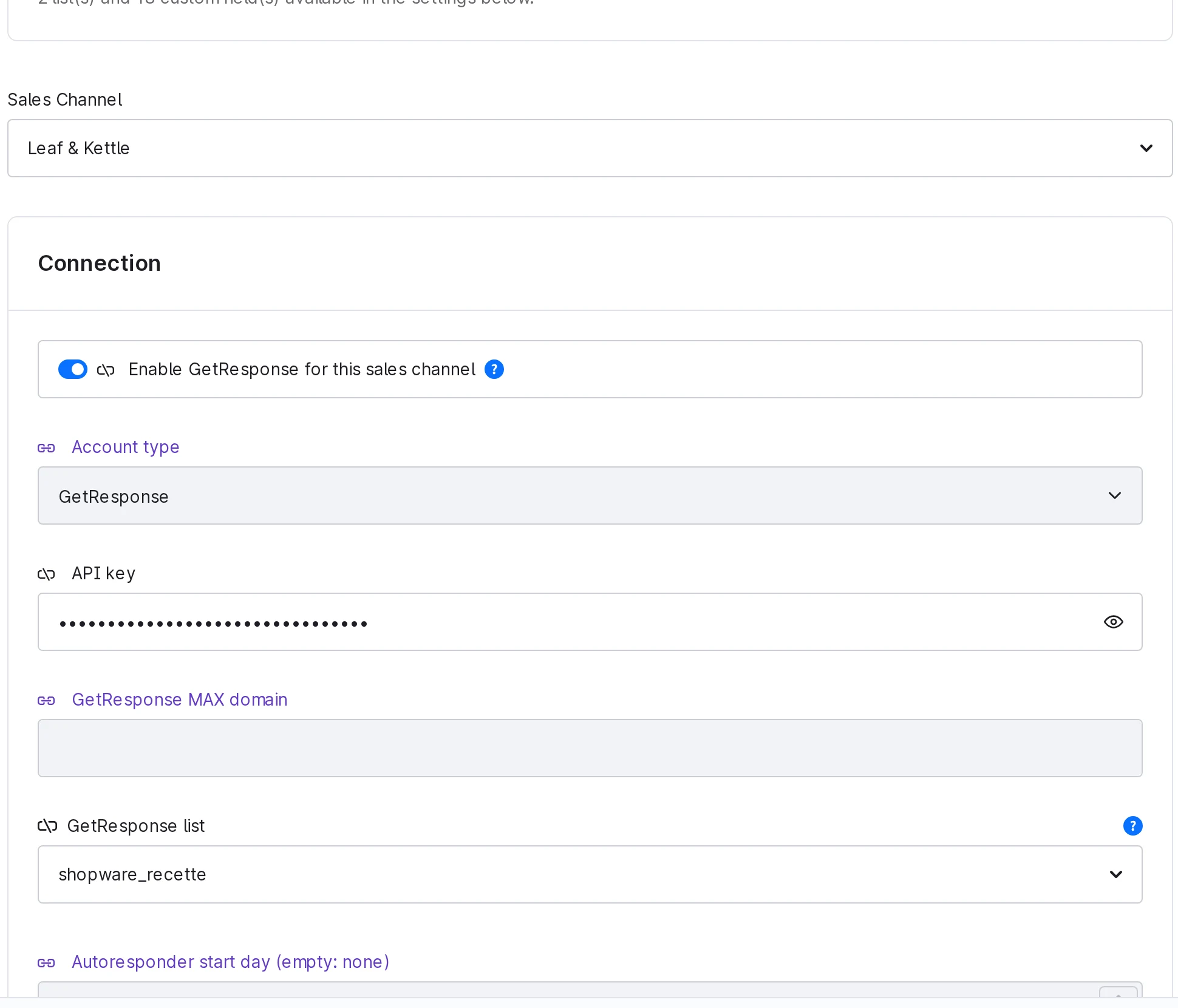
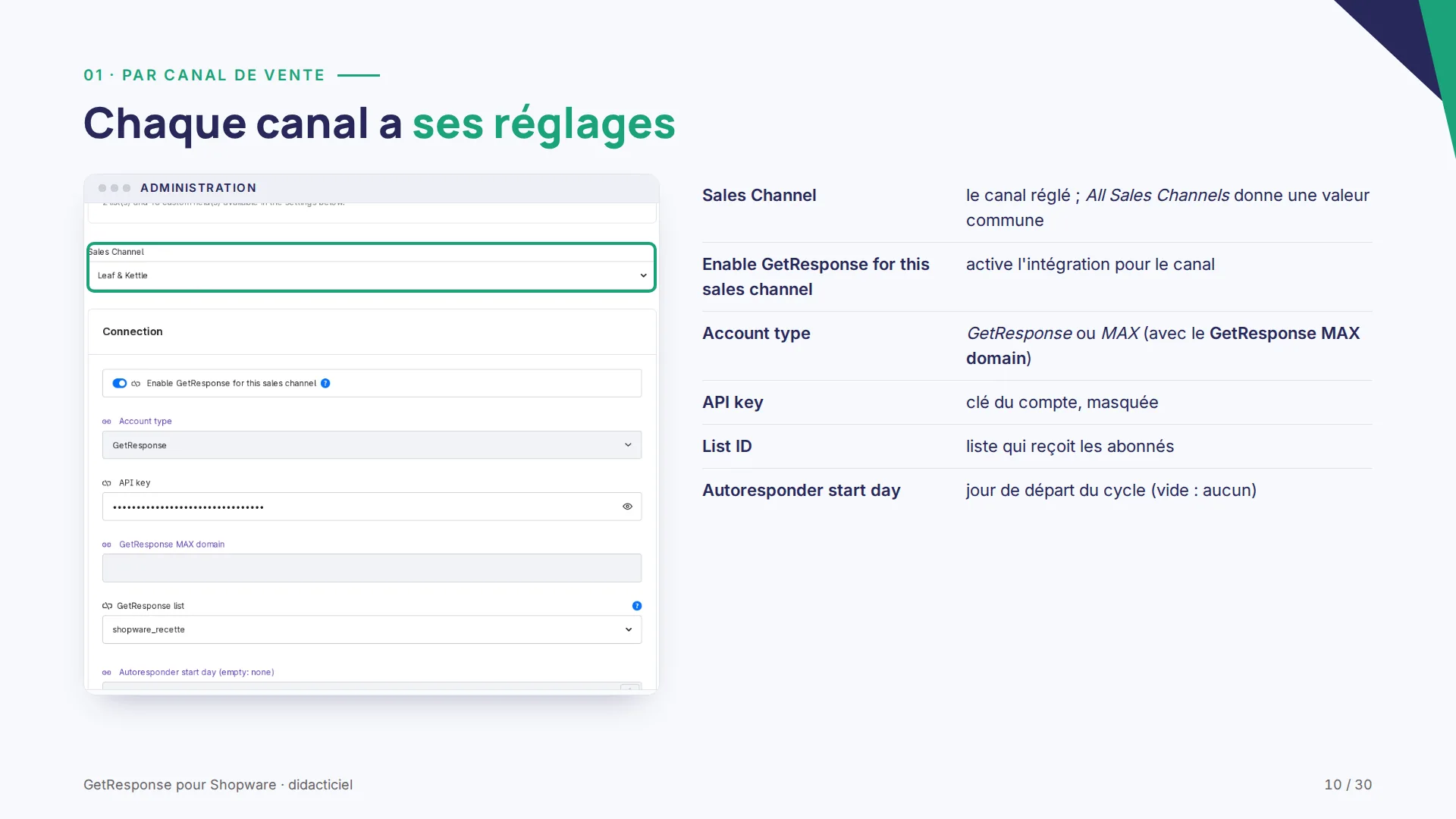
The Sales Channel selector at the top of the screen gives each sales channel its own list, GetResponse shop and options. A value shared by all channels remains possible.
Connection card: enabling the integration for the channel (off by default), standard GetResponse or MAX account with its domain, masked API key, list receiving subscribers and, if needed, the autoresponder cycle day at registration.
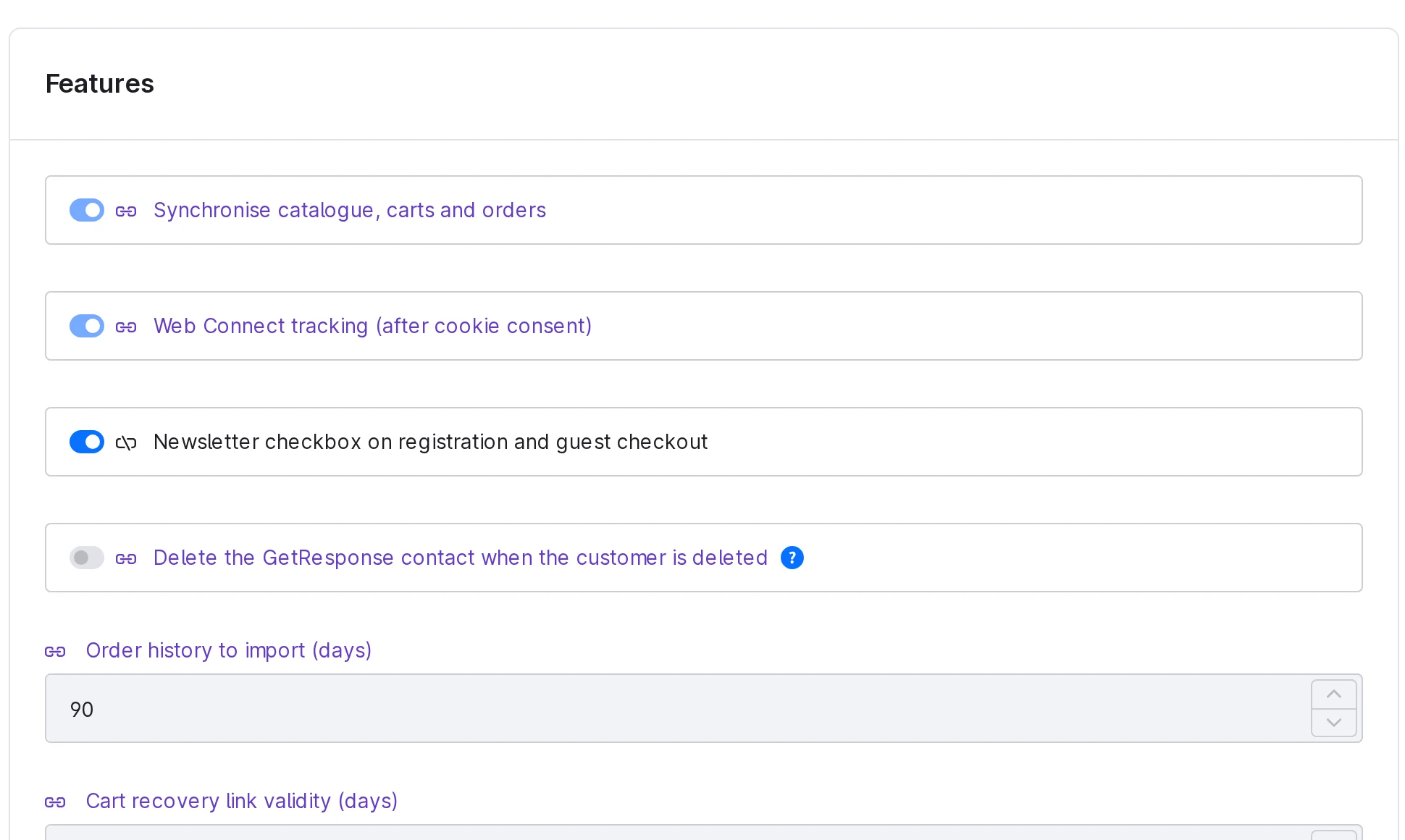
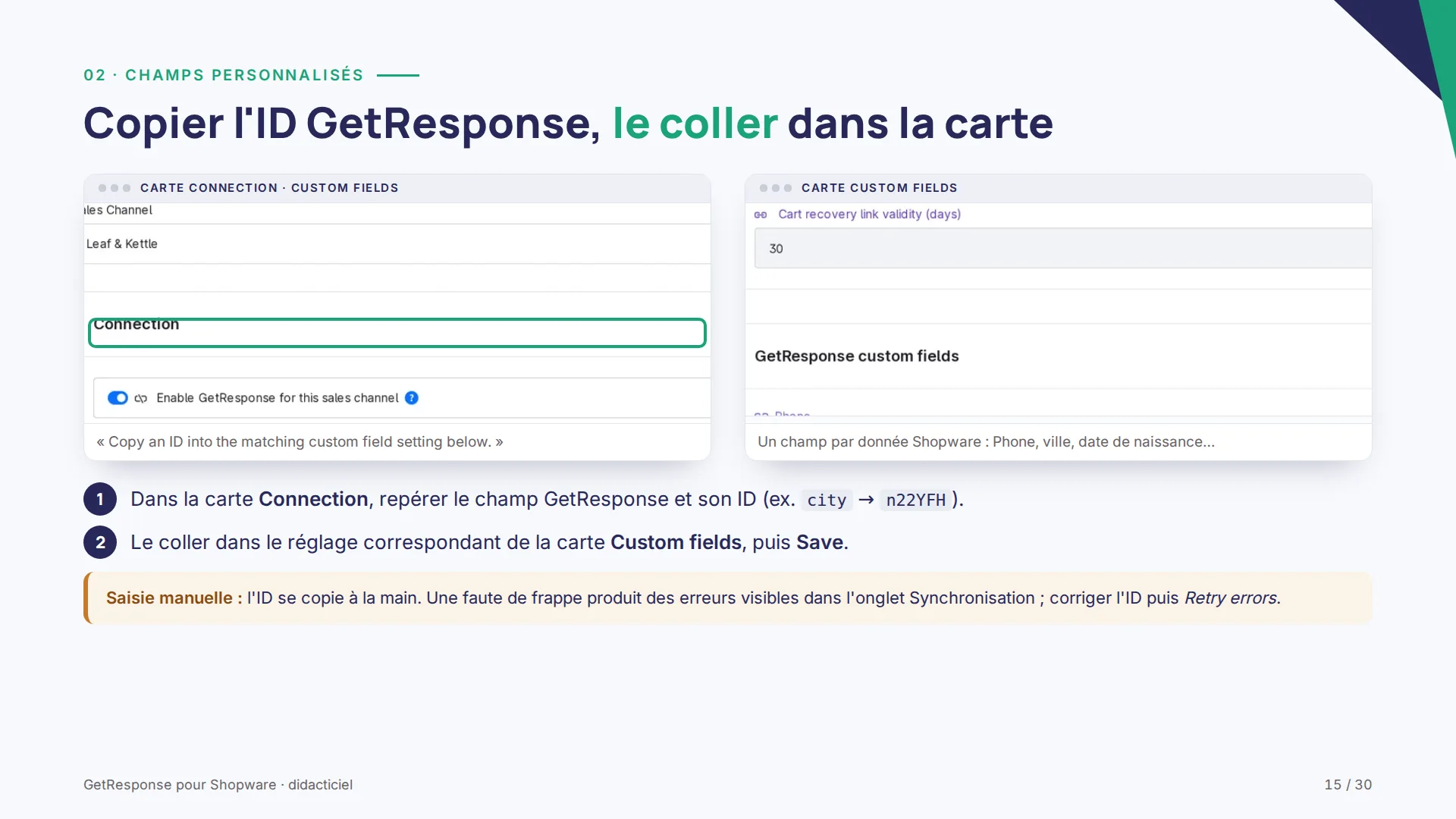
Features card: sync of catalogue, carts and orders (on; when off, only subscribers are sent), Web Connect tracking after cookie consent (on), newsletter box at registration and guest checkout (off), depth of imported order history (90 days) and recovery link validity (30 days). Custom fields card: phone, city, date of birth… to your GetResponse fields.
Start with what you already have
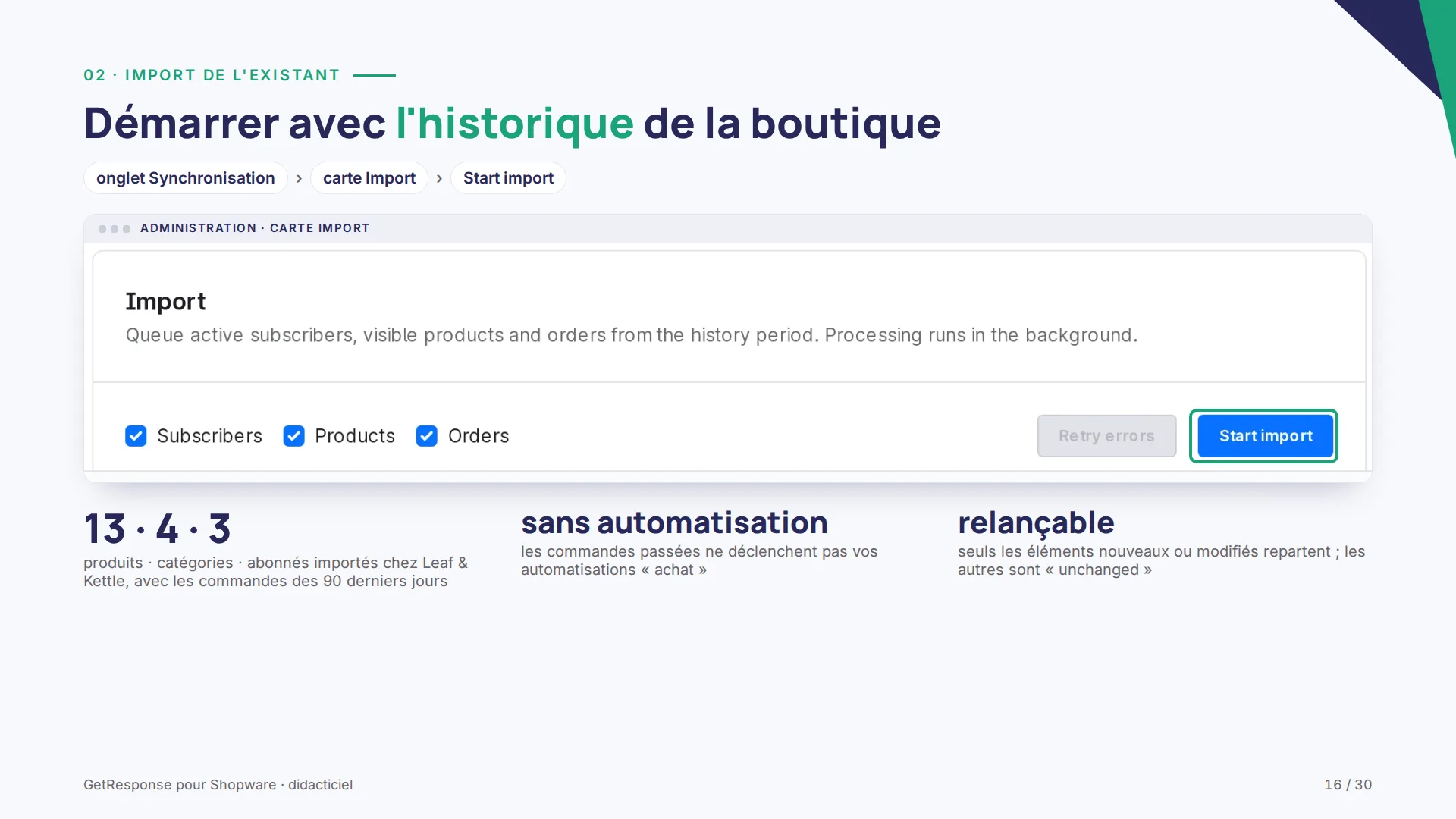
The Import card sends active subscribers, visible products and orders from the history period in one go, in the background. On Leaf & Kettle: 13 products, 4 categories, 3 subscribers and the history orders; the order of Hugo, not subscribed, stayed “skipped”.
Past orders are imported without triggering your “purchase” automations. Re-running the import is safe: what has not changed is not sent again and shows as “unchanged”.

Follow the sync at a glance
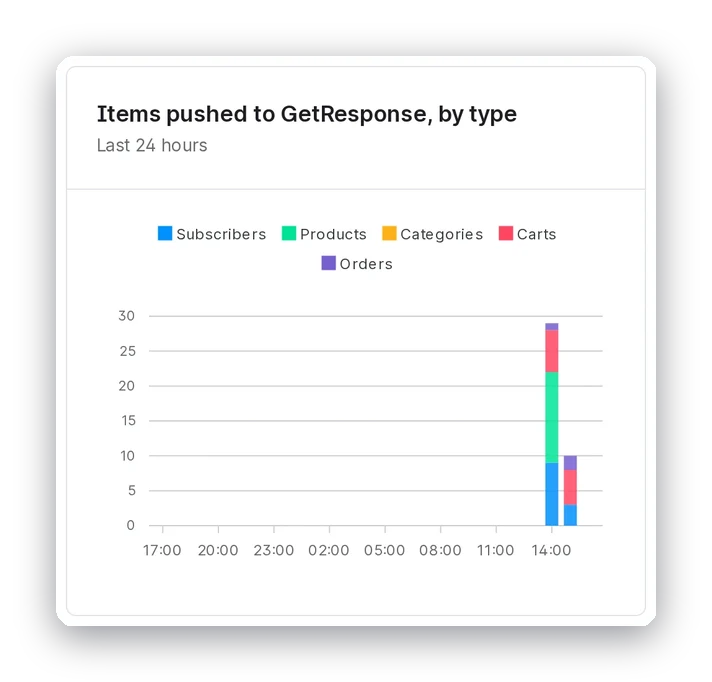
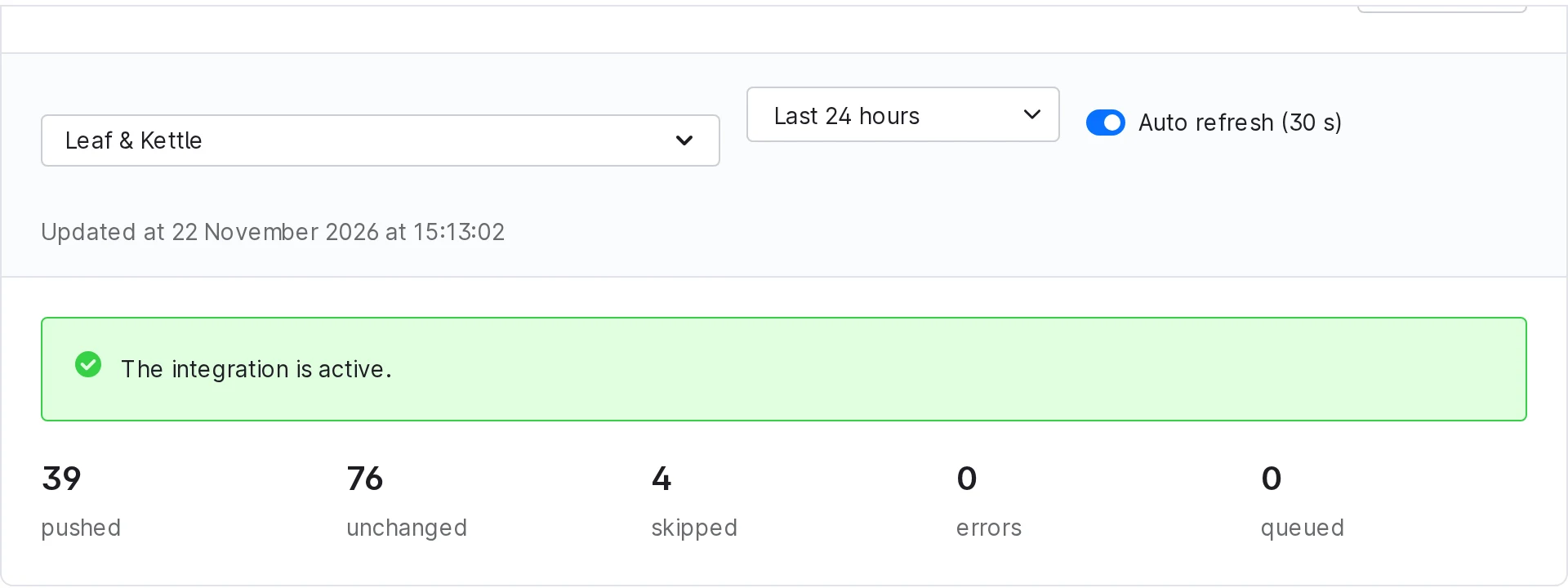
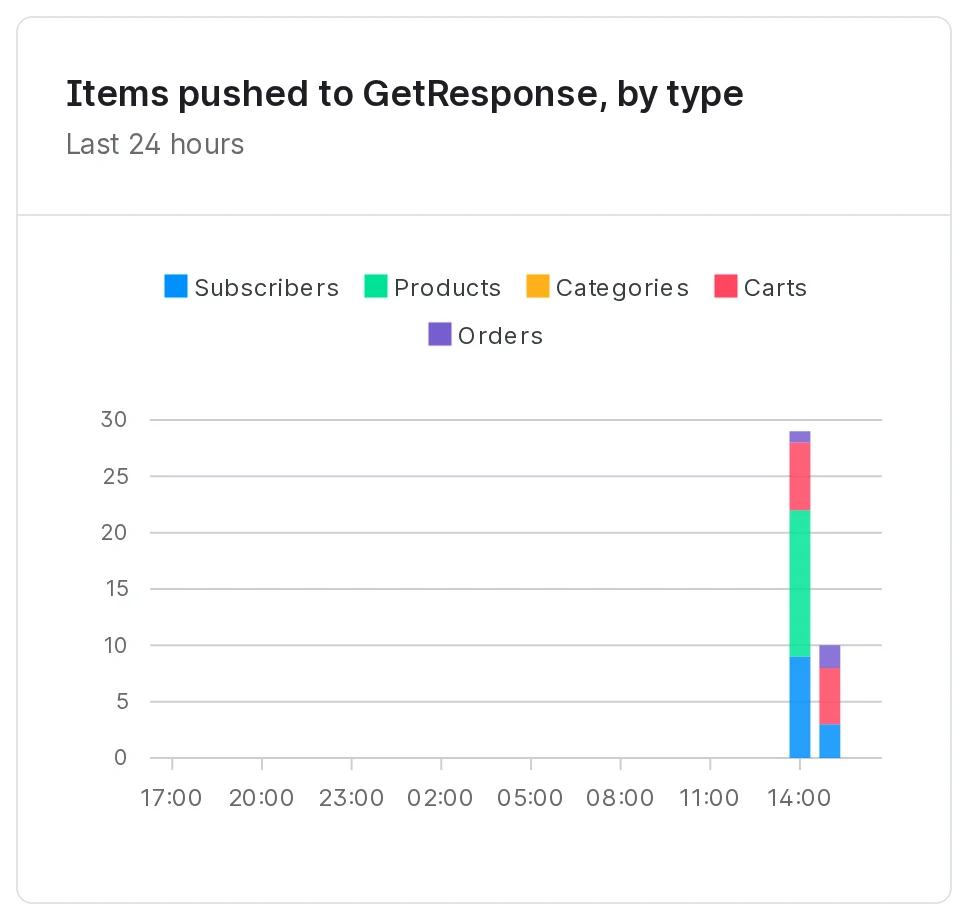
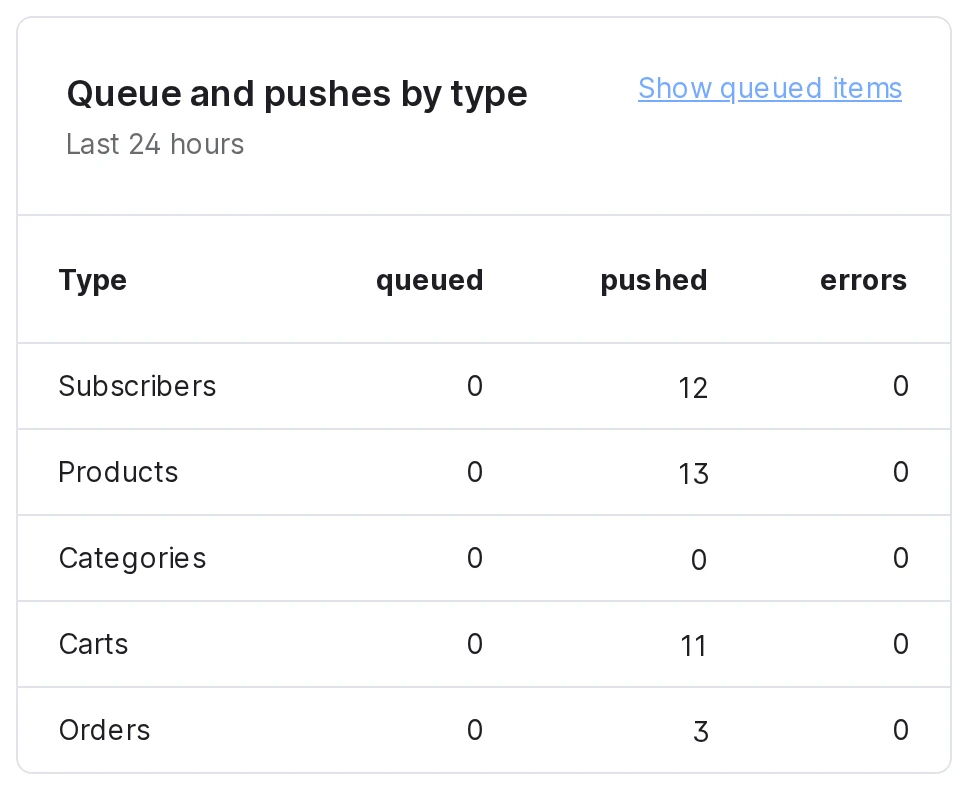
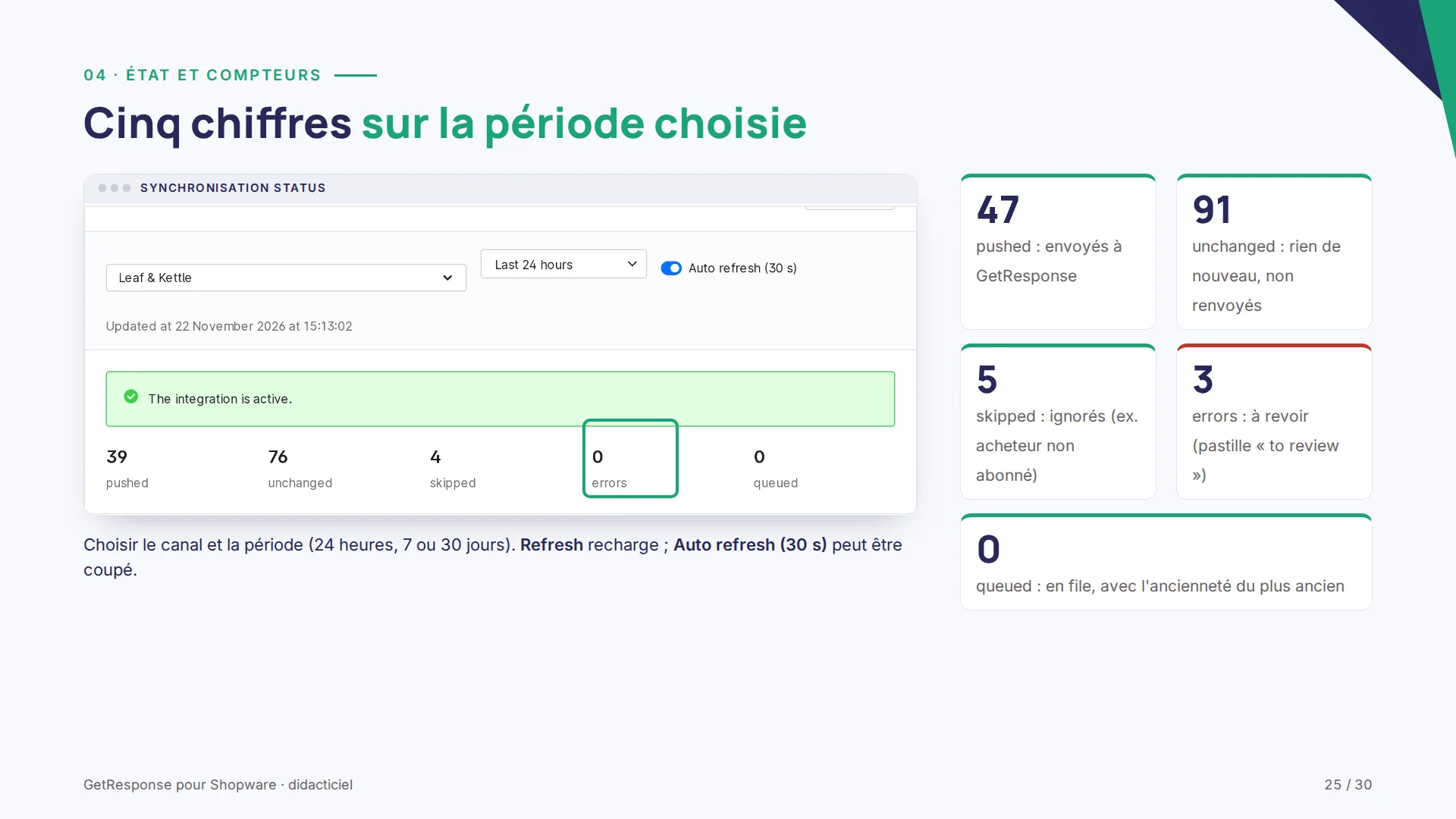
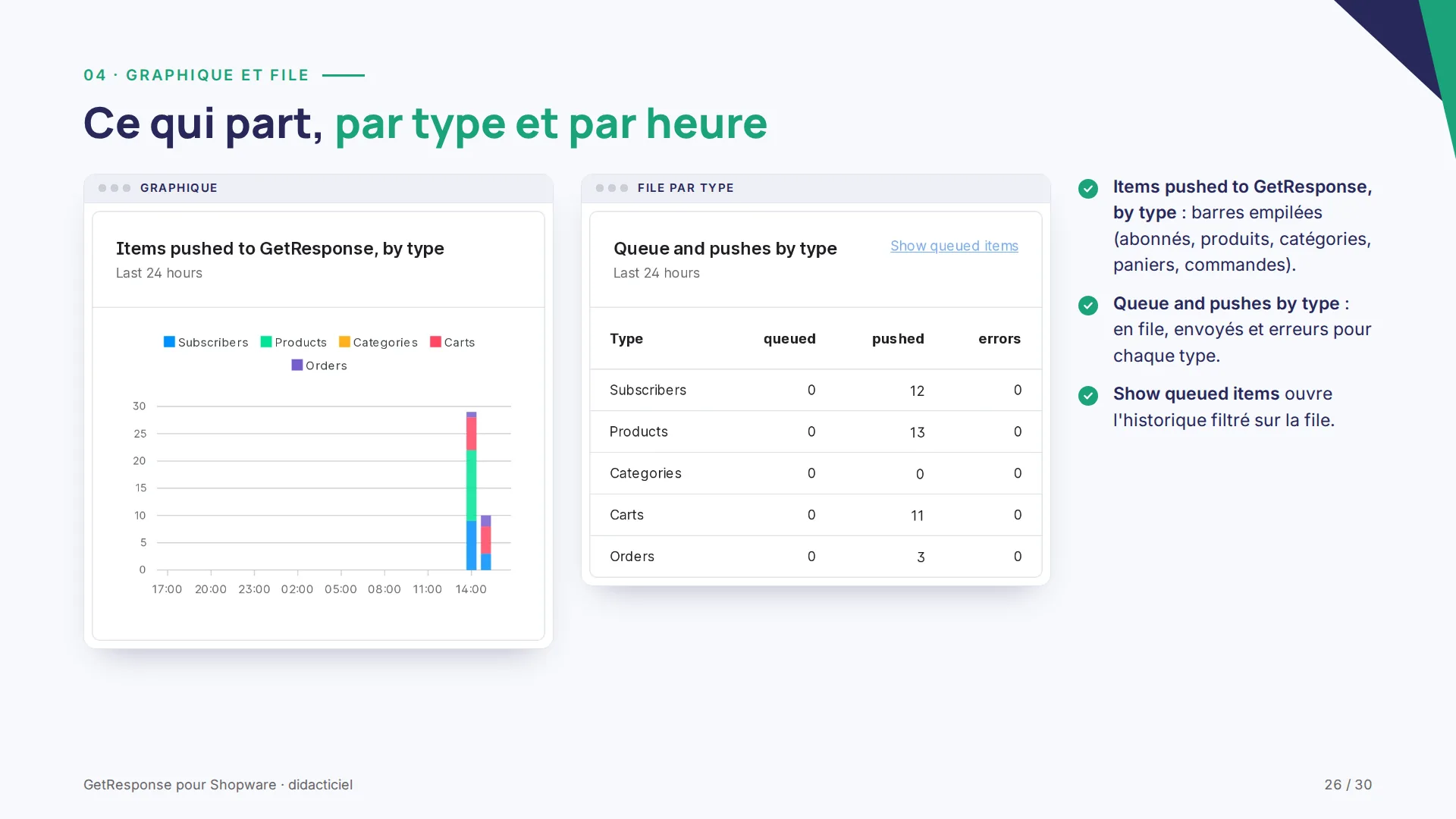
The Synchronisation tab shows, per channel and over 24 hours, 7 or 30 days, the connection status and what happened. After a day of tests on Leaf & Kettle: 47 items pushed, 91 unchanged, 5 skipped, 3 errors to review.
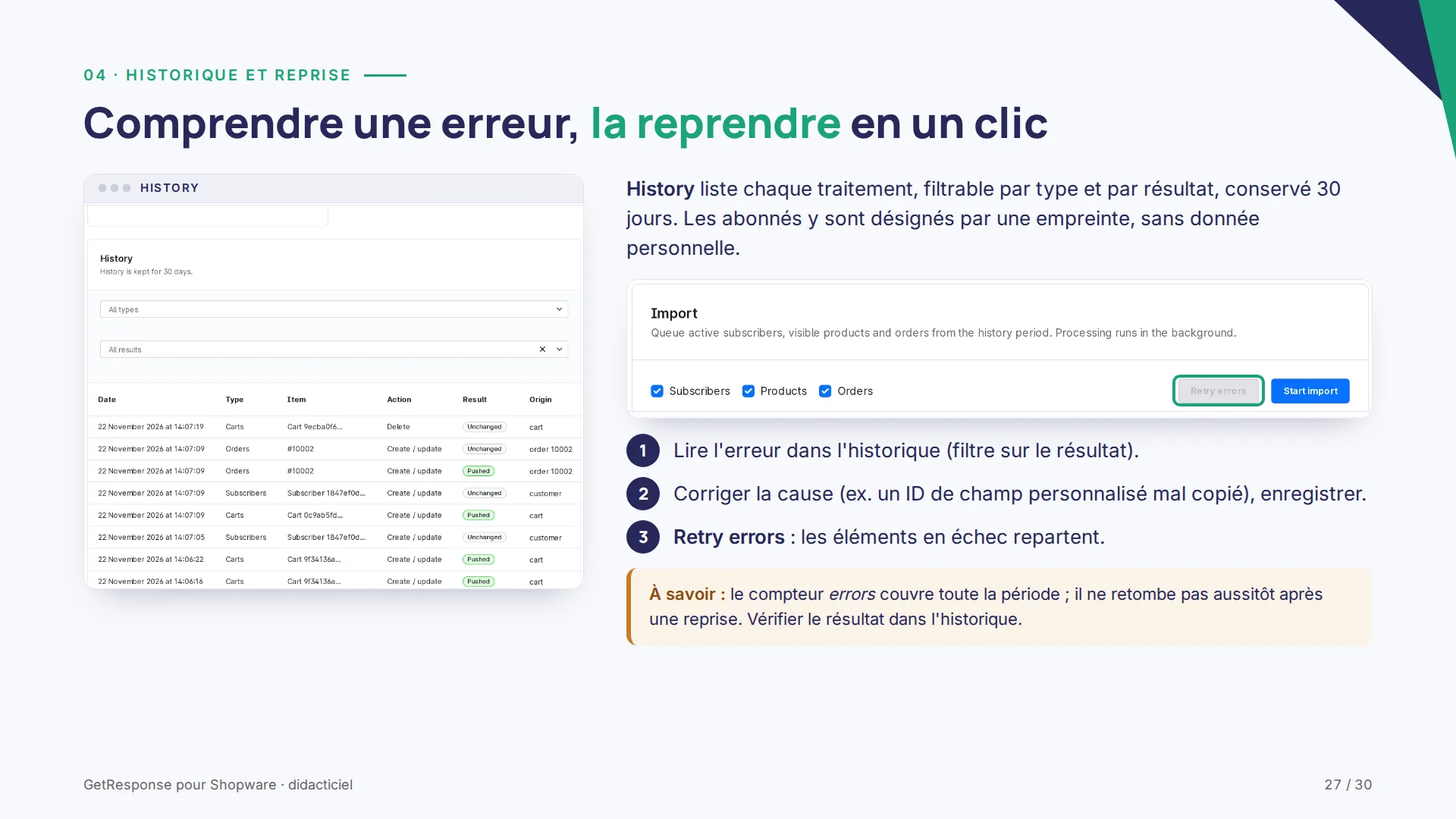
The history details each operation (date, type, item, action, result), filterable, kept for 30 days. Subscribers appear as a hash, without personal data.
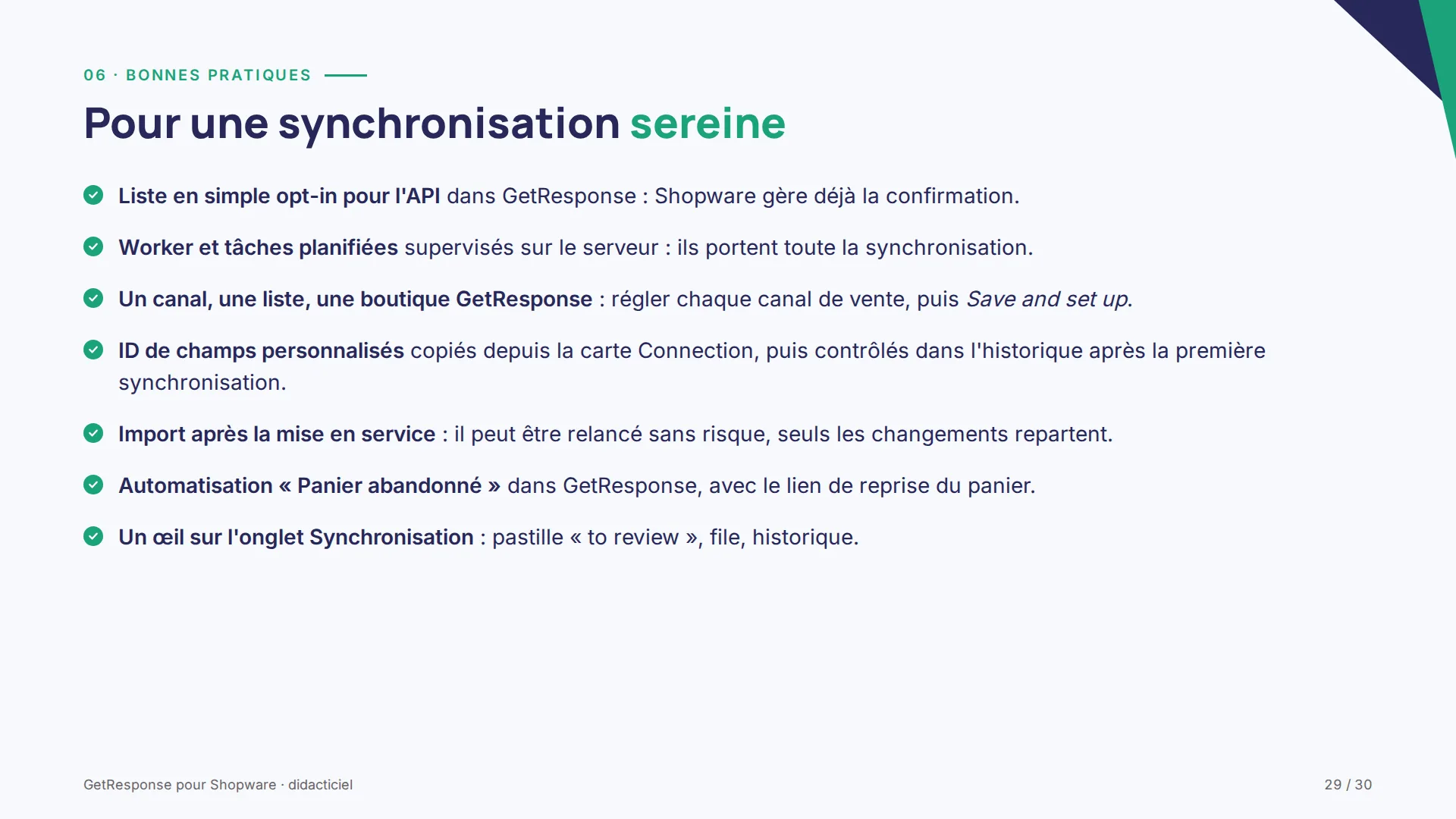
An error is fixed then retried: in our tests, a mistyped custom field ID produced 3 visible errors; once the ID was corrected, Retry errors resent the items concerned.
Built into Shopware, without modifying it
In the background. Pushes go through the Shopware message queue: visitors never wait for GetResponse. No duplicates. What has not changed is not sent again.
With Shopware’s building blocks. Newsletter double opt-in, cookie manager, sales channels, module in the admin settings. Clean uninstall. After a full uninstall, we found no trace in the database: tables, configuration, fields and scheduled tasks.
What to prepare
A GetResponse account with its API key, and a plan that includes e-commerce to use carts and orders. A single opt-in list for the API: consent is already collected by Shopware, otherwise the customer would receive a second confirmation email.
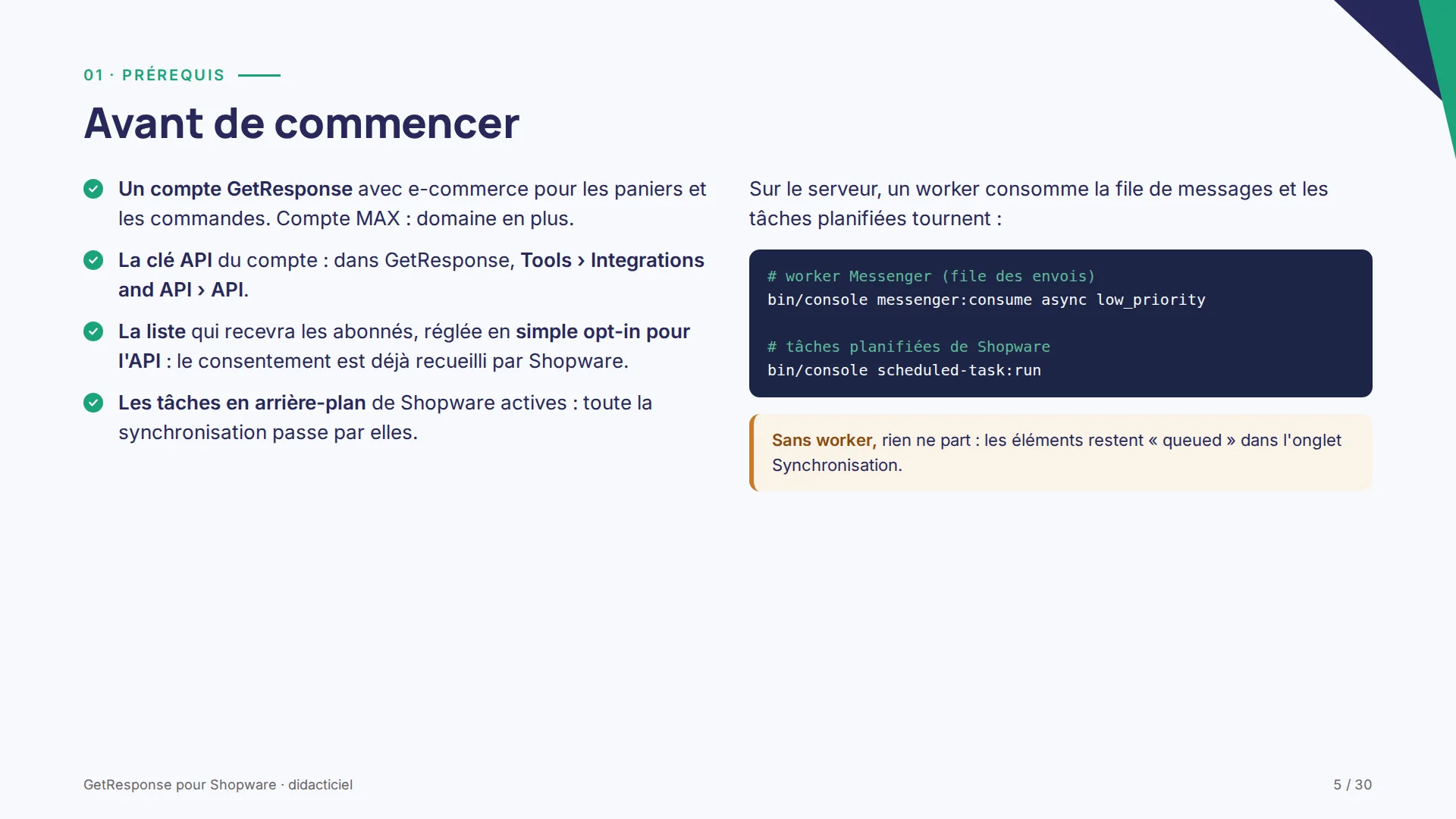
Background tasks running: all sync goes through the Shopware message queue, which must run on your server. Your custom fields: the ID of each GetResponse field, to copy into the matching setting.
Your follow-up automation: in GetResponse, an “abandoned cart” automation that uses the recovery link sent. The public domain: Web Connect reports nothing on a local test address.
The tutorial, slide by slide
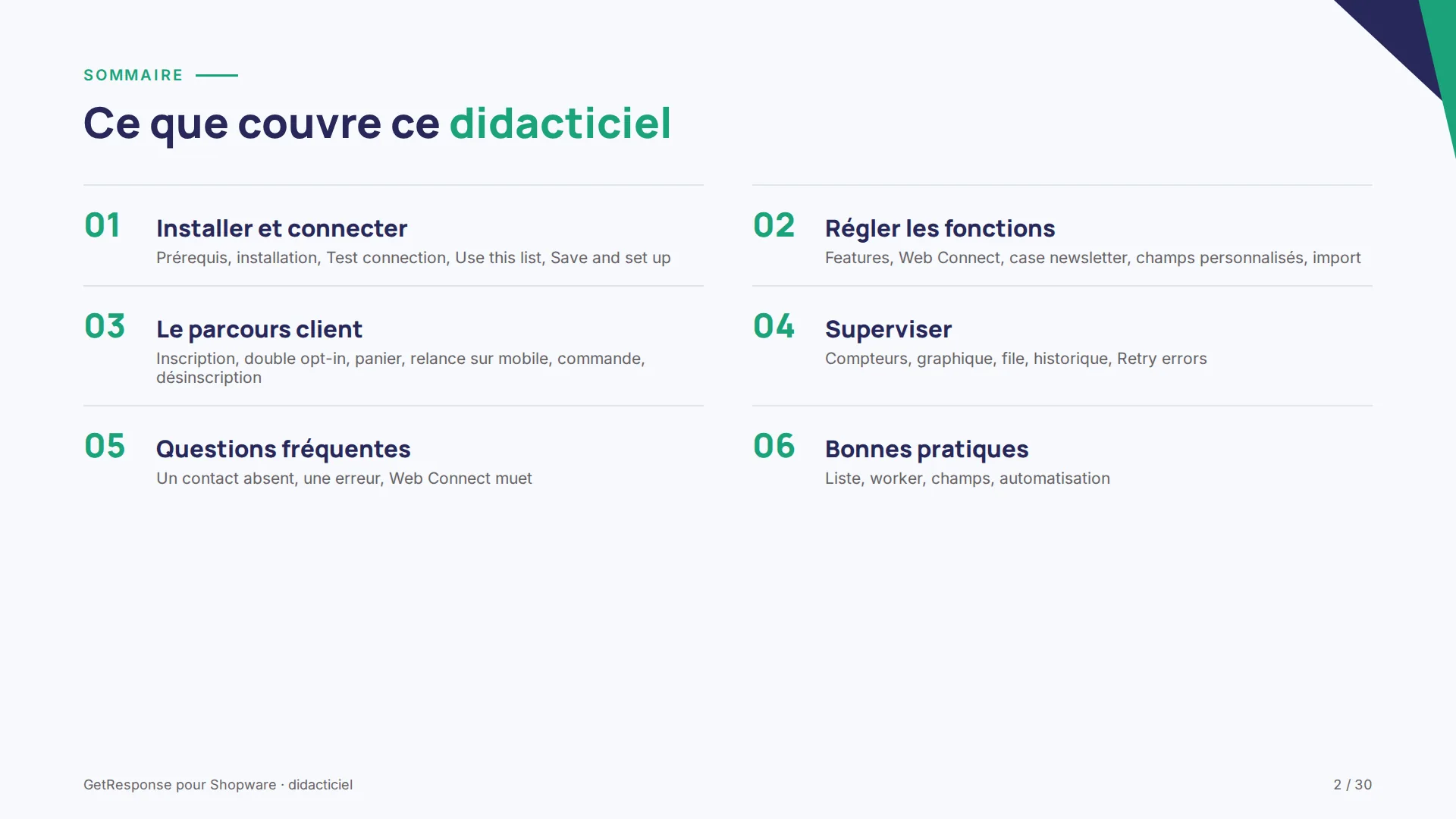
Install and connect, set the features, follow the customer journey, monitor the sync: 30 slides in French, one action per slide. Use the arrows or full screen.





What is the scope of your project?
Tell us about your needs and the tools you use. We can clarify the possibilities, conditions, alternatives and scope of work suited to your project.
Discuss your needs